In this step, you locate an example database, launch a local server attached to the database, and then open a web browser that points to the server.
Your Ansys Dynamic Reporting installation includes an example database in the following location:
v252/CEI/nexus252/examples/documentation_database
Copy the documentation_examples.zip database example file from your install location to a directory where you can read and write.
Unzip the file.
You will see a folder named documentation_examples that contains the following items:
db.sqlite3
nginx
media
nexus.log
view_report.nexdb
The db.sqlite3 file is your Ansys Dynamic Reporting database. The other files are used internally by Ansys Dynamic Reporting.
In a command prompt/shell, or File Explorer, navigate to C:\Program Files\ANSYS Inc\v252\CEI\bin\ on Windows or /ansys_inc/v252/CEI/bin/ on Linux.
Type
adr_template_editor, or double-click the adr_template_editor.bat file.This launches an application that controls the templates for the Ansys Dynamic Reporting reports.
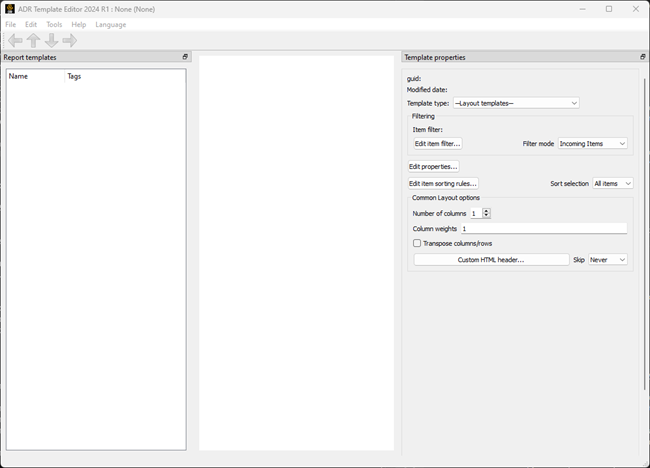
The next step is to use this application to launch an Ansys Dynamic Reporting server and connect it to the example database. On the menu bar, select > .
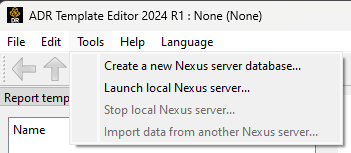
The following dialog opens:
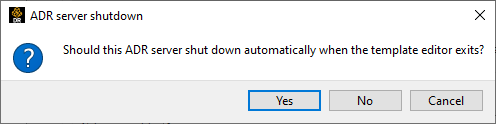
The dialog asks if the server should be shut down when you quit the Ansys Dynamic Reporting Template Editor. If you answer No, the server will remain running and accessible by your web browser even after you quit the application. Click .
The following dialog opens:
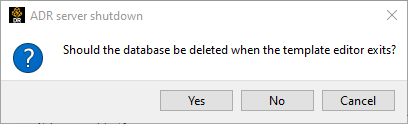
The dialog asks if the dataset should be deleted when the template editor exits. Click .
In the ADR server login, leave the default username and password and click .
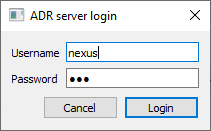
Note: Ansys strongly recommends changing the username and password of the database after launching the server.
Navigate to, and select, the db.sqlite3 file.
Click .
In the dialog, click to use a random open port.
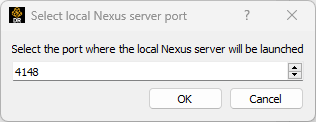
The following dialog opens:
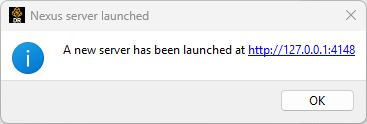
Click the link in the dialog to open a web browser.
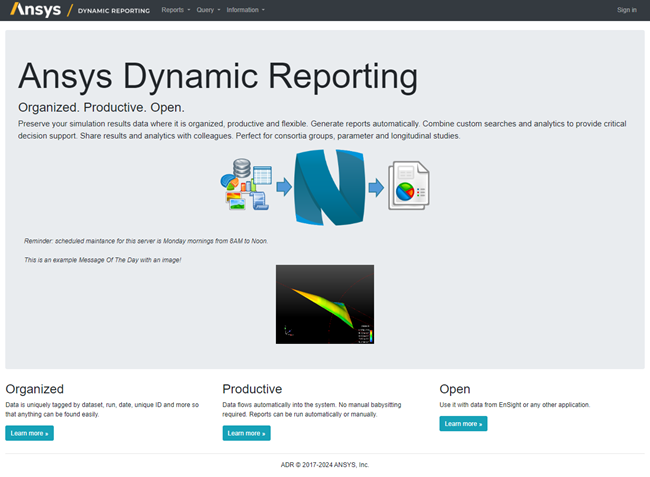
You just started your first Ansys Dynamic Reporting instance. You have successfully started a Nexus server on your machine and connected it to a database. Now you can browse the data that is in this sample database from within your default web browser as shown below.