


Checking out data bundles
If you have access to Advanced Materials data bundles, you can check out a subset of the available licenses when you start Granta Selector.
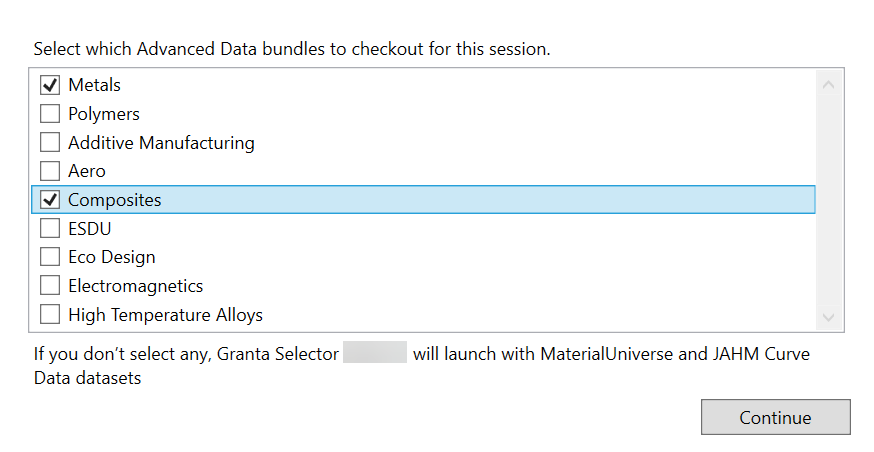
To choose which data bundles to checkout for your session:
-
Deselect bundles you won't use during this session (all bundles are selected by
default) and click Continue.
 Tip: To return to this dialog and change which licenses you have checked out, you must exit and restart Granta Selector.Note: Opening a project file which was created with data bundles you do not currently have checked out will not be flagged by Granta Selector. Parts of the newly-opened project which use data you have not checked out may be missing entirely.