


Managing your custom searches
Navigate to the Custom Searches app to manage your saved custom searches.
-
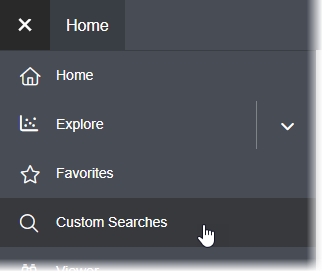
Open the main Application menu and click Custom Searches.
 You can see all of the custom searches you have saved.If you can't see a search that you have saved, it may be because the relevant database is no longer available in your Granta MI system.
 - Use the toolbar options run or delete one of your saved custom searches, or to add a new
search definition.
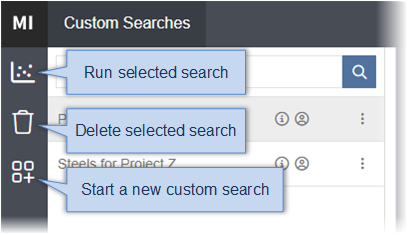
You can also run and delete a search from options on the
 Actions menu for each
item.
Actions menu for each
item. -
To start a new custom search, click
 Create a
new Custom Search. See Creating a custom search.
Create a
new Custom Search. See Creating a custom search.