Creating a custom search
Follow these steps to start a new custom search.
-
If you are starting the new search from within MI Explore, Explore application
toolbar, click
 Create a
new Custom Search.
The settings from the current Explore data view are used to define the database and Table that will be searched, and relevant data presentation options.
Create a
new Custom Search.
The settings from the current Explore data view are used to define the database and Table that will be searched, and relevant data presentation options. -
Define your search criteria using the options in the custom search criteria
panel.
- To find records that contain specific text, enter the search terms in the Text Search field.
- To search records that are in specific Favorites Lists, choose the lists you want to search using the Favorites Lists dropdown.
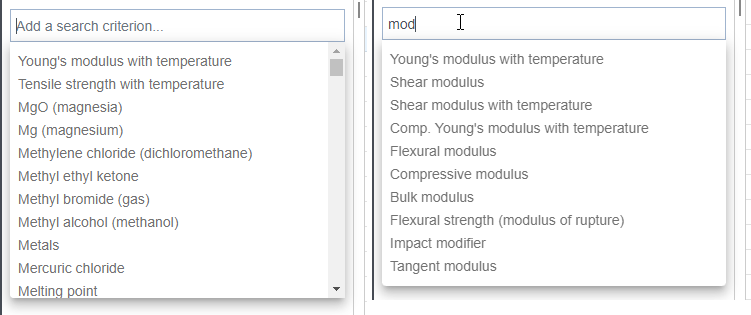
- To search for records that contain specific attribute values, enter the name
of an Attribute in Add a search criterion, and then set the
required values.Tip: As you type, all available Attributes which could match the name you enter are listed. Keep typing to narrow the list down further.
-
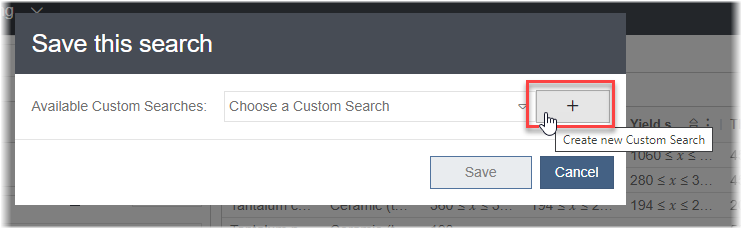
In the Save this search dialog, click the + button.