


Adding Availability Zones
Before project spaces and resources can be created in Ansys Access on Microsoft Azure, a tenant administrator must specify the availability zones from which computing and networking resources can be provisioned. When an availability zone is added to the configuration, it appears in the Availability zone drop-down list when administrators are creating project spaces and resources.
To add an availability zone:
On the main toolbar, click
 to display the
Administration menu.
to display the
Administration menu.In the navigation pane, select Availability zones.
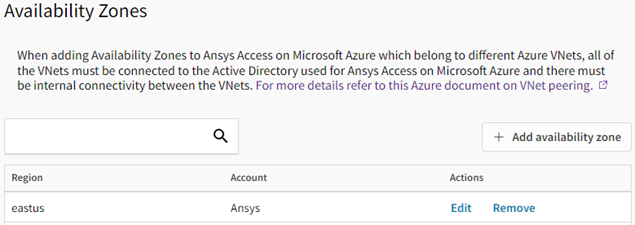
On the Availability zones page, click Add availability zone.
Keep the Add availability zone dialog open while you open another browser tab.
On the new browser tab, go to the Azure portal.
In the Azure portal, search for and select virtual networks. Select your Virtual Network, then select Subnets in the navigation pane to display the subnets for your Virtual Network.
In Ansys Access on Microsoft Azure, you should add an availability zone for each of the subnets listed in your VNet.
In Ansys Access on Microsoft Azure, in the Add availability zone dialog, specify the following settings:
Name. The name of the availability zone as it will appear in Ansys Access on Microsoft Azure.
Account. The Azure account to which the virtual network is scoped.
Region. The Azure region from which resources will be provisioned.
Virtual network resource group. The name of the resource group that holds your Azure resources, as defined in the Resource Manager in the Azure portal. The region in which the resource group is created in Azure portal must be the same region selected in this wizard.
VNet ID. The name/ID of the Virtual Network into which resources will be deployed, as defined in the Azure portal.
Subnet ID. The name/ID of the subnet (within the specified VNet) into which resources will be deployed, as defined in the Azure portal.
Click Add. The availability zone is added to the list and will now be available when administrators create project spaces and resources.
Repeat the above steps to add an availability zone for each subnet in your VNet.