


To copy a material, right-click the material item in the Model manager window and select Copy in the drop-down menu. You can also copy a material by selecting
the material item in the Model manager window
and clicking on the  button. A new material will be created under
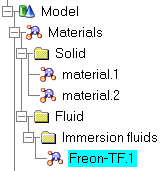
the Model node (Figure 9.56: The Materials Node under the Model Node) with the
name of the material that you have copied and the suffix
button. A new material will be created under
the Model node (Figure 9.56: The Materials Node under the Model Node) with the
name of the material that you have copied and the suffix .1. For example, if you make a copy of the solid material Freon-TF, the new material will have the default name Freon-TF.1. The properties of the new material are the
same as the properties of the material that was copied. The properties
of the new material can be edited as described in Editing an Existing Material.
Note: Any changes you make to the materials in the current project will be saved as part of the current project only. These changes will be available whenever you work on this project, but not for any other project. See Saving Materials and Properties for details on saving material properties to a library.