CreateRectangle (Schematic Editor)

Create a rectangle.

UI Access Draw > Primitive > Rectangle
Parameters
Name Type Description
<RectData> Array

["NAME:RectData"

"x1:=", double, // X position of the upper left

"y1:=", double, // Y position of the upper left

"x2:=", double, // X position of the lower right

"y2:=", double", // Y position of the lower right

"LineWidth:=", double, // the width of the Rectangle border, in meters

"Bordercolor:=", int, // the RBG value of the border color

"Fill:=", int, // the fill pattern id, 0 = hollow, 1 = solid, 2 = NEDiagonal,
3 = OrthoCross, 4 = DiagCross, 5 = NWDiagonal, 6 = Horizontal, 7 = Vertical

"Color:=", int, // the RBG value of the Rectangle fill color

"Id:=", int] // [Opt=New id] Id for this item

<Attributes> Array

["NAME:Attributes",

"Page:=", int] // [Opt=1] Page number (one-based)

[out,retval] string id)

Return Value String with the format SchObj@<schematicID>


The Schematic ID can be found in the Properties window on the Symbol tab when you select the rectangle.
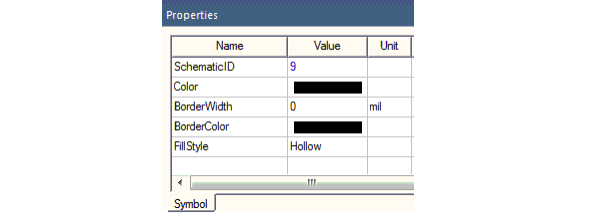
Symbol tab of the Properties window displaying the schematic ID
Python Syntax CreateRectangle(<RectData>, <Attributes>)
Python Example

oEditor.CreateRectangle

(["NAME:RectData", "X1:=", -0.0755449856733525, "Y1:=",

0.0335755491881566, "X2:=", -0.0611831900668577, "Y2:=",

0.0254242597898758, "LineWidth:=", 0, "BorderColor:=", 0, "Fill:=", 0, "Color:=", 0, "Id:=", 31],

["NAME:Attributes", "Page:=", 1])