Clipping the Design
SIwave allows users to isolate and view a specific region of the design by clipping away surrounding geometry. This is useful for focused analysis or simplifying complex layouts.
To clip a design:
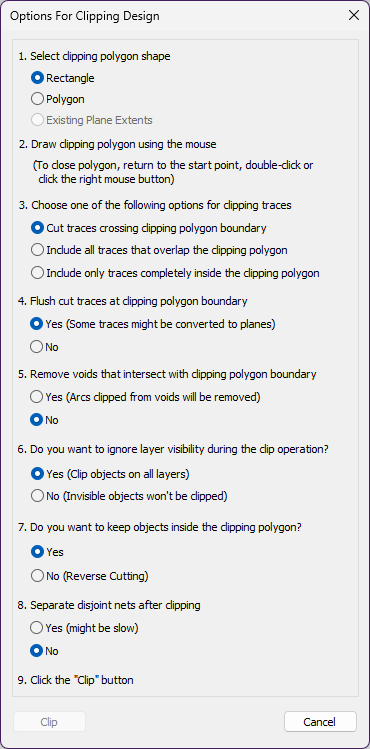
- Click Tools. From the Transformation Tools area, click Clip Design to open the Options For Clipping Design window.
- From the Options For Clipping Design window, do the following:
- Select a clipping polygon shape:
- Rectangle
- Polygon
- Existing Plane Extents — Active only if plane extents are already defined.
- Draw clipping polygon using the mouse:
- To draw a rectangle:
- Click to set the starting point.
- Click+drag to define the rectangle.
- Click, double-click, or right-click and select Done to finish.
- To draw a polygon:
- Click to set the starting point.
- Click+drag to define each segment.
- Click to end each line.
- Double-click or right-click and select Done to finish.
- To draw a rectangle:
- Specify how traces are clipped:
- Cut traces crossing clipping polygon boundary — Traces are trimmed where they intersect the boundary.
- Include all traces that overlap the clipping polygon — Any trace touching the polygon is retained in full.
- Include traces only inside the clipping polygon — Only traces fully enclosed by the polygon are kept.
- Choose whether to flush cut traces at clipping polygon boundary:
- Yes — Traces will be converted to planes and cut flush with the clipping boundary.
- No — Traces will be clipped but not converted to planes.
- Choose whether to remove voids that intersect with clipping polygon boundary:
- Yes — Arcs clipped from voids may be removed.
- No — Voids will be removed from the edge of the clip.
- Choose whether to ignore layer visibility during the clip operation:
- Yes — Clip objects on all layers.
- No — Clip only visible objects on layers.
- Choose whether to keep objects inside the clipping polygon:
- Yes — Objects inside the polygon are retained.
- No — Objects inside the polygon are clipped; only objects outside are retained.
- Choose whether to separate disjoint nets after clipping:
- Yes — Nets split by the clip will be treated as separate.
- No — Nets will remain unified.
- Click Clip to apply the operation or Cancel to close the window without making any changes.