
Model Settings Tab
(Maxwell 2D XY Transient and 2D AC Magnetic Designs Only)
For Maxwell 2D XY transient and 2D AC magnetic designs, torque, flux linkage, back EMF, etc. are scaled by the length provided in the Model Depth field on the Model Settings tab. The scaled results are used to calculate output quantities.
(Maxwell 2D XY Transient solutions with cylindrical rotational motion only)
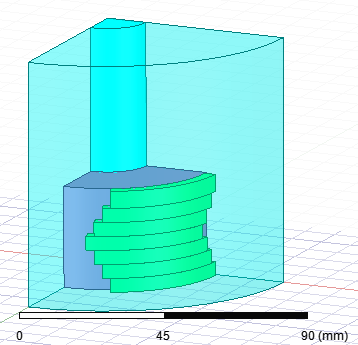
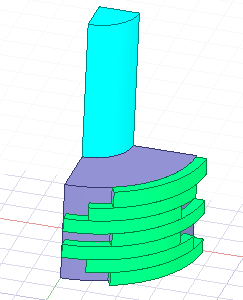
For Maxwell 2D transient designs with cylindrical rotational motion setup, the transient solver can take into account the effects of skewing by using a multi-slice model. It is based on creating multiple 2D models, the model depth of which represents a fraction of the total model length. These 2D models are often referred to as slices.
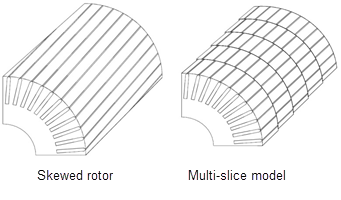
When the skew model is active, the initial angle of each slice is internally offset in such a way that the defined skew angle results.
The same mathematical approach is used to consider rotor and stator skewing. This will only affect the direction of the angle offset in field plots.
The electric degrees of freedom of the multiple 2D models are coupled during the calculation, ensuring that the currents flowing through the conductors of each slice are consistent.
In postprocessing, the integral results of each slice (e.g., torque, losses, flux linkage, induced voltages) are calculated by summation of each slice's result. The torque, loss, and flux linkage results are calculated using the following equations:



where sn is the total slice number, L is the model depth, and Lm is the slice length.
Maxwell 2D transient designs that use the skew model can use MPI HPC for distributed computing of multiple slices.
To enable use of the multi-slice skew model:
- Right-click on Model in the Project Manager tree and select Set Skew Model on the context menu to open the Design Settings window to the Model Settings tab. You can also click Maxwell 2D > Design Settings to open the Design Settings window, then select the Model Settings tab. You can also view and set design settings by selecting the current design, and then in the Properties window, select the tab for the solver.
- Check the Use Skew Model check box to enable the parameter fields below it.
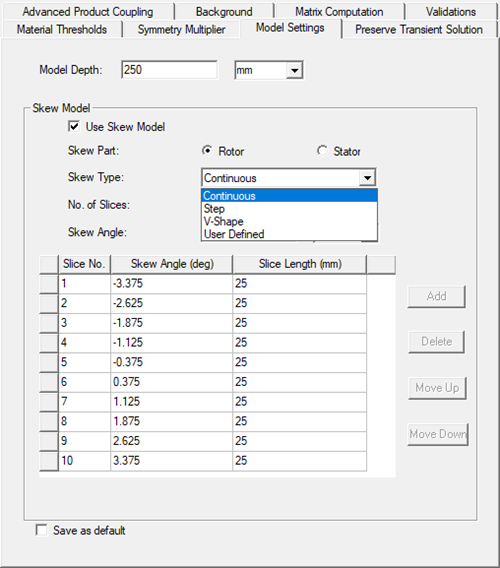
- Select either Rotor or Stator as the Skew Part being modeled. Default is Rotor.
- Select a Skew Type.
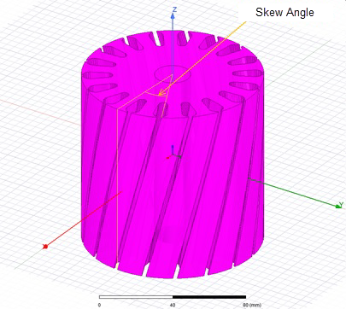
- Continuous (the default) - usually used in induction machines
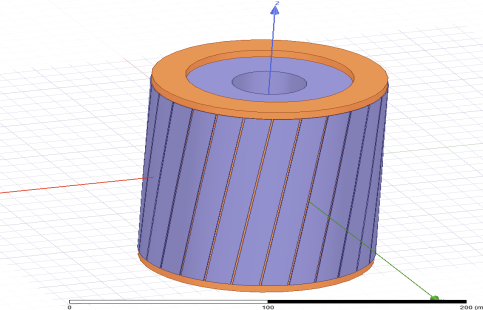
- Step - usually used in PM machines
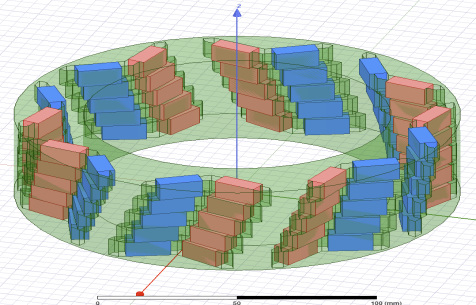
- V-Shape
- User Defined
- Continuous (the default) - usually used in induction machines
- For Continuous, Step, and V-Shape skew types:
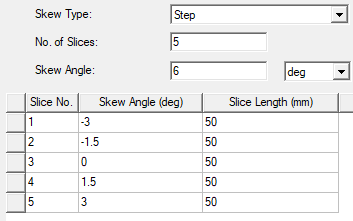
- Enter the No. of Slices that you want the model divided into in the Z-direction. The input must be a positive integer value greater than zero. The default is 5. You can also enter a variable name. (No. of Slices is not used for the User Defined skew type and is grayed out.)
- Enter the Skew Angle and its unit. The Skew Angle represents the mechanical angle between the two axial ends of the stator/rotor core's active length (not between two adjacent slices). Valid entries are non-negative real numbers in the range of 0 to 180 degrees inclusive (or equivalent values in units of measure such as radians). The default value is 5 degrees. You can also enter a variable name.
The Skew Angle and Slice Length values for each slice are calculated by the modeler and are listed in the (non-editable) table.
- For the User Defined skew type:
- Select a Skew Angle Unit, which will be applied to the Skew Angle values you enter in the table.
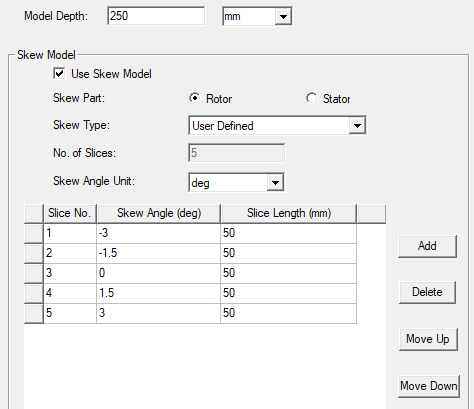
- Enter the desired Skew Angle and Slice Length values for the selected skew part. If the total of the Slice Length values differs from the Model Depth value, a message informing you of the difference will display in the Message Manager. Add, Delete, Move Up, and Move Down buttons allow you to control the table row entries.
- Select a Skew Angle Unit, which will be applied to the Skew Angle values you enter in the table.
- When finished, click OK to close the window.