Creating a Fields Summary
A fields summary computes basic or derived field quantities and displays the data in a table in the Fields Summary dialog box. Currently, all results are reported in SI units (m, W, °C).
The temperature, heat flux magnitude, imported surface and volume EM loss densities, imported heat transfer coefficients, and mapped thermal conductivities (for layout components) that are available for plotting in reports and fields overlays are also available in the Fields Summary dialog box. Additionally, the following derived quantity is only available in the Fields Summary dialog box:
- Heat Flow Rate: This derived quantity is applicable to Convection boundaries, Contact, and faces (specified in face selections). It integrates the normal component of heat flux over the area of the selected faces or boundaries to determine the Total heat rate (in watts) flowing through the area.
The minimum (Min), maximum (Max), Mean, and standard deviation (StDev) values are reported along with the Area/Volume (of specified faces or solid objects, respectively). Additionally, Normal unit-vector components are reported for specified flat faces and flat boundaries. If multiple faces are included in a single boundary or calculation, the normal vector is only reported if all faces are flat and parallel and if the sign of the normal vector is the same.
Fields Summary Procedure
- Use one of the following two methods to begin creating a fields summary:
- From the IcepakFEA menu, select Fields > Create Fields Summary.
- In the Project Manager, right-click Field Overlays and select Create Fields Summary from the shortcut menu.
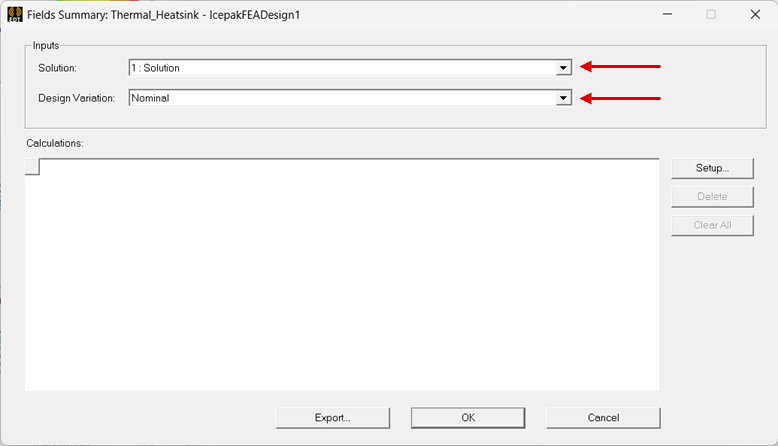
- Under Inputs in the Fields Summary dialog box, select the Solution and Design Variation for which you want to create a fields summary.
- Optionally, for transient solutions, the dialog box also includes a Time drop-down menu. Choose the time for which to summarize the results:
- In the Setup Calculation dialog box, select the Entity Type and Geometry Type.
- Entity Type: Select Boundary (thermal boundary or excitation) or Object (geometry)
- Geometry Type: Select Volume or Surface
- Only thermal boundaries and excitations that are assigned to a solid object are available under Entities (for example, Temperature, Heat Generation, EM Loss).
- Though Convection boundaries can be assigned to objects, they are actually assigned to all faces of a selected assignment object, not the volume, and are therefore not available for volumes in the Field Summary dialog box.
- Similarly, though Rotating Fluid boundaries are assigned to objects, the assignment also includes a face (the Band Surface). Therefore, this boundary type is also not applicable to volumes in the Field Summary dialog box.
- Only thermal boundaries and excitations that are assigned to faces are available under Entities (for example, Contact, Convection, EM Loss, Heat Flux).
- All solid objects (selecting a solid object is equivalent to selecting all of its faces)
- All shell objects
- Global and relative coordinate system planes (XY, YZ, and XZ)
- Face selections
- Select the Entity and Quantity you want to display in the fields summary.
- Boundary: Select one or more boundaries or excitations.
- Object and Volume: Select one or more solid geometry objects.
- Object and Surface: Select one or more solid or shell objects, planes, or face selections.
- Heat Flow Rate, unlike other quantities, is not a field result that is directly available for plotting or overlaying on the model. Rather, it is a calculated quantity based on heat flux results. Specifically, it is the integration of the surface-normal heat flux components along the specified boundaries, faces, or planes. Unlike heat flux, which is the thermal power flow per unit area, Heat Flow Rate is in units of power.
- Only quantities that produce nodal values are available (for example, Temperature, Mag_HeatFlux, Volume Loss Density).
- From the Add drop-down menu, select Add As Single Calculation or Add As Multiple Calculations to add rows for data.
- Add As Single Calculation adds one row displaying the quantity for all selected entities collectively.
- Add As Multiple Calculations adds a separate row of the selected quantity for each selected entity.
- Optionally, click Export (or Apply and Export, if the settings haven't been saved yet) to open the Save As dialog box. Then, save a comma-separated values (.csv) file of the fields summary data to the desired folder on your computer or network.
- Choose one of the following two actions:
- Click OK to save the settings and close the Fields Summary dialog box. When you open the dialog box again, the data for the saved settings is displayed.
- Click Cancel to close the Fields Summary dialog box without saving the settings or summary.
The Fields Summary and Setup Calculation dialog boxes are displayed.

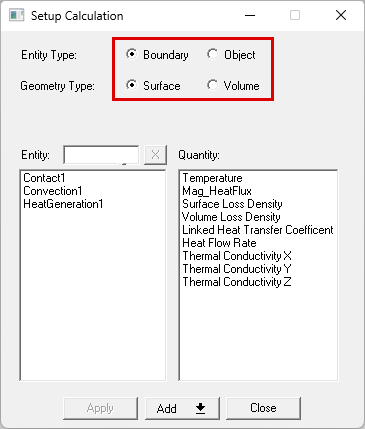
When Boundary and Volume are selected:
When Boundary and Surface are selected:
When Object and Surface are selected, the following Entities are available:
Depending on your choices in step 3, complete one of the following three actions to define the Entity:
Then, choose the Quantity to summarize.
When Surface is selected:
When Volume is selected:
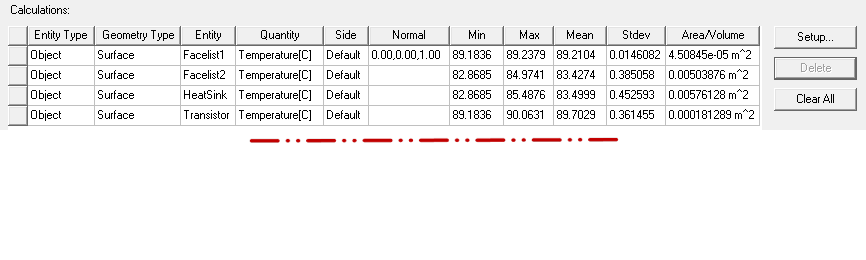
You can double-click a row in the fields report to open the Setup Calculation dialog box. You can then edit the row's definition and click Apply to change it.
If the Setup Calculation dialog box has been closed and you want to add another summary, click Setup to reopen it.
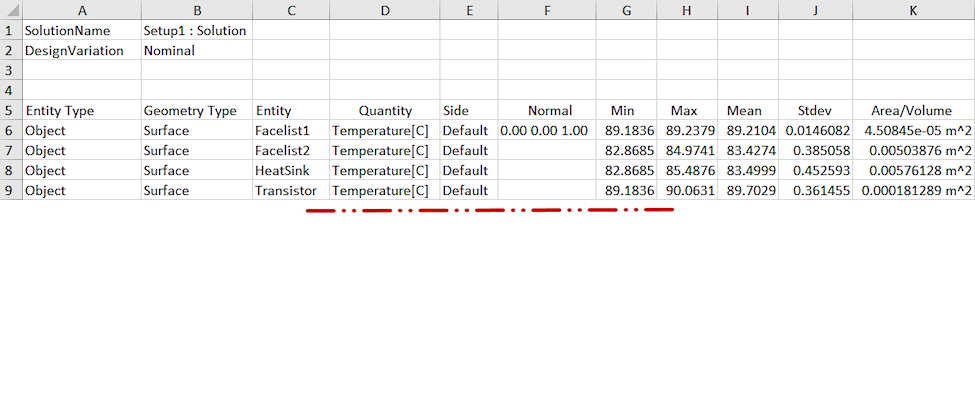
The .csv file looks like the following image when opened in a spreadsheet program, such as Excel (with column widths and text alignment adjusted):