
Adding a Layout Component
This topic outlines the procedure for adding layout components to an IcepakFEA design. See the parent topic, Layout Components in IcepakFEA, for information on the purpose of these components and the IcepakFEA design types in which they are supported.
The following instructions assume that an HFSS 3D Layout design, or an exported layout component file, of a printed circuit board (PCB) to be analyzed already exists:
- In the Project Manager, right-click 3D Components and access the Browse Layout Component flyout menu:
- Import .aedbcomp File: Choose this option if you have exported an HFSS 3D Layout as a single-file Layout Component (*.aedbcomp).
- Browse to the location of the desired *.aedbcomp file.
- Select the file.
- Click Open to complete the component source file selection.
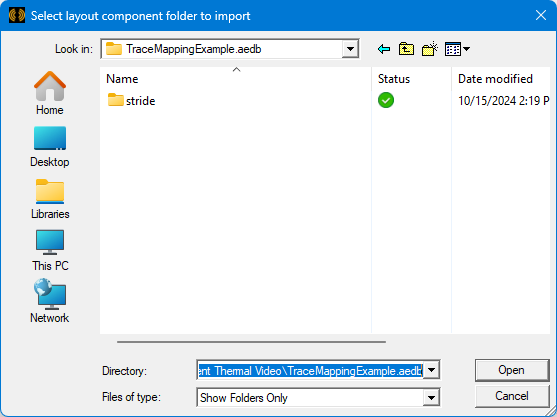
- Browse to Project .aedb Folder: Choose this option to specify the location of an Ansys electronics database folder (*.aedb) to use in the creation of the layout component. This folder is where HFSS 3D Layout design filesets are stored.
- Browse to the *.aedb folder that contains the desired layout.
- Double-click the folder to open it.
- Click Open to complete the component source folder selection.
- Insert Existing EDB Definition: This option will only be available if you have already imported at least one layout definition into the current project.
- Perform the following steps within the General tab:
- Optionally, change the Component Name from its default value (LCx, where x is an automatically incremented serial number).
- Choose the Target Coordinate System on which to base the layout component placement. Relative coordinate systems, defined in the target design prior to starting the Browse Layout Component process, appear in the drop-down menu in addition to the Global CS.
- Select the Boundary tab. The contents of this tab depend on the solution type of the active IcepakFEA design.
- For thermal solutions, specify the Power Dissipated (as heat) by the PCB using one of the following two methods:
- If the source HFSS 3D Layout design includes a DCIR or AC analysis setup, and you wish to use the results of that solution as a true, nonuniform heat source for the layout component in the IcepakFEA–thermal solution:
- DCIR: Import power maps from an SIwave DCIR (direct current, internal resistance) solution setup. See Computing DC IR Simulation in HFSS 3D Layout for more information.
- AC: Import power maps from an AC Simulation in HFSS 3D Layout.
- Alternatively, if you wish to specify the power dissipation for the PCB numerically:
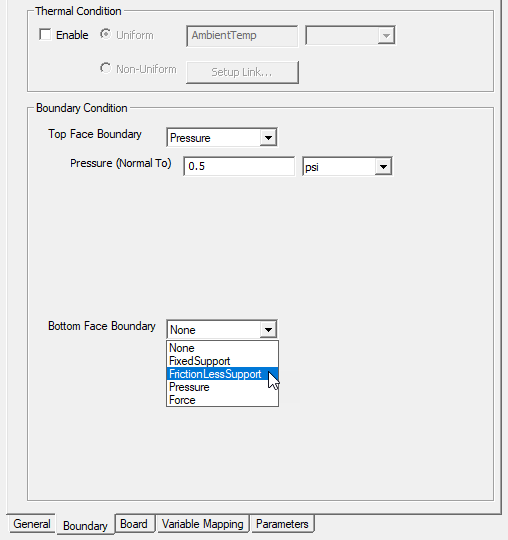
- For structural solutions, you can Enable a Thermal Condition that either applies a user-specified, Uniform temperature to the layout component or imports Non-Uniform temperatures from a separate thermal solution of the same layout component.
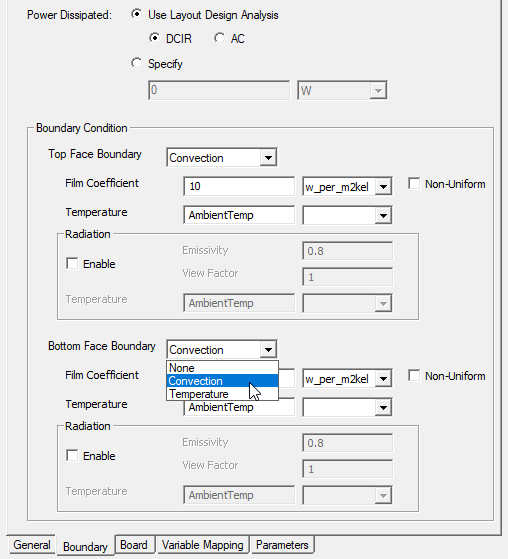
- Optionally, in the Boundary Condition section, assign boundaries or excitations to either the top, bottom, or both faces of the layout component. Choose the desired boundary condition from the Top Face Boundary and Bottom Face Boundary drop-down menus. The default selection for both faces is None. The other available choices depend on the solution type.
- Steady-State Thermal and Transient Thermal solutions have the following Boundary Condition choices:
- Convection: Specify the type of convection Film Coefficient (Uniform or Non-Uniform), its value (if Uniform), the Temperature of the ambient environment, and choose the units of each value from the provided drop-down menus. Optionally, choose whether or not to Enable Radiation.
- Temperature: Specify the Temperature of the surrounding environment for convection purposes and select its units from the adjacent drop-down menu.
- Radiation: Optionally, select Enable to include radiative heat transfer effects along with convection.
- Structural solutions have the following Boundary Condition choices:
- Fixed Support: Prevent X, Y, and Z translation of the face.
- Frictionless Support: Prevent normal translation of the face but allow in-plane motion.
- Pressure: Apply a uniform pressure normal to the face (in units of force per unit area). Positive Pressure values push into the face; negative values pull the face outward. Choose the units from the adjacent drop-down menu.
- Force: Apply three components of uniformly distributed force to the face. Type the desired values in the Force X, Force Y, and Force Z text boxes and choose the units from the adjacent drop-down menus.
- Select the Board tab.
- Specify the metal fraction map's Resolution using one of the following two methods:
- Drag the slider left (coarser) or right (finer) to specify the number of divisions along the shorter dimension of the PCB, whether in the X or Y direction.
- Select Custom and specify the number of Columns and Rows to divide the board into for mapping purposes.
- Choose the desired Extents option:
Note:
If the board contains cutouts, they are modeled as non-solve-inside objects (representing voids in the model), and no material assignment applies.
- Bounding Box: The extents of the source layout drawing
- Polygon (if available): A polygon or closed polyline shape indicating the PCB perimeter (when included in the Outline layer of the layout)
- Optionally, choose an alternative Via Hole Material.
Note:
The default material for via holes is copper.
- Select the Variable Mapping tab.
- If there are no applicable variables in the source layout, no variables will be listed in this tab, and you can skip to step 7.
- When applicable variables are present in the source layout, they are listed on this tab, and the following actions are possible:
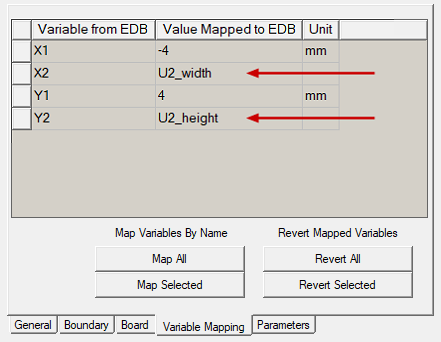
- Optionally, you can substitute a different numerical value or substitute variables (instance parameter names) for the numeric values in the Values Mapped to EDB column. This substitution is particularly useful if you wish to include multiple instances of the layout component in a single design and have geometry variations between the instances. See Instance Variation for more information. Additionally, you can use variables to manipulate the geometry during an optimization or parametric analysis.
- Alternatively, you can use the following buttons to automate the variable mapping task or to revert to the original values:
- Map All: For all source layout variables, this command creates instance parameters, each with the same name and value as the source variable.
- Map Selected: For selected layout variables, this command creates instance parameters, each with the same name and value as the source variable. Before clicking the Map Selected button, click a table row to select a variable to map. Ctrl+click to select multiple variables or to toggle the selection state of a row.
- Revert All: For all variables, this command reverts the Value Mapped to EDT entry to the original source layout value.
- Revert Selected: For selected table rows, this command reverts the Value Mapped to EDT entries to the original source layout values. Before clicking the Revert Selected button, click a table row to select a variable to revert. Ctrl+click to select multiple variables or to toggle the selection state of a row.
- Select the Parameters tab.
- Optionally, toggle the selection of Map instance parameters to variables as preferred.
- If the "Map instance parameters to variables" option is selected, choose either Design or Project from the adjacent drop-down menu to specify the type of local variable to create.
- Click OK to close the Insert Layout Component dialog box and insert the component.
- Optionally, to change the visualization characteristics of the layout component, do the following:
- Under 3D Components in the Project Manager, select the <layout_component_name>.
- In the docked Properties window, select the Visualization tab
- If you visited the Object Attributes dialog box, click OK to apply your settings and to close the dialog box.
- In object selection mode, select all layers of the layout component and assign a length-based mesh operation on the selection. Set the maximum element length to be three to four times the width or height of the grid cells, whichever is the lesser.
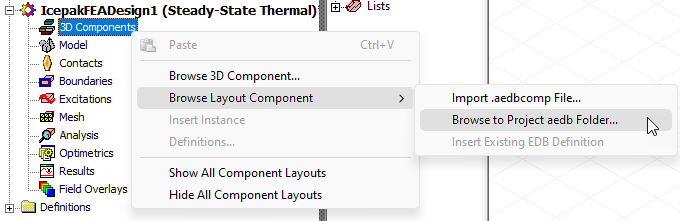
Then, choose one of the following three commands and follow the associated instructions:
The Select layout component file to import dialog box appears:

The Select layout component folder to import dialog box appears:
If a layout component definition has previously been added to the current project, the component will be identified by the project name with a serial number appended. It will be listed in the flyout menu even if the component has since been deleted from the active IcepakFEA design:
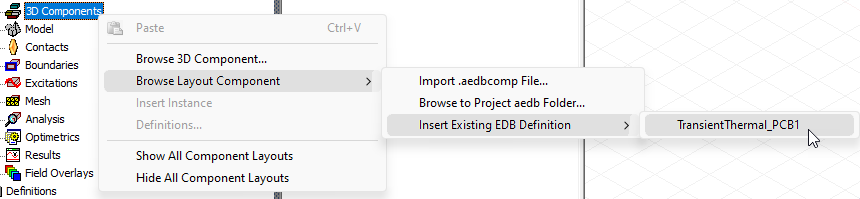
You can select the component from this flyout menu to re-add it to the design. If you were to select it while the component already exists in the design, a duplicate layout component, overlapping the original one, would be added. Therefore, avoid doing so unless you want a duplicate component and plan on moving it to a separate location. You can also define a relative coordinate system (RCS) and choose to place the new component according to the RCS instead of dropping it on top of the previous layout component and then moving it.
Unused layout components that remain in the flyout menu can be removed by editing the Components Library. To do so, right click Components under Definitions in the Project Manager and choose Edit Library from the shortcut menu. Select one or more rows of the Components table and click Remove Component(s). Click Yes to confirm removal for each selected component entry. Finally, click OK to exit the Edit Library dialog box.
The Insert Layout Component dialog box appears with its General tab displayed:
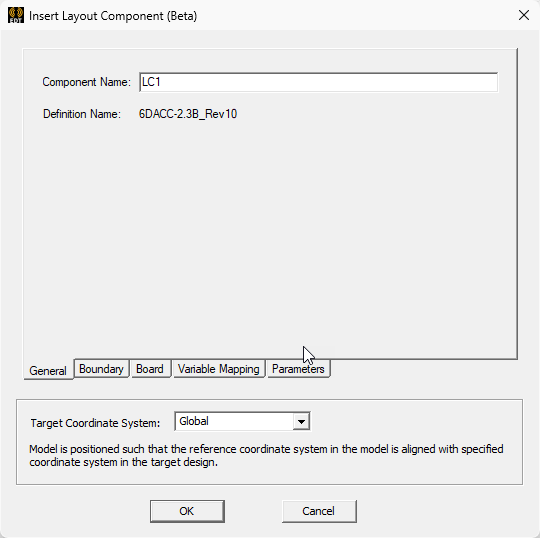
The Target Coordinate System setting is visible regardless of which dialog box tab is currently selected.
For Steady-State Thermal or Transient Thermal solutions, the Boundary tab contains the following settings:
For Structural solutions, the Boundary tab contains the following settings:
Specify the desired boundary options as follows:
Select Use Layout Design Analysis. Then, select the type of source analysis:
When a layout component is added to an IcepakFEA design, results from any analysis setups in the source design are not imported. The source layout analysis will automatically be run first to obtain the power dissipation values to apply in the IcepakFEA solution. Then the IcepakFEA design will be solved.
When adding an SIwave DCIR solution setup in the source HFSS 3D Layout design, you do not have to select the option, Export power distribution for use in Ansys Icepak and IcepakFEA. This option appears in the Compute DC Current and Voltage Distribution dialog box. The process of linking to the source layout automatically handles all required options and parameters.
Select Specify, type the desired total power value in the provided text box, and choose the units of power from the adjacent drop-down menu.
In this case, the specified power is distributed uniformly throughout the PCB volume. This power can be used to represent the heat input of all mounted components; only smaller, low-power electronic components; or left at zero to include only heat generation you will later assign to PCB-mounted electronic components. For the most accurate results, heat from primary sources should be applied locally, (by assigning heat generation to the mounted components or heat flux to an overlaid shell object at their mounting locations).
When choosing the Non-uniform option, you must set up a link to the source Steady-State Thermal or Transient Thermal solution (either IcepakFEA or Icepak). Except for the selection of assignment objects, defining a thermal condition is the same for layout components as for general solid objects. For transient source solutions, the temperatures are taken from the final timestep. See Thermal Condition and Setup Link: How to Set Up Temperature Linking for more information.
When choosing the Non-uniform option, you must also set up a link to a source Icepak design containing the same layout component. For transient solutions, the heat transfer coefficients will be taken from the final timestep.
For more information, see Convection Boundary and Setup Link: How to Set Up the Icepak Link. However, be aware that the option to Enable Radiation is only applicable to layout components. This feature is not mentioned in the context of convection boundaries assigned to general objects or faces.
If you choose to enable radiation, specify the Emissivity of the PCB surface, the View Factor between the PCB and surrounding radiation path, and the fixed Temperature to which the layout component surface radiates heat.
A view factor of 1 means that radiation can occur unobstructed in all directions (that is, 100% of the surface area fully participates). Use a non-zero value less than 1 when radiation is partially obstructed (0 < View Factor ≤ 1).
The global AmbientTemp variable is the default fixed temperature to which the layout component surface radiates heat. You can also specify a numeric value or user-defined variable, as needed.
When choosing to import Non-Uniform film coefficients from Icepak, and if radiation was enabled in the source Icepak solution setup, do not enable radiation in the IcepakFEA LC definition. Doing so would cause redundant radiation effects to be included in the solution, exaggerating the radiative effect. However, if the Icepak setup did not have radiation enabled, you can enable it in the target IcepakFEA LC definition to account for radiative heat transfer in addition to the convective transfer.
For either boundary type, if you are keeping the default AmbientTemp variable or using a different variable, you need not select the temperature units from the adjacent drop-down menu. In either of these cases, the units are specified as part of the variable definition.
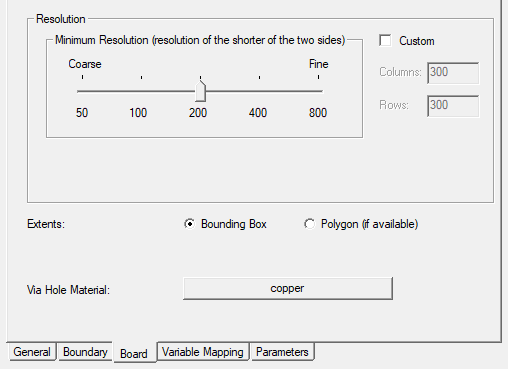
Specify the desired board options as follows:
The resolution along the longer dimension is proportional to the specified slider value. Specifically, it is an integer calculated from the slider value times the long/short dimension ratio of the PCB. Therefore, each cell will always be approximately square (width ≈ height) when using the slider.
Columns refers to the number of divisions along the X direction, and Rows refers to the divisions in the Y direction, regardless of which dimension is larger.
See the "Important" guidelines in the Layout Components in IcepakFEA topic for resolution recommendations.
The HFSS 3D Layout drawing on which a layout component is based will not necessarily have its dielectric layer geometry extended to the perimeter of the board it represents. A polygon or closed polyline is typically drawn to indicate the outline of the board. In the HFSS solution, a specified fill material fills any vacant space in the layout.
Using the Extents option, you can choose whether the board in the IcepakFEA design is limited to the extents drawn in the original layout or extends to the outline polygon (assuming one is available).
What appears at this point depends on whether variables are defined in the source layout and are applicable to the current solution type. Choose one of the following two actions:
In-place definition of new variables is supported. If you specify a previously undefined variable name, the Add Variable dialog box will appear when you press Enter or advance to a different table cell so that you can define its unit type, units, and initial value.
In the following example, two of the four variables in the source ECAD database (X2 and Y2) have had instance parameters substituted for the original numeric values:
In the Parameters tab (next step), you can choose whether to create local Design or Project variables from instance parameters. For the latter type, the name will be automatically prefixed with a dollar sign ($) when the local variable is created. Therefore, you do not have to manually include a dollar sign at the beginning of the name you type.
If the source design contains no applicable variables, or if you chose not to define local instance parameters in the Variable Mapping tab, nothing will be listed in the Parameters tab. Skip to step 7.
Otherwise, when you have defined local instance parameters in the Variable Mapping tab, they will be listed in the Parameters tab along with their values and units.
The following figure shows the two instance parameters that were substituted for numeric values (as shown in the preceding figure):
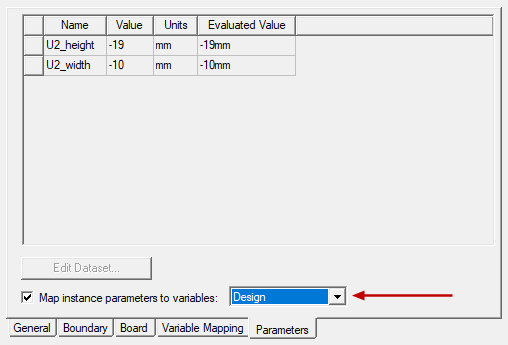
You can choose whether to keep these mapped variables only as instance parameters or to also create local Design variables or Project variables, as follows:
If this option is cleared, mapped geometry variables are exposed in the IcepakFEA design only as layout component parameters, and you can vary the values between multiple instances of the component in the same design.
Alternatively, if you also wish to include the mapped variables as IcepakFEA design or AEDT project variables, select this option and choose the desired local variable type (next substep). Local design or project variables are needed if you wish to expose and manipulate the values in a parametric or optimization analysis. Otherwise, if you only need to vary a parameter for each inserted instance of a layout component, local design or project variables are not necessary.
As previously stated, the variable name will be prefixed with a dollar sign ($) automatically when you choose to create local Project variables.
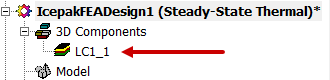
The layout component name appears under 3D Components in the Project Manager. An instance number ("_1" in this case) has been appended to the component name:
Additionally, if your component definition included Power Dissipated (thermal solutions) or a Thermal Condition (structural solutions), excitations will appear in the Project Manager for each PCB layer:

See Visualization Tab for details about the visualization options and object attributes.
Typically, you need not enforce the maximum element length inside the selection. For the majority of printed circuit boards, there will only be one element through the thickness of any layer due to their thinness.
Two-Way Coupling
Two-way coupling can be added to IcepakFEA designs with layout components linked to HFSS 3D Layout designs with AC or DC loss. See Two-Way Coupling for more information. Two-way coupling allows temperatures to be fed back to a source design, in which another solution iteration is then performed. Temperature-dependent materials in the source design are affected by the fed-back temperature distribution, thus altering the results of the source solution (and likely changing the EM loss results). A solution controller coordinates the iterative process, next running another iteration of the thermal solution, feeding back the updated temperature distribution to the source design, and so on. The iterative process continues until the user-specified number of coupling iterations has been completed.
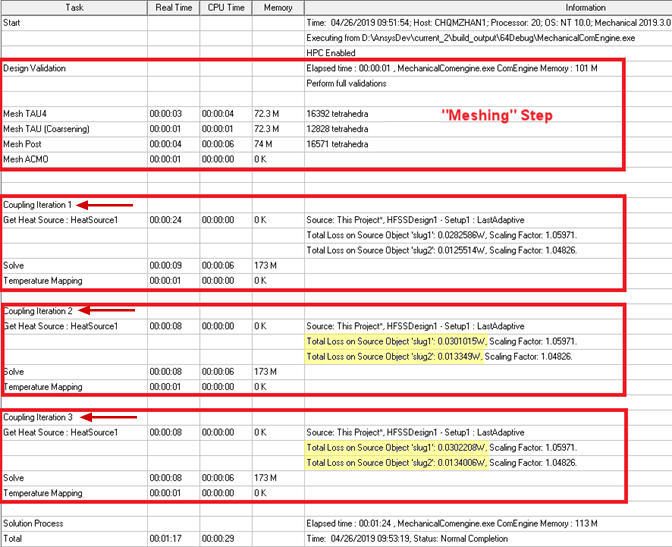
You can judge whether you've run a sufficient number of coupling iterations by comparing the total loss magnitudes between the last two iterations (highlighted in the preceding image). Convergence occurs when the EM losses and resultant temperatures stabilize (that is, when the variation in these results between adjacent iterations becomes insignificant). However, in certain cases a solution may not stabilize, and you may experience an oscillatory or divergent (runaway) solution. If the total EM losses oscillate (that is, continue to repeat an increase/decrease cycle), the solution still may be acceptable if the magnitude of the change is relatively small.