Field Overlay and Animation
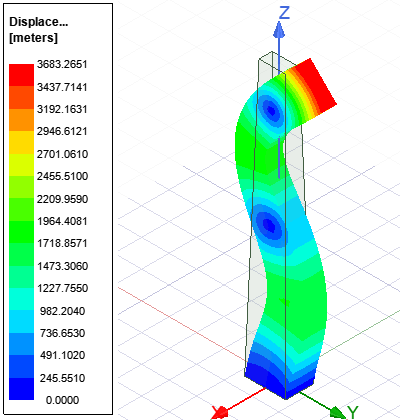
In modal analyses, a field overlay provides a visual indication of the mode shapes by overlaying a color contour or vector plot of the geometry's displacement on a deformed view of the model. The absolute displacement magnitudes have no meaning in modal analyses because they are not scaled to any particular force, acceleration, or power spectral density excitation. Only the relative displacements are significant because they indicate the shape of the natural vibration modes. Since the displacement magnitudes are arbitrary, and may well be disproportionate to the model size, the deformation is scaled to produce reasonable deformed shapes.
To Produce a Displacement Magnitude or Displacement Vector Overlay and Animate it:
- Select the Faces or Objects on which you want to overlay displacement results.
- Access the Create Field Plot dialog box using one of the following three methods:
- Using the menu bar, click IcepakFEA > Fields > Plot Fields > Mag_Displacement or Displacement_Vector.
- Right-click Field Overlays in the Project Manager and choose Plot Fields > Mag_Displacement or Displacement_Vector from the shortcut menu.
- Right-click in the Modeler window and choose Plot Fields > Mag_Displacement or Displacement_Vector.
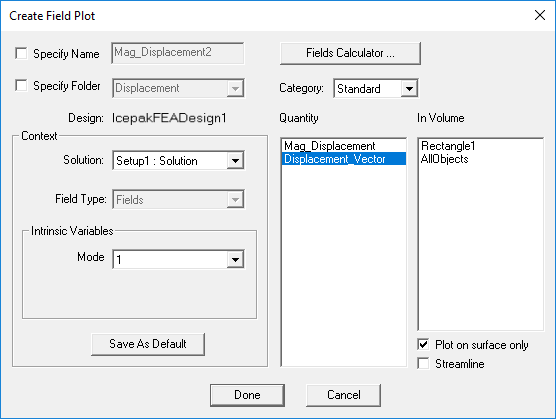
- Specify the Solution and the Mode to plot from the provided drop-down menus.
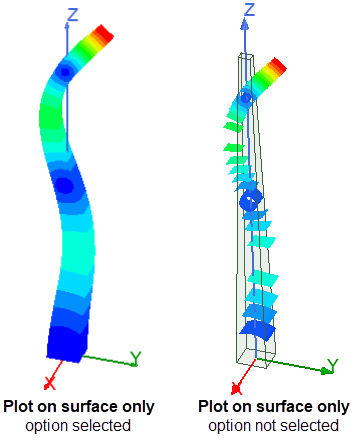
- For the best rendering of displacement results, ensure that the Plot on surface only option is enabled (this is the default setting).
- Click Done.
- Optionally, under Field Overlays > Displacement in the Project Manager, right-click Mag_Displacementx or Displacement_Vectorx and choose Animate from the shortcut menu.
- Optionally, adjust the number of animation Steps. A higher number of steps produces a smoother animation.
- Click OK.
- Use the animation controls to stop, restart, reverse, increase/decrease the speed, or to go to a particular animation frame.
- Click Close when you're done viewing the animation.
- Optionally, to display the deformed shape for a different mode, select Mag_Displacementx or Displacement_Vectorx under Field Overlays > Displacement in the Project Manager.
- Change the Mode number and press Enter.
When this option is selected, the displacements are rendered on the model surfaces only. If you deselect this option, the displacements are rendered for the full model volume, but they are rendered as IsoValSurfaces. Rather than the full volume of the model being rendered in varying colors, surfaces connect points of the same displacement value and are rendered for each scale division specified in the plot settings (15 values by default). This plot style enables you to see the results on the interior of solids without creating clipping planes. The following displacement magnitude images compare the two plot styles:
The following field plot setup example shows the displacement magnitude for Mode 1 and plots only on the surface of the selected object or objects. These settings would produce an overlay similar to the left side of the preceding image.
The overlay and displacement legend appear on the model in the Modeler window.
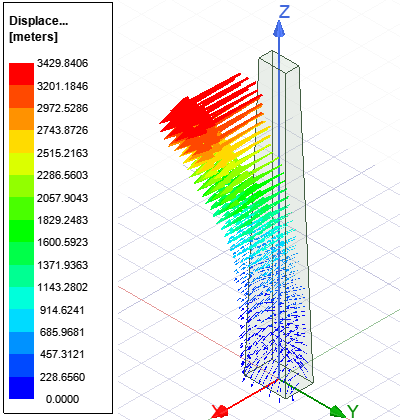
The following image is an example of a Displacement_Vector overlay:
The Create Animation Setup dialog box appears.
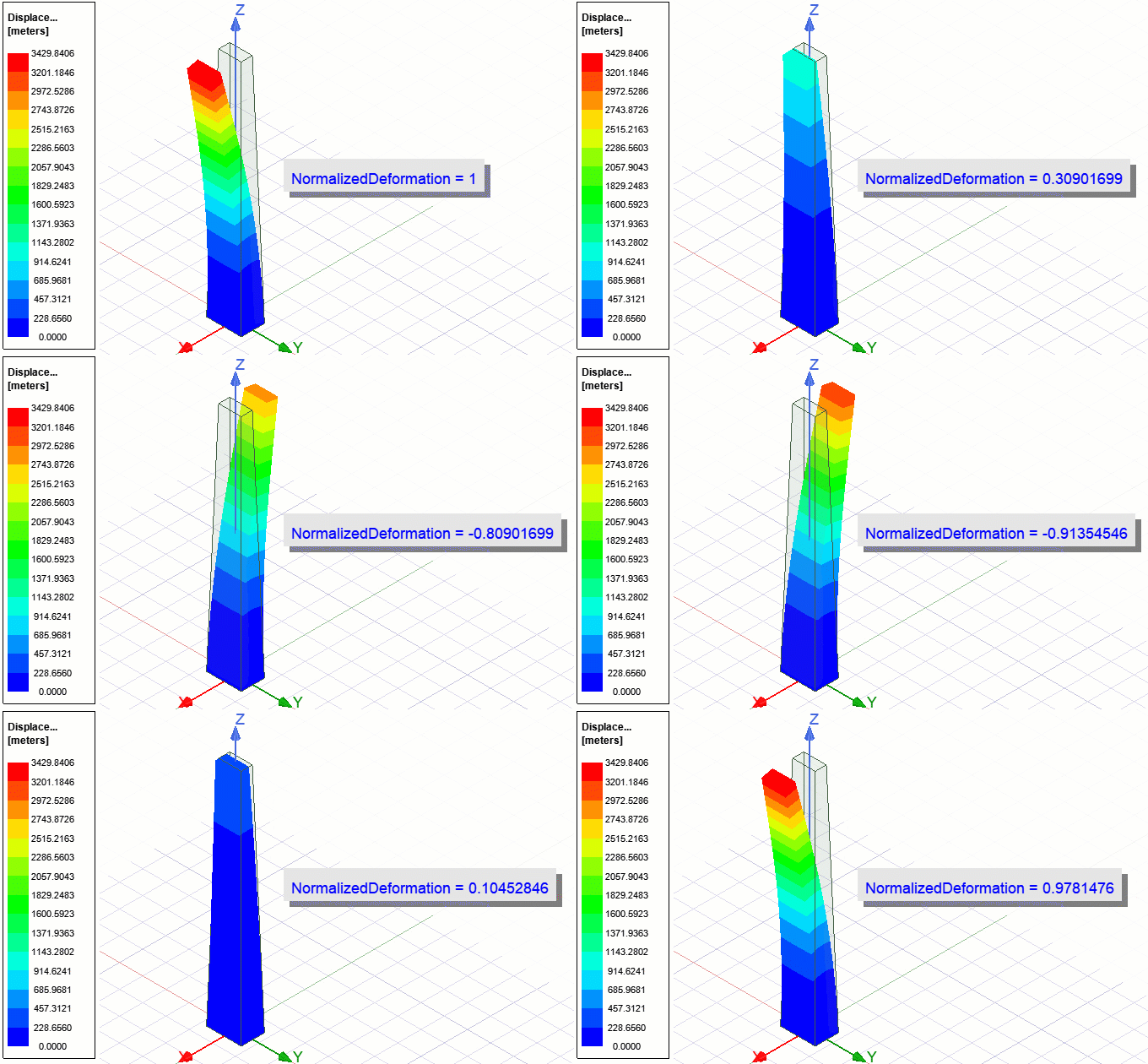
The default Sweep type setting (Harmonic) is best suited for modal displacement animations as it most faithfully demonstrates the complete 360° vibration cycle. For example, the maximum deflection in one direction progressively decreases, crosses through zero, and then continues until the same maximum magnitude is achieved in the opposite direction. Then, the animation continues to show the reverse progression back to the original calculated displacement.
The Animation dialog box appears and the displacement results are animated.
The following figure is the animated Mag_Displacement overlay:
The overlay properties appear in the docked Properties window.
The displacement overlay is updated to display the selected mode.
The following image shows the displacement magnitude for the eighth mode of the sample model: