
Running a Script
Electronics Desktop scripts can be run from within the software or from the command line.
Within Electronics Desktop
To run scripts in Electronics Desktop:
- Click Tools > Run Script, or select the Automation tab and click the Run Script icon:
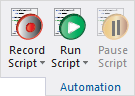
The Run Script file browser appears.
- Use the file browser to locate the script file (*.py).
- If desired, type script arguments in the Script Arguments field:
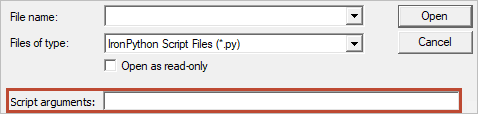
- Click Open.
Electronics Desktop executes the script.
While script execution is in progress, the Run Script button transforms into a Stop Script button. Click Stop Script to stop the script execution.
To temporarily pause a running script, click Pause Script. This button transforms into a Resume Script button, which you can click to resume script execution.
From the Command Line
To run a script from a command line, add the -runscriptandexit or -runscript argument to the Electronics Desktop command line syntax.
To use script arguments, add the -scriptargs parameter and specify the arguments. For example:
ansysedt.exe -scriptargs "hello there"
The command line parameter following -scriptargs is passed without modification as a single string in the ScriptArgument python variable.
For more information about running a script from the command line, consult the HFSS help topic