
Introduction
This chapter contains the following topics:
- Using Keyboard Shortcuts
- Sample Model: Slot Coupled Patch Antenna
Using Keyboard Shortcuts
For those who prefer communicating instructions using a keyboard more often than a mouse, this Getting Started Guide presents two different techniques for working with HFSS:
- Shortcut keys (either predefined or user-defined)
- Keystroke sequences for menu bar navigation to trigger desired actions.
Keyboard shortcuts can be a convenient means of performing common and repetitive tasks without having to navigate menus or command ribbons. In addition to the default keyboard assignments, you can customize the shortcuts. There is an extensive list of commands and operations available within Ansys Electronics Desktop, only a limited number of which have predefined shortcuts. So, you can add key assignments, or you can change predefined ones, to suit your preferences.
While menu navigation keystroke sequences are less convenient than keyboard shortcuts, they are useful when writing or recording scripts for automating modeling tasks, and they can be convenient when the desired target is located relatively high on a menu's main level. They also do not require that you define any shortcut key; their support within the user interface is intrinsic.
At the end of the guide, there are Examples showing how to use the keyboard shortcuts and an Appendix that contains a list of predefined shortcut key assignments.
Sample Model: Slot Coupled Patch Antenna
We assume you are familiar with the workings of HFSS within the Ansys Electronics Desktop software, and this is not your first project.
This example is intended to show you how to create, simulate, and analyze a probe fed, slot coupled patch antenna using the HFSS Design Environment, with an emphasis on using keyboard shortcuts.
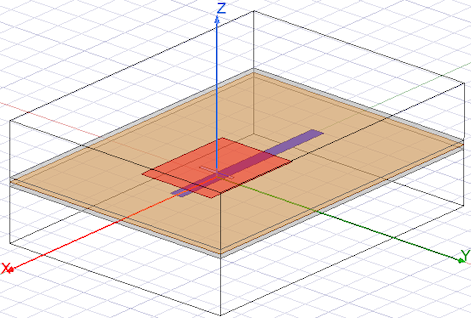
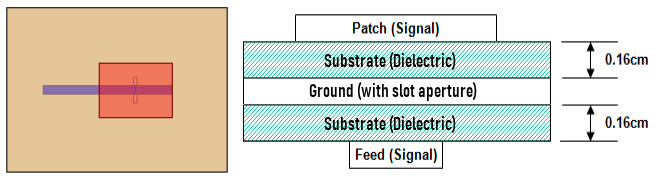
Figure 1-1: Slot Coupled Patch Antenna – Model Views and Layer Diagram