Using the Hearing Aid Compliance Test
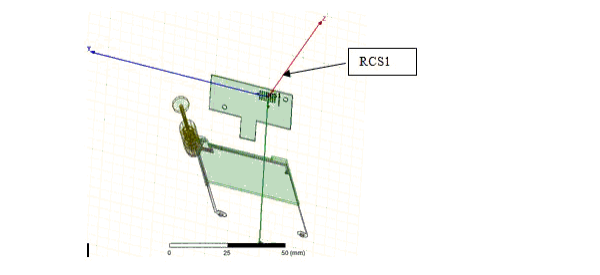
The script assumes that you have already created the phone model and the appropriate relative coordinate system that defines the location and orientation of the ear piece. You must also assign appropriate boundaries/excitations and any other required design data, such as solution setup.
- Insert a phone model and create the relative
coordinate system that defines the location and orientation of the ear
piece. The name of the relative coordinate system for the earpiece is
predefined.
- Click HFSS>Toolkits>HearingAidCompliance to bring up the “Hearing Aid Compliance Test” dialog.
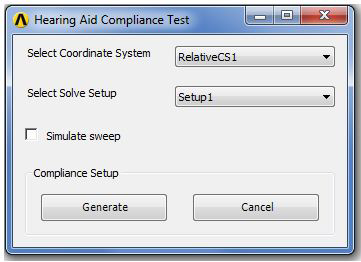
The first combo box is populated with user defined relative coordinate systems and the second is populated with the solve setup in the active design. A sweep will be created within the selected solve setup.
Users can choose to include simulating the created sweep as part of the automation.
- Click Generate.
A measurement plane composed of 9 non-model rectangles are inserted into the design.
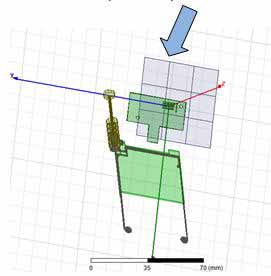
These 9 rectangles will be named hac_grid1_1, hac _grid1_2, hac _grid1_3, hac _grid2_1, … hac _grid3_3. If existing objects in the design that conflict with any of these 9 names, the python script searches for the next set of names to use, in the format of hac1_grid1_1, hac1 _grid1_2, hac1 _grid1_3, hac1 _grid2_1, … hac1 _grid3_3, so on and so forth.
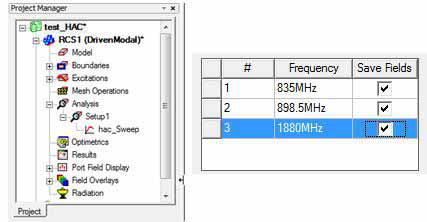
- A discrete sweep is created for the selected
solve setup. The frequencies required in the ANSI standard will be included
in the sweep. You can select the testing frequencies. This sweep will
be named “HAC_Sweep”. When there is already a sweep of the same name,
then the next name to use is “HAC1_Sweep”, “HAC2_Sweep”, so on and so
forth.
- You should create the highlighted field calculator expressions.
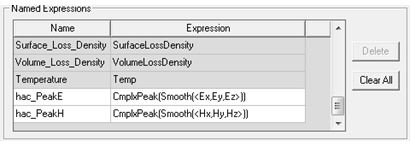
These field calculator expressions can be plotted/evaluated on any user defined polyline.
- You can plot PeakE and PeakH Field overlay
on the surface of the measurement plane, using the sweep solution and
at each of the frequencies.
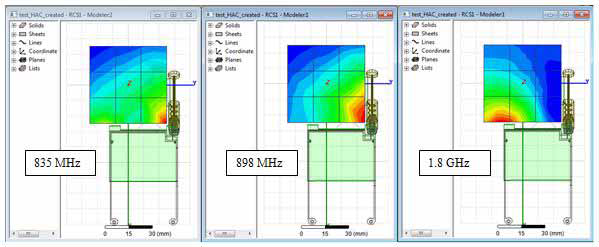
If you did not select the correct coordinate system to generate the measurement grid, and therefore, no solution to populate the plot, there will be an error message.
- If you select Simulate Sweep, a
User Defined Document will be created and inserted into the Results folder.

Right-click and select “View PDF Document” to
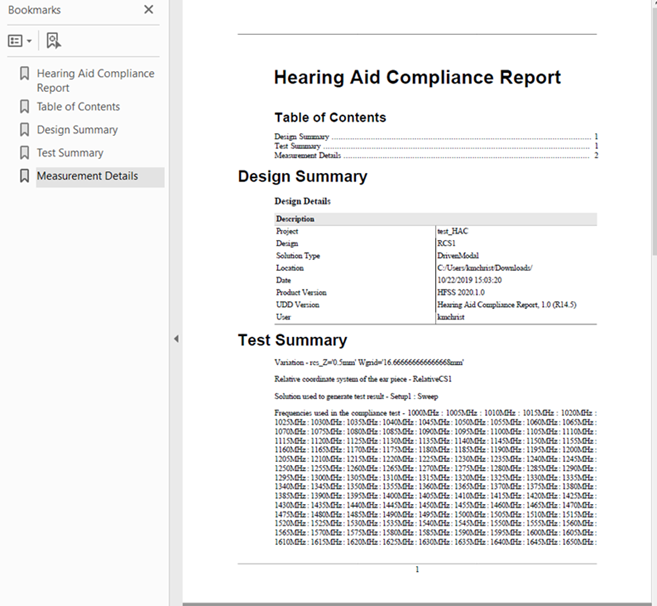
display the PDF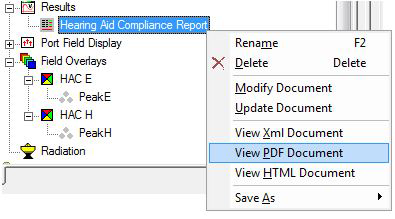
The Hearing Aid Compliance Report opens: