
Reassigning Boundaries
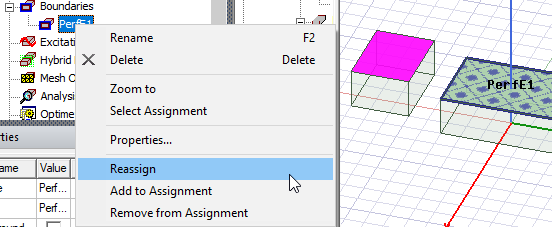
You can reassign a boundary to another surface. This is useful when you have modified objects with assigned boundaries, invalidating the boundaries. For example, if you unite two objects with assigned boundaries, the second object's boundary will become invalid because united objects maintain the characteristics of the first object selected. In this case, you would need to reassign the boundary or delete it. You can use a Reassign Boundary dialog box accessed through the [solver] > Boundary > Reassign menu, or right-click the Boundary of interest in the Project tree, and select from the shortcut menu to Reassign, Add to Assignment, or Remove from Assignment. You can also determine current assignments by right-clicking on the boundary on the Project tree and using the Select Assignment command on the short cut menu.
Prerequisites:
- You must first select the surface or object that you want to reassign, or add to an assignment, or remove from an assignment.
To use the short-cut menu to reassign, add assignment, or remove from assignment:
- With the target surface selected, right-click the Boundary of interest to invoke the menu.
- Select from the menu to make the change you want.
The boundary assignments change.