


The software offers a Command Line Interface (CLI) that can be used to perform various actions from the shell, and is suited for both interactive and simple automation and integration use cases. The CLI accepts commands and various command options as arguments to the main executable. In absence of any CLI command the tool will start normally.
Try mediniAnalyze.exe -h to get started with a CLI help showing the
supported commands and options.
Note that the software is a "windowed application" that has no associated console to display any output or error message. As a consequence, all CLI commands either open the application window or separate dialogs.
The syntax is strongly oriented to typical CLI implementations. A mandatory command is expected as well as optional parameters treated as "command options". Options in most cases have a short and a long version, either start with a single "-" or "-". There are a small number of options that work without any command such as -h or -v to show either the CLI help or the tool version.
mediniAnalyze.exe [-h|--help] [-v|--version] <command>
          [options]
Note that partial matching of commands and options is not supported, all must be entered complete and case sensitive. Most parameters exist in a short version (-v) and a long version (--version).
mediniAnalyze.exe diff -t <target> -s <source> [-b
          <baseline>]
The diff command can be used to compare MPRX files either 2-way or 3-way
using an optional baseline. Source and target must be different file paths on the file
system. Expanded projects are not supported. The command will load all projects passed on
the command line and open the differences browser in the "Compare/Merge" perspective
automatically. Changes that are merged from the source to the target are written back to
the MPRX file on save. Note that the diff command is using a separate
workspace to open projects and run the difference analysis. That workspace is excursively
under control of the command and does not interfere with any of the user defined
workspaces.
Files can be given with absolute but also relative pathnames. An example of a 2-way comparison:
mediniAnalyze.exe diff -t my.mprx -s C:\downloads\their.mprx
The diff command is ideal to integrate the software into arbitrary
Configuration Management Systems (CMS) / Revision Control Systems (RCS) such as git as an
external diff and also merge tool. Typically these systems integrate with external tools via
CLI based on specific file extensions or file content.
Some tools such as git or PTC Windchill expect that a merge tool does not modify any
of the input files but instead writes the merged result to a separate file. That "merge"
result file can be passed using the --merge or short -m
parameter. A full fledged git merge tool command line could look like:
mediniAnalyze diff -m \"$MERGED\" -t \"$REMOTE\" -s \"$LOCAL\" -b
          \"$BASE\"
For more information check the online support material.
mediniAnalyze.exe open [-f <file>] [file]
          [-useDefaultWorkspace]
The open command can be used to quickly open one or more MPRX files from
the command shell. Unlike the diff command, the files are opened in the user's
workspace unless the parameter -useDefaultWorkspace is passed. In that case,
all files are opened in a separate workspace exclusively under control of the
open command.
An example:
mediniAnalyze.exe open -f ESL.mprx Microcontroller.mprx
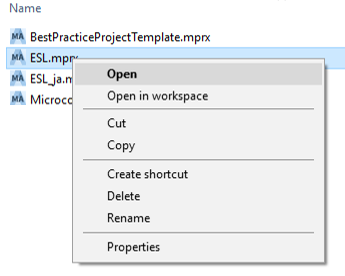
The open command is ideal to integrate the software into the operating
system or file management software, as for example the Windows explorer. When installing the
software on Windows, the command is used to open any MPRX file on double-click and to offer
further open derivatives in the Explorer menu. Note that if multiple major versions of the
tool are installed, the Open command in the Windows explorer menu opens
the file in the last installed version of the software that supports the CLI command.
You can also use a project URL you get from the SE Platform in the command line to open a project in medini. Copy and paste the project URL from the browser address bar.
mediniAnalyze.exe open -url <project URL>
In addition, you can open a project in medini directly from a browser. Simply add the project URL to the browser address bar as follows:
medini://mbse/open?url=<project URL>