


Ansys medini analyze provides an advanced search feature to find any model element based on textual information (such as element name or description) and on information about the element type.
Start the search by clicking the Search button in the medini analyze tool bar. The upcoming dialog is divided into three areas as shown in the following figure.
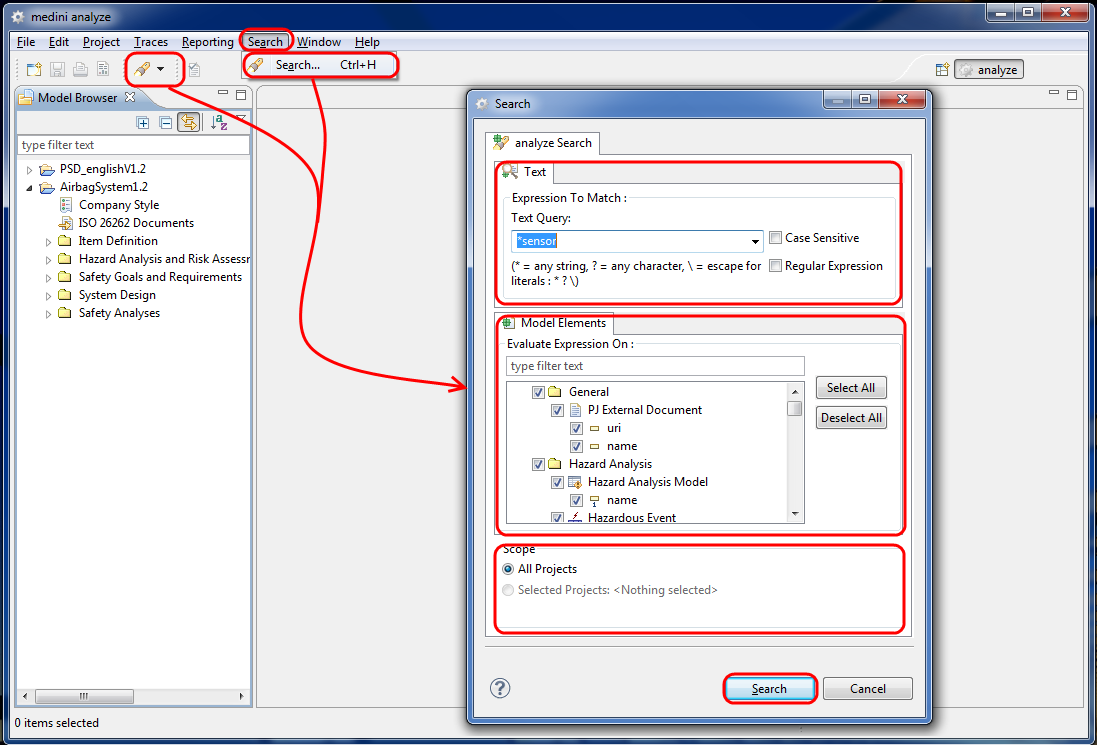
Text: Here you can enter the text string which you are looking for. medini analyze attempts to find all model elements with an exactly matching text. The two wildcard characters * and ? can be applied for a more wider search. * corresponds to a string consisting of zero or more arbitrary characters and ? corresponds to exactly one arbitrary character.
Examples:
"abc*" corresponds to any string starting with the character sequence "abc"
"ab*c" corresponds to any string starting with the character sequence "ab" and ending with "c"
"ab?" corresponds to any string consisting of three characters and starting with "ab"
In order to search for the characters * and ?, these characters have to be masked with \ (i.e. "\*" and "\?").
Using the two check-boxes you can decide whether or not the search shall be case sensitive and whether full regular expressions should be used instead of the simple wildcards explained above.
For details on the regular expressions see http://java.sun.com./j2se/1.5.0/docs/api/java/util/regex/Pattern.html
Model Elements: Here you can limit the search to those model elements he is interested in. The list of model elements shows all model element types available for search and also the different text fields associated with these model element types. Click in the checkboxes on the left side of each entry to include or exclude it in the current search. Moreover, you can also use the buttons "Select All" or "Deselect All" to mark or unmark all entries in the list.
Scope: Here you can decide, whether the search should be limited to the currently selected project or whether the search should take all projects into account.
After clicking on the "Search"-button the actual search will start and a new view will open showing all search results. An example of the Search-view is given in the following figure.
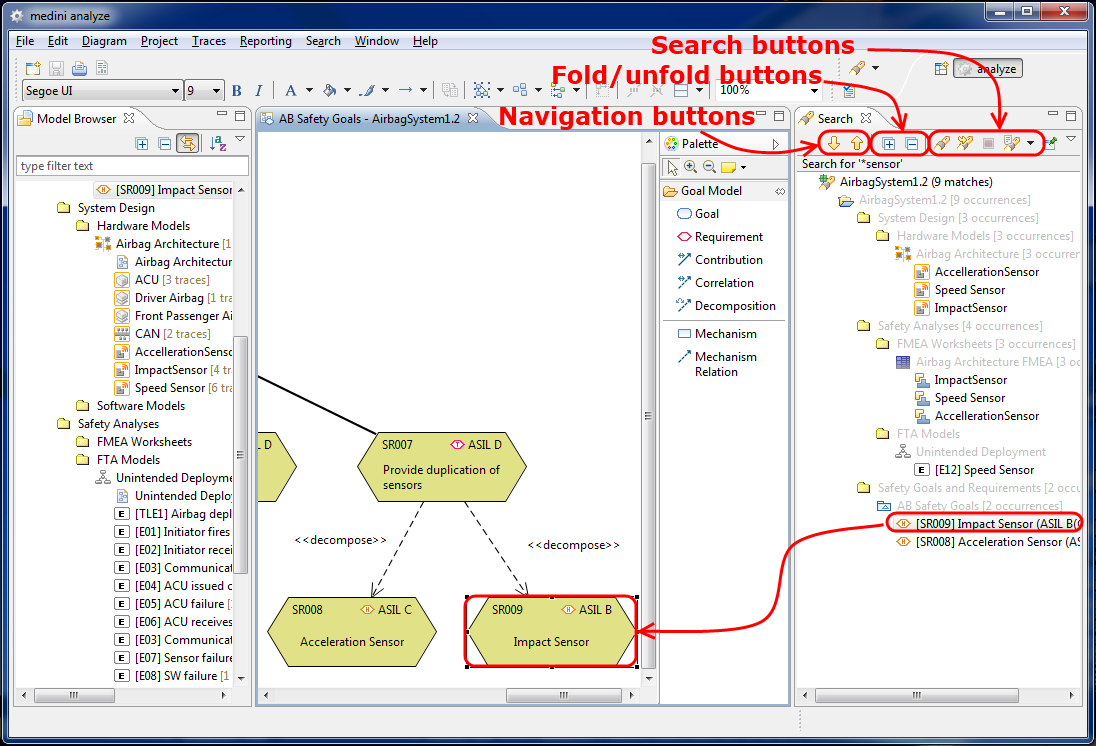
The search results themselves are shown in the main window of the Search-view in separate entries for the single projects. Moreover, for each search result also all the containing elements (folders, diagrams, tables) are shown as a hierarchy. Just click on the white triangle on the left side of an element to open the next level of the hierarchy. Double-clicking on any search result in the search-results list will open the diagram or table containing that element and highlight it there. If the search result does not exist in any table or diagram, it will be highlighted in the Model Browser. On the other side double-clicking on any container entry will open the appropriate diagram or table resp. highlight the folder in the Model Browser.
In the header of the Search-view a number of buttons are available to ease the search and the work with the search results:
Navigation-Buttons: Clicking on these buttons shows the next or the previous search result
Fold/Unfold-Buttons: With these two buttons the complete hierarchies for all search results can be folded/unfolded in a single step.
Search-Buttons: These buttons allow to start a new search, to re-run the current search, to stop the current search run and to manage and show any results of previous search runs (search history).