


Stacker Mesh Workflow maps a 3D model to a 2D plane and generates a 2D mesh to stack it to represent the original input model. The workflow contains steps to detect the stackable bodies, non-stackable bodies and create a MultiZone volume mesh for non-stackable bodies.
Stacker flattens the stackable bodies to generate 2D Mesh and stack it to build 3D elements and delete the base face (2D Mesh).
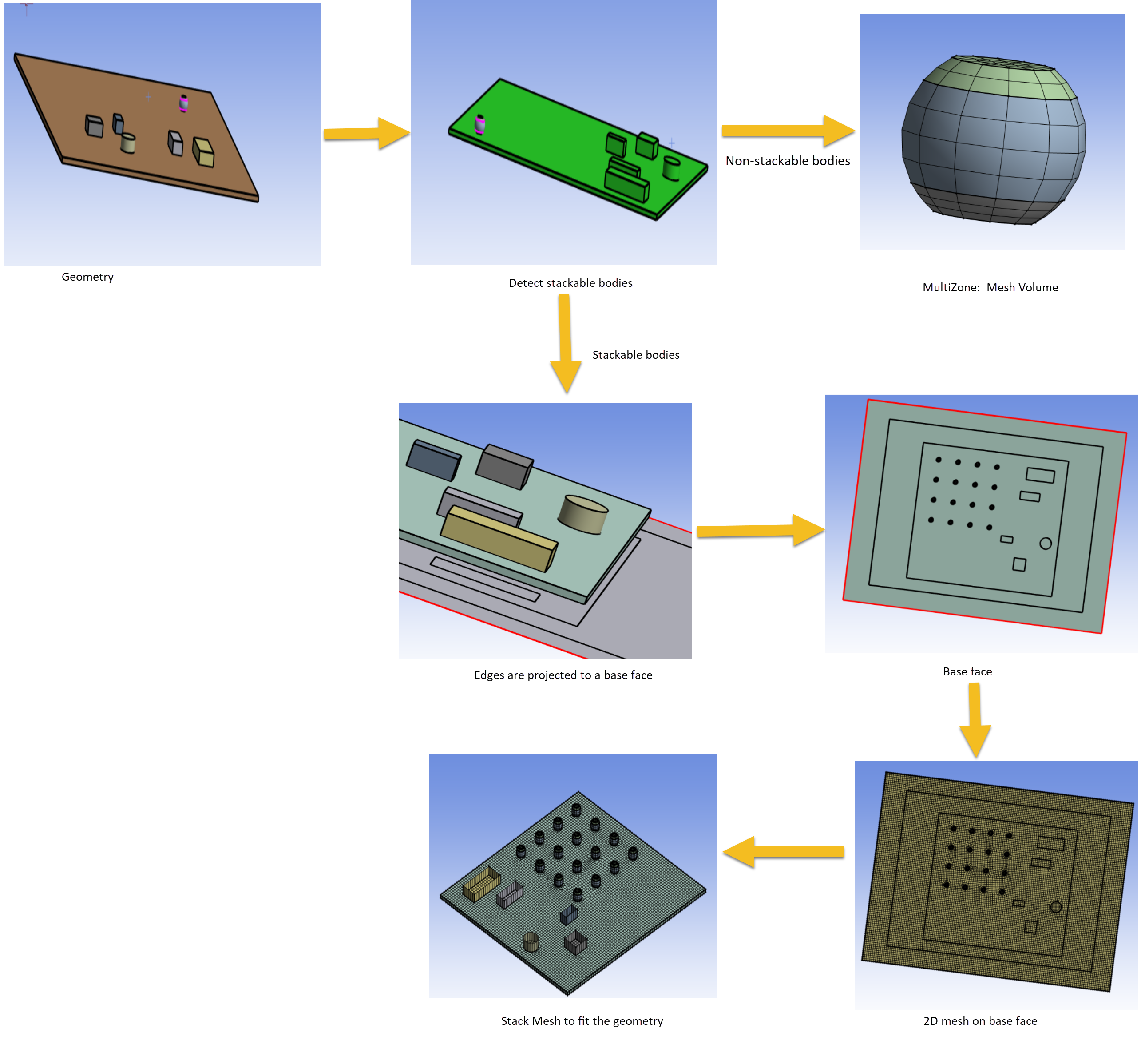
When you select Mesh Workflows as Stacker Mesh Workflow, Mesh Workflow loads a predefined template with Steps and Outcomes. Mesh Workflow performs these Steps through Controls and Outcomes to achieve the desired mesh.
Stacker Mesh Workflow has the following steps:
Merge Parts: Merges the all parts defined in the scope to a single part.
Note: You can add or delete Merge Parts as per your requirement.
Stacker: Detect Stackable Bodies: Detects the stackable bodies along stacking direction defined the in the Stacker: Stackable Bodies Detection control.
Note: You can add or delete Stacker: Detect Stackable Bodies as per your requirement.
MultiZone: Mesh Volume: Provides automatic decomposition of geometry into mapped (sweepable) regions and free regions and creates volume mesh for the scoped entities.
Note: You can add or delete MultiZone: Mesh Volume as per your requirement.
Stacker: Diagnostics: Scopes the entities and provide the outcome for smallest lateral edge length, smallest stacker edge length and bounding box dimensions.
Note: You can add or delete Stacker: Diagnostics as per your requirement.
Stacker: Flatten Volume: Projects scoped parts scoped parts, zones or labels to the base face defined in the Stacker: Volume Flattening control.
Create Size Field: Creates size field for the mesh workflow model.
Note: You can add or delete Create Size Field as per your requirement.
Stacker: Mesh Surface: Meshes the base face. The operation type available for the Stacker: Mesh Surface is Mesh Surface.
Note: Stacker: Mesh Surface step supports parallel meshing with Number of Cores defined in the Steps Details view. For Stacker Mesh Workflow, when you use Quad Layer control, the Number of Cores defined for parallel meshing in the Steps Details view has no effect.
Stacker: Mesh Volume: Creates volume mesh from the base face with number of divisions along the defined edges.
Stacker: Delete Base Face: Deletes the base face (2D) defined in the Deletion control.
Note: You can add or delete Stacker: Delete Base Face as per your requirement.
Stacker: Improve Volume Mesh: Improves the volumetric mesh generated in Stacker: Mesh Volume.
Note: You can add or delete Stacker:Improve Volume Mesh as per your requirement.
Stacker Workflow Recommendations
The following recommendations applies for the stacker mesh workflows:
Define a suitable stacking direction when setting up the model.
Define Named Selections before transferring the model to the Workflow. If you do not define the named selection, use Create Labels operation while executing the workflow to generate the labels.
Non-Stackable bodies in the model can be scoped to MultiZone Mesh Volume.
View the bodies being stacked along the stacking direction to obtain a 2D view. Use a wireframe view to determine lateral defeature size in complex cases and to identify the smallest edge or thinnest gap that must be resolved.
Seed Mesh does not support any split lines that intersect the Seed Mesh when projected onto the base face.
Seed Mesh does not support cases where overlapping seed meshes along the stacking direction are not identical.
Stacker may not preserve name selections created on overlapping faces when transferring them to the Workflow.
Use Create Label operation to generate face labels in the workflow. These labels help to define the faces for the Merge Nodes operation when a conformal mesh is required between overlapping faces.
Set Quad Layer controls on circular features or set the Curvature Normal Angle to 30° or smaller to capture the feature better.
Set the Lateral Defeature Size value less than the smallest edge length to avoid edge collapse.
Stacking Defeature Size only affects sizes along the stacking direction.
Set the Stacking Defeature Size value less than the thinnest layer to avoid merging with the neighboring layer.
Set Conformal Mesh on Contact Surfaces to Yes for stacker scoped bodies to get conformal Mesh. Only MultiZone scoped bodies need shared topology to get conformal mesh.
Update Growth Rate to 1.2 from default value in electronic components for generating better mesh.
Use the transferred labels with the prefix BaseFace_ to control the sizing on edges and faces parallel to the base face by applying sizing controls to the corresponding edges and faces on the base face.
For large and complex model having dissimilar imprints:
Group the layers having identical imprints.
Define bonded contact between the grouped parts to ensure connectivity.
Set Lateral Defeature Size, Stacking Defeature Size slightly below the Global Minimum Edge Length when Stacker does not work with the respective defeature sizes.
Debug the error locations for failed step if the model fails.
When mapping of meshed faces to corresponding geometry faces fails, Stacker: Mesh Volume step fails and provides an error message. You can view the Association Failure error locations and adjust the lateral Defeature Size then execute the workflow again.
When mapping of meshed edge to corresponding geometry edges fails, Stacker: Mesh Volume step provides a warning message.