


FSI FEM Acoustics workflow creates acoustic domains for meshing multibodies in fluid structure interaction analysis. FSI FEM Acoustics Workflow generates mesh on the Structural and Acoustics Domain having shared nodes between both domains. In such cases, FSI FEM Acoustics workflow helps you improve solver performance and ensures accuracy of load transfer across structures to fluids. In most cases, acoustic domain exists on both sides (inside and outside) of the structural body, and you require volume mesh to represent the acoustic domains. FSI FEM Acoustics Workflow offers pre-defined steps to ease the process of mesh creation.
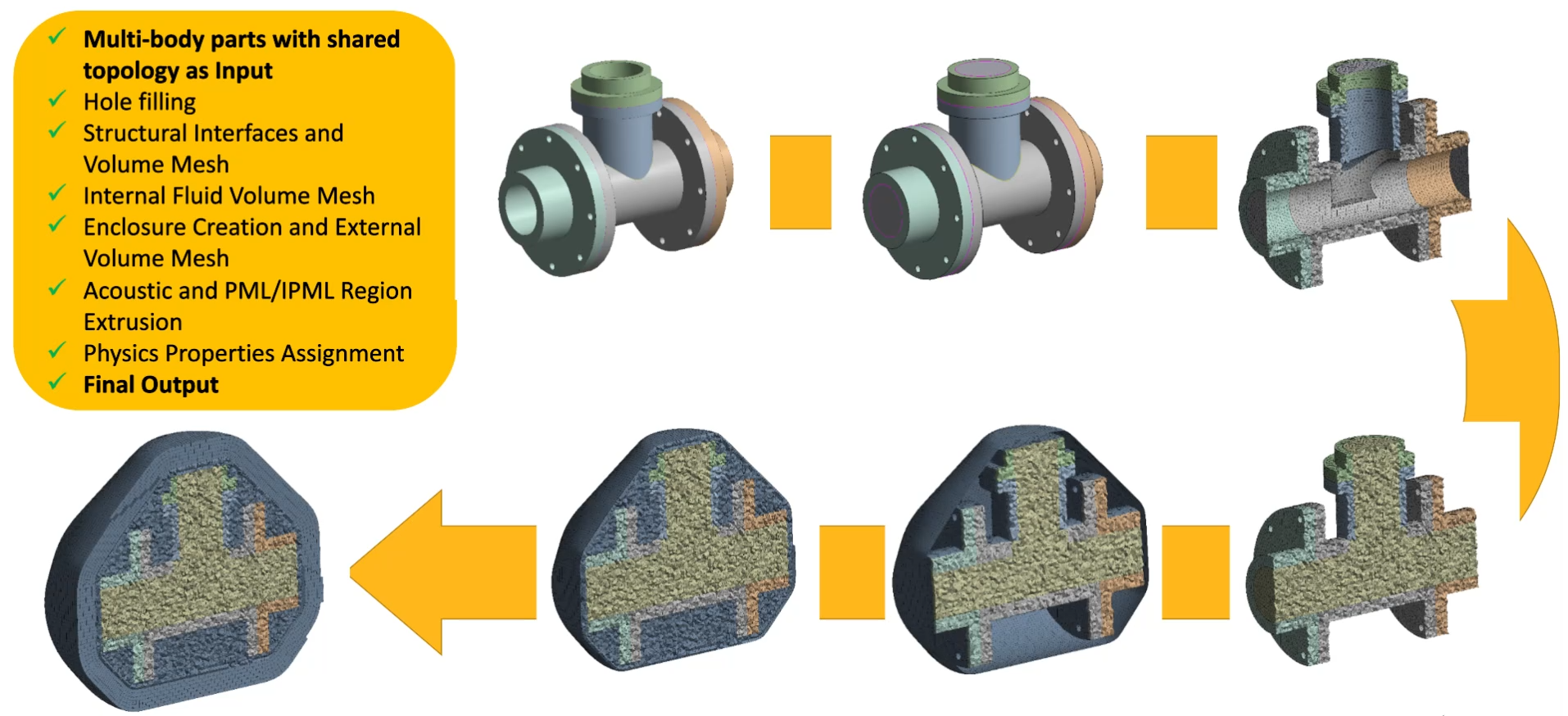
When you select Mesh Workflows as FSI FEM Acoustics, Mesh Workflow loads a predefined template with Steps and Outcomes. Mesh Workflow performs these Steps through Controls and Outcomes to achieve the desired mesh for the FSI FEM Acoustics.
FSI FEM Acoustics workflow has the following steps:
Initial Model Diagnostics: Diagnoses the topology and surface mesh issues. The operation type available for Initial Model Diagnostics is Model Diagnostics.
Fill Holes: Fill the holes defined in the Hole Filling step. The operation type available for Fill Holes is Fill Holes.
Note: You can add or delete Fill Holes as per your requirement.
Auto Repair Topology: Improves topology using predefined order of repair options and helps to generate a high-quality mesh.
Repaired Model Diagnostics: Diagnoses the topology and surface mesh issues. The operation type available for Repaired Model Diagnostics is Model Diagnostics.
Mesh Structural Faces: Meshes the surface using the given size. The operation type available for Mesh Structural Faces is Mesh Surface.
Mesh Structural Volumes: Creates volumetric mesh. The operation type available for Mesh Structural Volumes is Mesh Volume.
Mesh Internal Fluid Volumes: Creates volumetric mesh. The operation type available for Mesh Internal Fluid Volumes is Mesh Volume.
Remove Topology: Delete the topology and retains only the mesh data of the part. The operation type available for Remove Topology is Delete Topology.
Create Enclosure: Creates the enclosure around the specified scope. The operation type available for Create Enclosure is Create Enclosure.
Mesh External Volume: Creates volumetric mesh. The operation type available for Mesh Volume is Mesh Volume.
Improve Volume Mesh: Improves the volumetric mesh generated in the Mesh Volume step. The operation type available for Improve Volume Mesh is Improve Volume Mesh.
Extrude Acoustic Region: Generates layers of prismatic elements from the input surface to a specified height. The generated volume may have layers of constant size hexahedral or triangular prism elements depending on the input surface. The operation type available for Extrude Acoustic Region is Extrude.
Extrude PML/IPML Region: Generates layers of prismatic elements from the acoustic region to a specified height. The generated volume may have layers of constant size hexahedral or triangular prism elements depending on the input surface. The operation type available for Extrude PML/IPML Region is Extrude.
Create Acoustic Regions: Creates the topology from the mesh only model. The operation type available for Create Acoustic Regions is Build Topology.
Merge Acoustic Regions: Merges the volume. The operation type available for Merge Acoustic Regions is Merge Volumes.
Assign Physics Properties: Defines material properties and thickness on the scoped parts or zones. The operation type available for Assign Physics Properties is Manage Zone Properties.
Note: Some operation can be added or deleted based on the selected mesh workflow type.
Points to Remember
Recommendations for FSI FEM Acoustics Workflows
When you provide an input to FSI FEM Acoustics Workflow, ensure the following:
Set the facet quality to 7 before importing model into Mechanical. You can set the facet quality in Design Modeler by navigating through SpaceClaim > SpaceClaim Options > Rendering Quality. The facet quality in Design Modeler can be set by navigating through DesignModeler > Tools > Options > Graphics > Facet Quality.
For bodies with large cylindrical faces, a facet quality of 10 may be required for adequate geometric representation during meshing. To avoid rendering the whole model with this value, you can set this value on each body using Body Properties in SpaceClaim or under Appearance in Discovery.
Remove overhangs in upstream CAD. Overhangs are small penetrations between two surfaces. Overhangs can lead to mesh failure or mesh quality issues if they are not resolved.
If the model has faces with missing facets, then you should fix them in upstream CAD.
Multi-body parts should be connected with share topology at CAD levels.
Multi-body parts should not have interfering bodies.
Best Practices
Some of the best practices to be followed while meshing with FSI FEM Acoustics workflow are:
Repair tolerance should be set below 10% of global min size to avoid collapsing edges of faces causing incomplete or missing boundaries.
Surface mesh with intersecting or overlapping faces should be resolved before generating volume mesh. Use Improve Surface Mesh operation to resolve self-intersections.
Ensure that small gaps or clearances are not present in the connected parts. As generating a volume mesh for internal fluid regions may fail if small gaps or clearances are present in the connected parts while performing volume extraction from closed regions