


Mapped Meshing control generates the structured mesh for the scoped parts, zones or labels.
Mapped Meshing Details view has the following options:
General
Control Type: Displays the selected control type.
Scope
Define by: Allows you to define the input to the selected control. The available options are:
Value: Allows you to set manually the value of the Scoping Method and Scoping Pattern.
Outcome: Allows you to select the existing scoped outcomes from the previous steps as input.
Scoping Method: Allows you to select the entities for the selected control. The available options are:
Part: Allows you to select parts for defining the scope of the control.
Label: Allows you to select labels for defining the scope of the control.
Zone: Allows you to select zones for defining the scope of the control.
Scoping Pattern: Allows you to specify the name pattern to get the selected Scoping Method. Scoping Pattern supports Regular Expression. You can click
 on the right corner of the option and the
following options are available:
on the right corner of the option and the
following options are available:Publish: Publishes Scoping Pattern to the Property Worksheet.
Scope All: Inserts '.*' regular expression to scope all entities.
Free Mesh Scope
Define by:Allows you to define the input for free meshing. The available options are:
Value: Allows you to set manually the value of the Free Mesh Scope Method and Free Mesh Scope Pattern.
Outcome: Allows you to select the existing scoped outcomes from the previous steps as input.
Free Mesh Scope Method: Allows you to select the free mesh for the selected entities. The available options are:
Part: Allows you to select parts for defining the scope of the control.
Label: Allows you to select labels for defining the scope of the control.
Zone: Allows you to select zones for defining the scope of the control.
Free Mesh Scope Pattern: Allows you to specify the name pattern to get the selected Free Mesh Scoping Method. Scoping Pattern supports Regular Expression. You can click
on the right corner of the option and
the following options are available:Publish: Publishes Free Mesh Scoping Pattern to the Property Worksheet.
Scope All: Inserts '.*' regular expression to scope all entities.
Definition
Apply Semi-Structured Pattern: Allows you to improve the mesh distribution when Apply Semi-Structured Pattern is Yes. The default value is No. When Apply Semi-Structured Pattern is Yes, the available options is:
Transition Type : Allows you to specify the type of transition. The default value is Transition Type. The available options are:
Transition: Transitions mapped mesh such that the two edges along the transition path have the same edge sizing and the other two edges should have a transitional size of the form:
edge1 = edge2 +/- 2*n
where, n is the number of transitions.
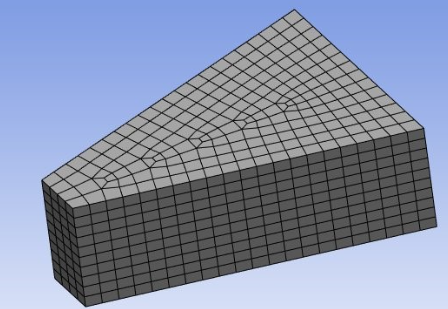
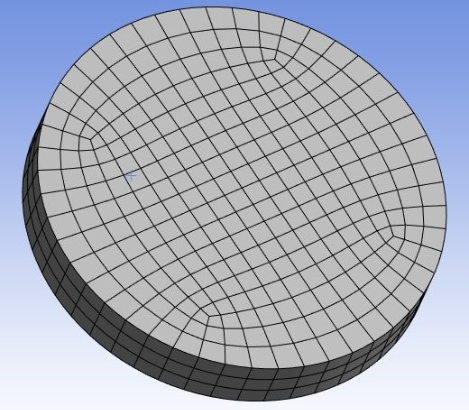
Circle: Creates an O-grid for circular or elliptical type face.
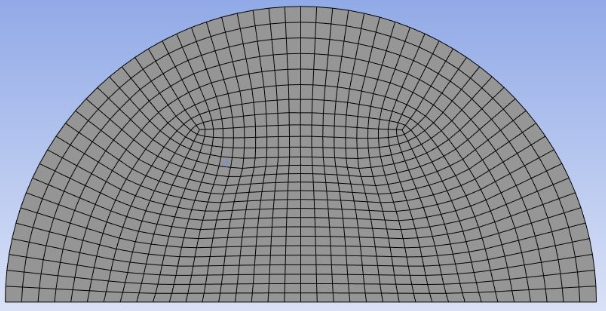
Half-Circle: Creates a C-grid for semi-circular or semi-elliptical type face.
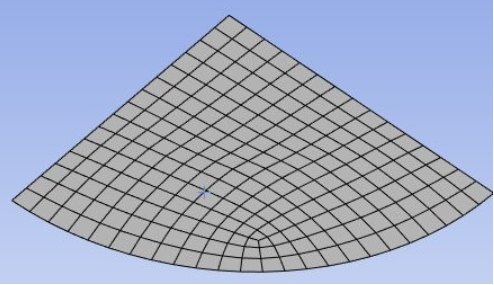
Quarter-Circle: Creates an L-grid for quarter-circle or quarter-ellipse type faces.
Number of Radial Divisions: Allows you to set the number of divisions across annular regions or seamless cylinders. The default value is 0. Number of Radial Divisions is available only when Apply Semi-Structured Pattern is No. You can click
on the right corner of the option
and click Publish to publish Number
of Radial Divisions to the Property
Worksheet. You can parametrize Number of Radial
Divisions. Force Sub-Mapping: Allows you to evaluate the angles at the nodes on the boundary of a selected face and based on the angle automatically sets mapped face vertex types within the specified tolerance when Force Sub-Mapping is Yes.
Sub-Mapping Angle Tolerance: Allows you to specify the angle tolerance based on which the mesher automatically determines the mapped face vertex types.