


The viewer has the following tools:
|
Tool |
Description |
|---|---|

|
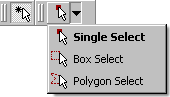
Select enters picking mode. To choose the behavior of this mode, use the
drop-down arrow on the adjacent toolbar icon (which becomes visible
only after you click Select
|

|
Single Select is an option
for the Select
When a number of objects overlap, the one closest to the camera is picked. The text at the bottom of the viewer window shows which object would be picked at the mouse’s current location. If you cannot pick the object you want because other objects overlap it, turn off the visibility of the overlapping objects, or adjust the camera to make it possible to pick the object. |

|
Box Select is an option for
the Select
|

|
Polygon Select is an option
for the Select
|

|
Rotate rotates the view as you drag with the mouse. Alternatively, hold down the middle mouse button to rotate the view. |

|
Pan pans the view as you drag with the mouse. Alternatively, you can pan the view by holding down Ctrl and the middle mouse button. |

|
Zoom adjusts the zoom level as you drag with the mouse vertically. Alternatively, you can zoom the view by holding down Shift and the middle mouse button. |

|
Zoom box zooms to the area enclosed in a box that you create by dragging with the mouse. Alternatively, you can drag and zoom the view by holding down the right mouse button. |

|
Fit View centers all visible objects in the viewer. |

|
Highlighting toggles highlighting. Highlighting makes it easier to select the correct object from the viewer. While in picking mode, highlighting by default puts a red box around the object that would be selected at the mouse’s current location. The style of highlighting is controlled by Edit > Options > TurboGrid > Viewer > Highlight Type. |
|
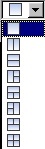
The viewport icon shows, and enables you to select, the viewport arrangement; by default, each view displays a different transform. The viewports have independent zoom, rotation, and translation. |

|
Show Help Dialog displays the Viewer Key Mapping dialog box. See Viewer Hotkeys for details. |