


This node allows you to use Lumerical projects (*.ldev, *.fsp, *.icp, *.lms) and Lumerical scripts (*.lsf) within an optiSLang workflow. Open a file in the node and the parameters and results are displayed in the editor.
Lumerical's DEVICE Suite of component-level simulation products use multiphysics-style simulation workflows to model optical, electrical and thermal effects at the physical level. This custom integration of Lumerical in optiSLang provides an easy and convenient way of creating automated workflows involving not only various Lumerical solvers but also other tools that are available in optiSLang and also perform variation analysis and/or optimization of such workflows.
Setup
When the integration is used for the first time, the local Lumerical installation paths will be automatically localized utilizing "AWP_ROOT" environmental variables and "Lumerical" registry values.
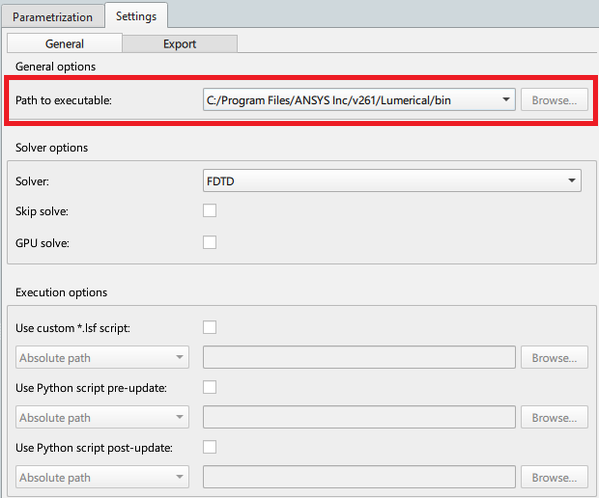
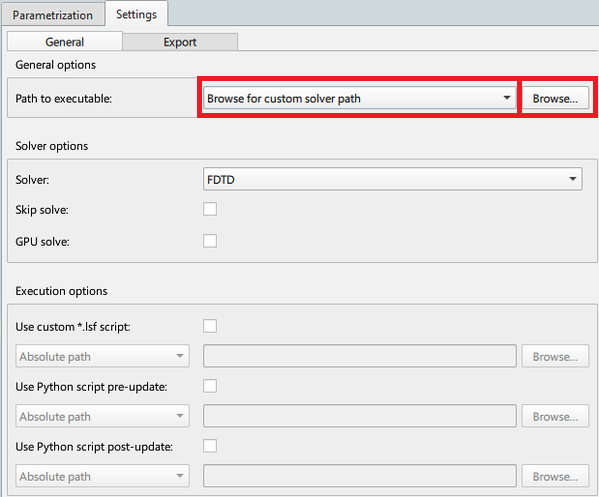
You are also able to manually enter a path pointing to the bin folder of the Lumerical installation by selecting Browse for custom solver path and then choosing the Lumerical bin folder in the invoked file explorer via the button (for example, C:\Program Files\ANSYS Inc\v261\bin).
It is important that the Lumerical project is solved once and saved (in Analysis Mode) before it can be used in optiSLang. If the project is not solved and no results are available, no results are shown in optiSLang.
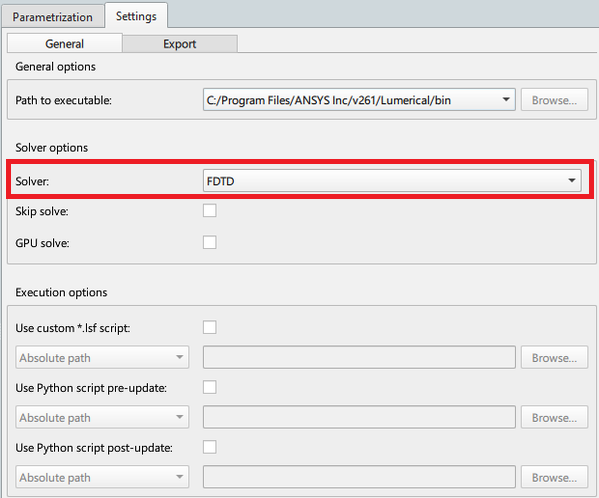
Automatic detection of the suitable solver is implemented; therefore it is not necessary to manually select the solver in the Settings dialog box under the General tab before loading the project. The selection of the solver is important because the parameters and the results must be read from the correct objects which depend on the type of solver. It is possible that a project has more than a single solver, then it is necessary to select the solver to be run.
Parameters and Responses
The integration can access all the parameters and results from the model (or Root Element in case of the INTERCONNECT solver), solvers, subgroups and monitors. All of these values are available to be used inside optiSLang. Complex values are not supported in optiSLang, so any complex parameters or results must be split into real and imaginary parts and can be used separately.
Scripting
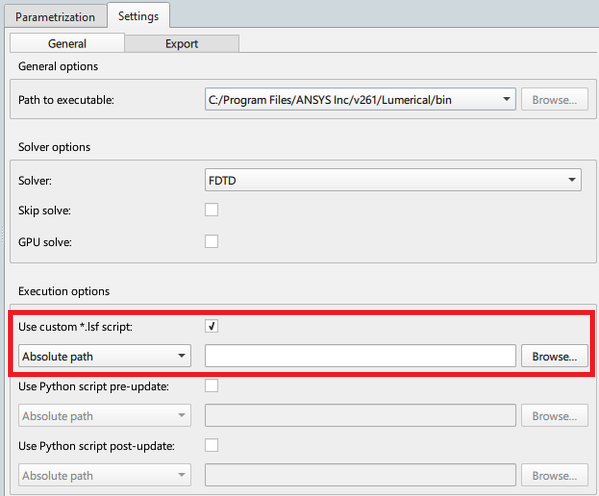
You can run a custom Lumerical script file (.lsf) after every simulation run. This feature is only available if the Lumerical script file (.lsf) is not used as an input file in the main integration dialog box. This feature can be used to perform postprocessing of results from the simulation using Lumerical's API functions. This allows you to transfer non-scalar values (or complex values as a whole) from one Lumerical node to another and even to other tools inside optiSLang by saving them into files.
To run a custom script file, select the check box in the Settings dialog box under the General tab and select the required script file using the button.
Each path to script supports the option of definition via optiSLang path styles. If a file path is selected and the path style is changed, the path will be converted to the newly selected style. If path in the text field is edited, the file must be reselected using the button to restore proper conversion between path styles.
The following options are available:
Relative to working dir
Relative to project
Absolute path (default)
Relative to reference files dir
Relative to project working dir
The integration can only handle custom script files with the following requirements. The script should have the following three functions defined, irrespective of whether or not they are used:
listScriptParameters(): A function that returns a struct with parameters used in the script with their reference values. An example for this function:
# returns a list of parameters with its reference values this
                                script uses function listScriptParameters(){ return {param_1_name:
                                param_1_value, param_2_name: param_2_value}; }
listScriptResults(): A function that returns a struct with results used in the script with their reference values. An example for this function:
# returns a list of results with its reference values this
                                script produces function listScriptResults(){ return {result_1_name:
                                result_1_value, result_2_name: result_2_value}; }
computeScriptResults(parameters): A function that computes the script results with script parameters. This function should always take in only one struct argument (parameters) irrespective of whether or not it is used inside the function. An example for this function:
# compute and returns a new list of results function
                                computeScriptResults(parameters){ # perform the required
                                computations result_1_value = parameters.param_1_name +
                                parameters.param_2_name; result_2_value = parameters.param_1_name -
                                parameters.param_2_name; return {result_1_name: result_1_value,
                                result_2_name: result_2_value}; }
Other than these three mandatory functions, the run script can have any number of other functions if required.
Scripting Example
The following simple example shows how to set up a custom script file with all required functions for direct usage. Copy the script and save it as an .lsf file. This file can then be used with the Custom script setting.
# Copyright Ansys Inc
##Prepare workspace
clear;
closeall;
clearfunctions;

## Declare Results
function listScriptResults(){
    return {'D': 0,'E': 0};
}

## Declare Parameters
function listScriptParameters(){
    A = 1; B = 2; C = 3;
    return {'A': A, 'B': B, 'C': C};
}

## optiSLang Calculate Results
function computeScriptResults(parameters){

A = parameters.A;
B = parameters.B;
C = parameters.C;

D = parameters.A+parameters.B+parameters.C;
E = parameters.A*parameters.B*parameters.C;
return {'D': D,'E': E};
}

parameters = listScriptParameters();
F = computeScriptResults(parameters);
Python scripts
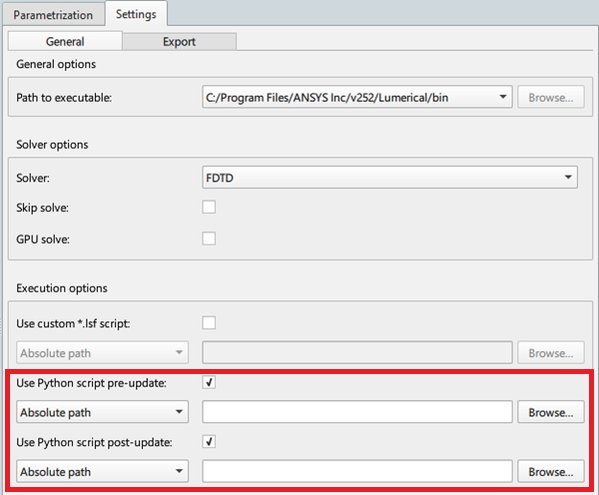
The node supports running custom Python scripts inside Lumerical. Two options are available: script pre-update of the project and script post-update of the project. To run a python script file, select the or check boxes in the Settings dialog box under the General tab and select the required script files using the button.
Use Cases
The following table lists the supported use cases and how to set them up.
| Use Case | Setup |
|---|---|
| Project file by itself |
|
| Project file followed by a script file |
|
| Script file by itself |
|
| Script driven project file |
|


Export
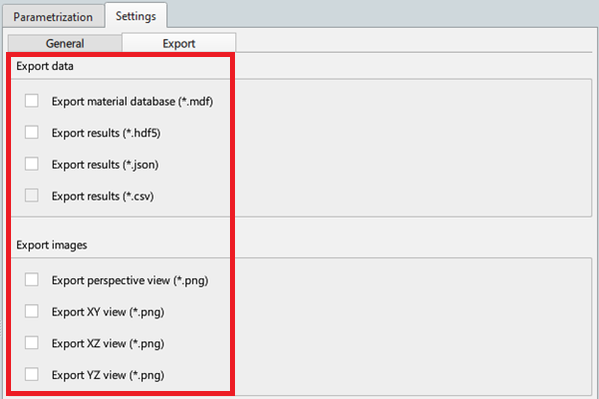
The node offers various export options which can be found in the Settings dialog box under the Export tab. Exporting any images require GUI invocation.
Settings
The node provides the following settings:
| Tab | Name | Default value | Description |
|---|---|---|---|
| General | Path to executable | Browse for custom solver path | Path to the bin folder where the all solvers are placed. |
| Solver | FDTD | Solver to run the simulation with. | |
| Skip solve | False | When selected, only runs the custom script file and skips the solver. | |
| GPU solve | False | Utilizes GPU for solution (available only for solvers FDTD and RCWA). | |
| Use custom *.lsf script | False | When selected, enables the Custom *.lsf script field for selection of the script. | |
| Custom *.lsf script | - | Custom *.lsf script file to run. Supports multiple file path styles. | |
| Use Python script pre-update | False | When selected, enables the Python pre-update script field for selection of the script. | |
| Python script pre-update | - | Custom Python script which is run in Lumerical before the solution of the project. Supports multiple file path styles. | |
| Use Python script post-update | False | When selected, enables the Python post-update script field for selection of the script. | |
| Python script post-update | - | Custom Python script which is run in Lumerical after the solution of the project. Supports multiple file path styles. | |
| Export | Export material database (*.mdf) | False | When selected, material database is exported to the .optislang folder. Available for solvers FDTD, RCWA, STACK, FDE, EME, varFDTD. |
| Export results (*.hdf5) | False | When selected, results are exported to the .optislang folder in the HDF format. Available for all the solvers except INTERCONNECT. | |
| Export results (.*json) | False | When selected, results are exported to the .optislang folder in the JSON format. Available for all the solvers. | |
| Export results (*.csv) | False | When selected, results are exported to the .optislang folder in the CSV format. Available for solver INTERCONNECT. | |
| Export perspective view (*.png) | False | When selected, perspective view is exported to the .optislang folder in the PNG format. This setting initializes GUI during the export. Available for all the solvers except INTERCONNECT. | |
| Export XY view (*.png) | False | When selected, XY view is exported to the .optislang folder in the PNG format. This setting initializes GUI during the export. Available for all the solvers except INTERCONNECT. | |
| Export XZ view (*.png) | False | When selected, XZ view is exported to the .optislang folder in the PNG format. This setting initializes GUI during the export. Available for all the solvers except INTERCONNECT. | |
| Export YZ view (*.png) | False | When selected, YZ view is exported to the .optislang folder in the PNG format. This setting initializes GUI during the export. Available for all the solvers except INTERCONNECT. |
Run Options
This node has general Run Options. Supported options are:
Auto-save behavior
Read mode
Distinct working dir
HPC licensing
Maximum execution runtime
Maximum simultaneous executions
Designs per execution
Retry execution
Versions and Requirements
Operating System
Windows, Linux
Versions
See the Supported Integration Versions table.
Known issues and limitations
The Maximum simultaneous executions run option does not function reliably when used in combination with a custom *.lsf script. Therefore, it is recommended to avoid using this combination of settings.