


Display the Mode Animation view below the Geometry pane using either of these methods:
Choose the option from the context menu in the MAC Frequency Worksheet. This will update the mode in the side (left or right) where you clicked the right mouse button.
Click any item in the 2D MAC Table. It displays the selected pair of modes (The mode of File 1 in the left, mode of File 2 in the right).
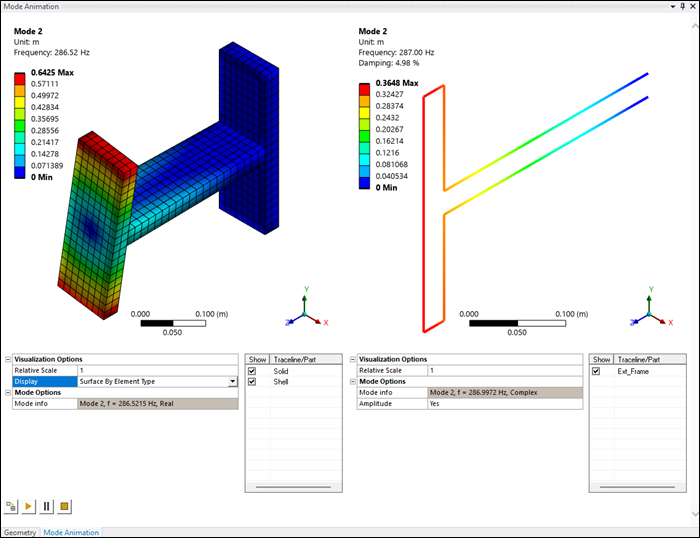
Each graphical window is independent of the other and works with the same controls as the main Graphical window in the Geometry pane. They have the following controls:
A Details view with the properties:
- Visualization Options
- Relative Scale
Employed to rescale the mode displacements. As MAC is a relative magnitude, this does not affect its value, but only the visualization.
- Display
Allows you to switch between the model display options, namely , and . is available only when the model contains solid elements and it displays the sharp edges of these elements. is available only when the model contains solid or shell elements and it displays the surfaces of these elements. displays the surfaces of all the elements (solid, shell, beam and point).
- Mesh Display Angle
Visible when Display is set to . This is the angle threshold in degrees that will trigger an edge detection.
- Mode Options
A read-only property that displays the main features of the displayed mode.
For complex modes, there is an option to toggle between Amplitude display or Sweeping Phase display (0° displays the real component, 90° shows the complex component and any other angle projects the complex value over the selected phase).
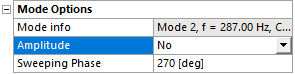
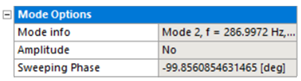
If the Complex to Real Projection option is selected, these options become read-only properties. The Sweeping Phase value is the value used for sweeping phase of the mode shape.
A Worksheet view that enables you to show and hide the element types (solid, shell, beam) in the case of rst or hdf5 models and tracelines in the case of unv models.
Both graphical windows can be combined into a single window using the button available at the bottom of the Mode Animation view. In this case, both models are superimposed and animated in the single window.
There are four additional buttons at the bottom of the view that control the graphical windows:
- Show/Hide Mesh
For the rst/hdf5 models
- Play
Both models are animated
- Pause
The animation is paused
- Stop
The animation is stopped