The 3D Viewer toolbar has the following tools:
Tool | Description |
|---|---|
| Select enters picking mode. For details see Picking Mode. Which picking tool is active depends on the picking mode icon, described next. |
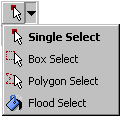
| The picking mode icon displays the current picking tool and has a drop-down menu to select a different picking tool. The picking tools are described next. |
| Single Select selects objects. When a number of objects overlap, the one closest to the camera is picked. In CFX-Pre, when selecting regions for boundaries, if more than one region is under the mouse pointer at the location that you click, those regions will be listed in a list box, enabling you to select the intended region. |
| Box Select is an option for the
Select |
| Polygon Select is an option
for the Select
Note: Polygon Select mode will not enable you to create an invalid region, such as would occur if you attempted to move a point such that the resulting line would cross an existing line in the polygon. |
| Flood Select selects the all the mesh elements on the face. The "counter" widget enables you to change the crease angle in degrees used to decide where the flood-pick algorithm will stop. |
| This feature controls which objects you can select. Visible Entities treats the contents of the Viewer as opaque and enables you to select only the top objects at any point. All Entities treats the contents of the Viewer as "transparent" and enables you to select any of the objects that you would encounter if you drilled through the object at a given point. You use this option with the depth indicator in the bottom-left of the Viewer. |
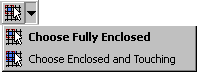
| This feature controls which objects you can select with a box or
enclosed polygon. Choose Fully Enclosed selects only the objects that have boundaries that are completely within the box or polygon you draw. Choose Enclosed and Touching selects both the objects that are completely within the box or polygon you draw as well as any objects of which any part is within that area. |
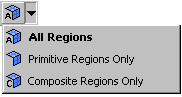
| These features control whether primitives are chosen over composites. |
| Rotate rotates the view as you drag with the mouse. Alternatively, hold down the middle mouse button to rotate the view. |
| Pan pans the view as you drag with the mouse. Alternatively, you can pan the view by holding down Ctrl and the middle mouse button. |
| Zoom adjusts the zoom level as you drag with the mouse vertically. Alternatively, you can zoom the view by holding down Shift and the middle mouse button. |
| Zoom Box zooms to the area enclosed in a box that you create by dragging with the mouse. Alternatively, you can drag and zoom the view by holding down the right mouse button. |
| Fit View centers all visible objects in the viewer. |
| Highlighting toggles highlighting according to the highlighting preferences (select Edit > Options > CFX-Pre > Graphics Style > Object Highlighting > Type). Highlighting is active only when the viewer is set to Picking Mode. For details, see Picking Mode. |
| Snap To Node Picking enables you to select mesh nodes. When picking a point from the viewer to populate a widget that defines a coordinate, the point can either be a point in space or a mesh "node". This tool enables you to select the mesh node nearest to the location you click. |
|
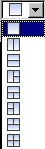
The viewport icon shows, and enables you to select, the viewport arrangement. The viewports have independent zoom, rotation, and translation. |
| Synchronize camera in displayed views toggles between locking and unlocking the views of all viewports. When the views are locked, the camera orientation and zoom level of the non-selected viewports are continuously synchronized with the selected viewport. Locking the view for the viewports in this way can be a useful technique for comparing different sets of visible objects between the viewports. This tool is available only when all viewports are using the Cartesian (X-Y-Z) transformation. |
| Show Help Dialog displays the Viewer Key Mapping dialog box. See Viewer Hotkeys for details. |