The 3D Viewer toolbar has the following tools:
| Tool | Description |
|---|---|
| Select activates picking mode, which uses one of the available picking tools (shown below). |
| Single Select selects objects. You can use this picking tool to drag line, point, plane, and isosurface objects to new locations. |
| Box Select selects objects using a box. Drag a box around the objects you want to select. |
| Polygon Select selects objects
using an enclosed polygon. Click to drop points around the objects.
Double-click to complete the selection. Note: Polygon Select mode will not allow you to create an invalid region, such as would occur if you attempted to move a point such that the resulting line would cross an existing line in the polygon. |
| Rotate rotates the view as you drag with the mouse. Alternatively, hold down the middle mouse button to rotate the view. |
| Pan pans the view as you drag with the mouse. Alternatively, you can pan the view by holding down Ctrl and the middle mouse button. |
| Zoom adjusts the zoom level as you drag with the mouse vertically. Alternatively, you can zoom the view by holding down Shift and the middle mouse button. |
| Zoom Box zooms to the area enclosed in a box that you create by dragging with the mouse. Alternatively, you can drag and zoom the view by holding down the right mouse button. |
| Fit View centers all visible objects in the viewer. |
| When Highlighing is enabled, clicking an object in the tree view causes that object to be highlighted in the 3D Viewer. The style of highlighting is controlled by Edit > Options > CFD-Post > Viewer > Object Highlighting > Type. |
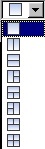
| The viewport icon shows, and enables you to select, the viewport arrangement. You can perform Independent zoom, rotation and translate options in each viewport. |
| Synchronize camera in displayed views toggles between locking and unlocking the views of all viewports. When the views are locked, the camera orientation and zoom level of the non-selected viewports are continuously synchronized with the selected viewport. Locking the view for the viewports in this way can be a useful technique for comparing different sets of visible objects between the viewports. This tool is available only when all viewports are using the Cartesian (X-Y-Z) transformation. |
| Synchronize visibility in displayed views toggles
between synchronizing and not synchronizing the visibility of objects in all viewports.
When active, any subsequent action to hide or display an object affects
all viewports; activating this feature does not affect any existing
show/hide states. Note: This toggle will not synchronize the visibility of objects in different cases that have the same name. However, in file comparison mode CFD-Post does synchronize the visibility of objects that have the same name. |
| Show Help Dialog displays the Viewer Key Mapping dialog box. See Viewer Hotkeys for details. |