


You can export a load history to an external XML file to save it for future use, then import the saved load history into a project. The following load types can be exported and imported:
Exporting a Load History
By default, any load histories that you create in the Mechanical application remain in the application. To save a load history to an external XML file:
Select the desired boundary condition and scope it to geometric or mesh entities.
In the Details pane, enter a Constant, Tabular, or Function load in the Magnitude field (or equivalent input field) to create a load history.
In the Magnitude field (or equivalent input field), click the flyout menu and choose Export. The system file export dialog appears.
Navigate to the directory where you wish to store the exported load history.
Enter a file name for the exported load history and click Save.
Important: The application exports load histories using the Nm (SI) unit.
Importing a Load History
To import a load history, follow these steps:
Open the Import Load History Data Window
Select the desired boundary condition and scope it to geometric or mesh entities.
In the Details pane, click the Magnitude field (or equivalent input field) and choose from the menu.
Note:For some types of loads, the Import command lists dependencies such as time and temperature.
The application only supports the Nm (SI) unit when importing load histories.
The Import Load History Data window appears.
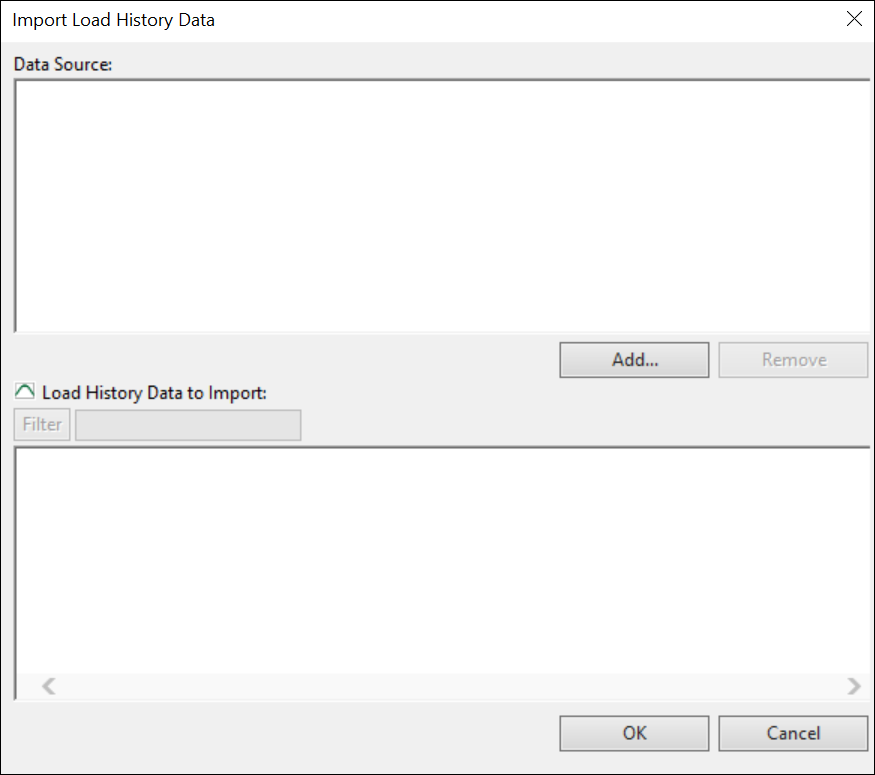
Select the Data Source
Next, select the data source that contains the load history you wish to import.
If the data source is listed under Data Source, click its name to select it.
If the data source is not listed, do the following to add it:
Click the button. The Add Data Source window appears.
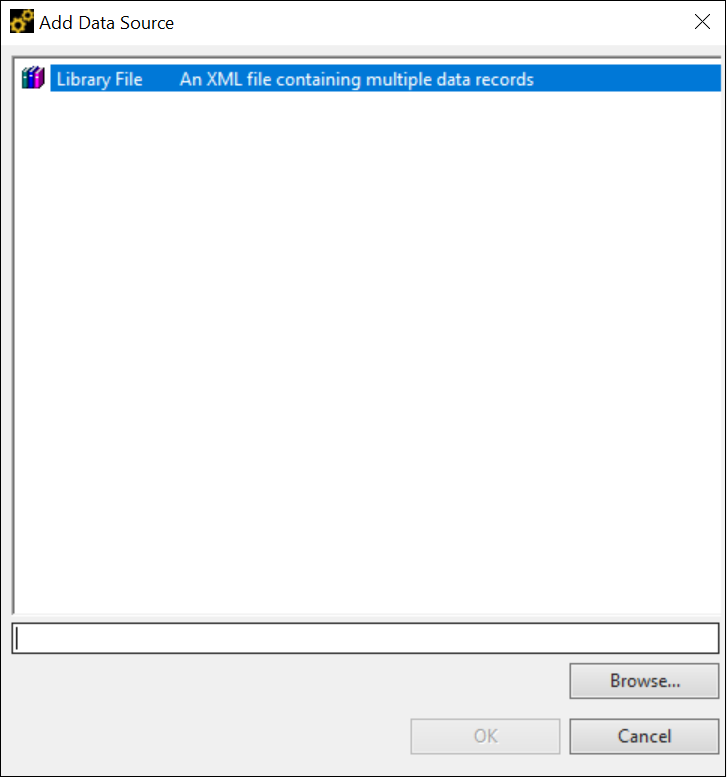
Click to navigate to the desired directory.
Select the file that contains the desired load history and click . The file name and directory path are displayed in the Add Data Source window.
Click . The data source is then listed in the Import Load History Data window under Data Source.
Click the name of the data source to select it.
Select the Load History Data to Import
After you choose the data source, do the following to import a load history for the selected boundary condition.
Under Load History Data to Import, click the radio button to choose the type of load to import into Mechanical.
For example, if you selected a pressure load history, click the radio button for Pressure to import the saved pressure value(s). Use the Filter field and button to filter for different types of loads.
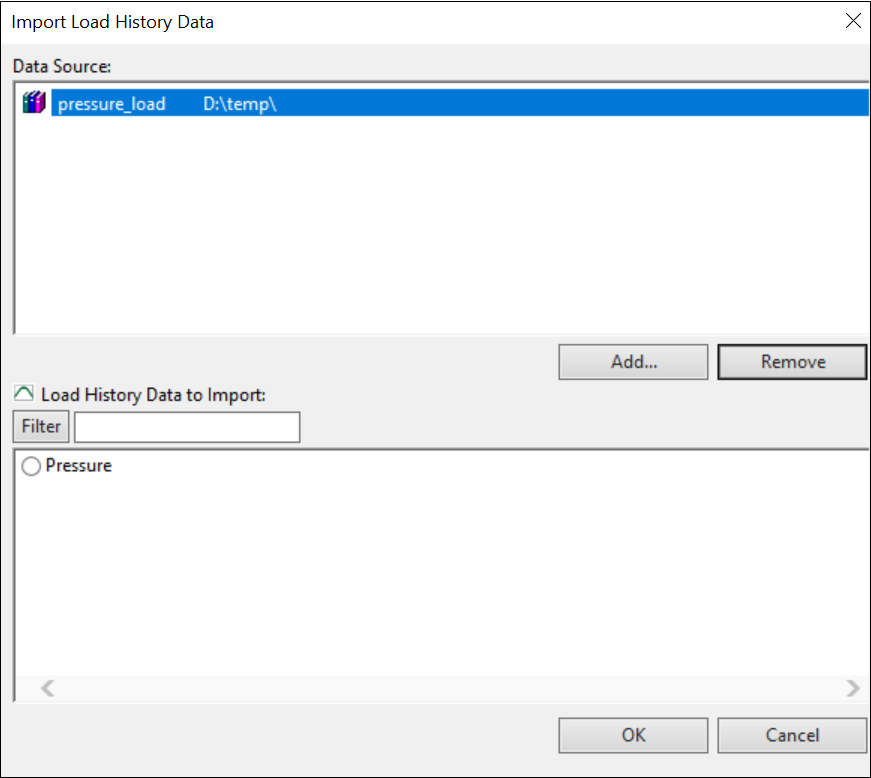
If the data source does not contain a load history that corresponds to the boundary condition or has invalid load data, the Load History Data to Import field remains blank.
Click .
Mechanical imports the load history and updates the Magnitude field accordingly.