


To more closely inspect a contact match, you can display the "Primary" and "Secondary" bodies in auxiliary windows next to the Geometry window.
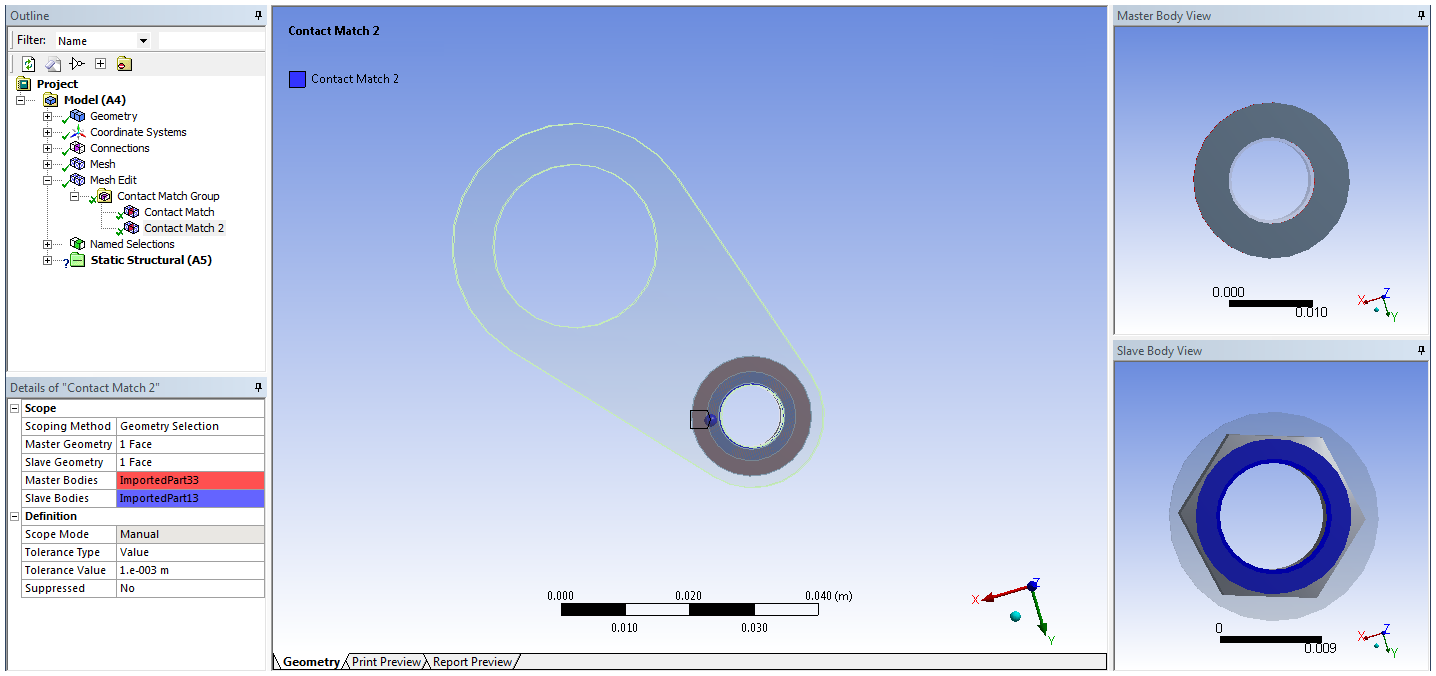
Select a contact match.
On the Mesh Edit toolbar, click the button.
The "Primary" and "Secondary" bodies are displayed in auxiliary windows.
For closer inspection of contact matches, click the button on the Graphics Options toolbar.
If desired, synchronize the views between the Geometry window and the auxiliary windows by clicking the button on the Mesh Edit toolbar.
By synchronizing the views, any change in the Geometry window will be reflected in the auxiliary windows.