


This node allows you to use Ansys Mesh Workflow as a mesh generation tool within optiSLang.
It supports the native execution of arbitrary Mesh Workflow templates, which can be created using Mechanical UI and imported into the node using *.emx files.
Mesh Workflows allow you to create specific meshing procedures like wrap, pull, extrude, and more, using Ansys PrimeMesh technology. Mesh Workflows have a built-in execution logic that provides an easy-to-use and customizable solution for complex meshing tasks.
Setup
In the dialog box, select an existing Mesh Workflow template in the *.emx format.
The set of availableParameters and Responses will be automatically computed based on the template definition:
Each published control or settings property will be exposed as a parameter.
Each defined Quality Metric will be exposed as a response, as well as a few predefined responses exposing the output mesh metrics.
Parameters and Responses can be registered by dragging them to the Parameters or Responses panes or highlighting them in the tables and clicking the multi-action buttons.
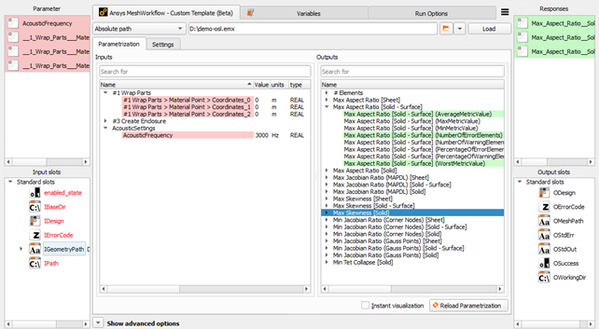
Parameters will be grouped by the Step or Settings name of the corresponding property. Each parameter will have a unique name, based on its Step or Setting and corresponding Control.
For each parameter multiple columns are automatically generated and populated based on their property definition and values in the loaded template.
The most relevant columns are:
Value : shows the predefined value of the property in the template.
Units: shows the units of the property in the template.
Type: shows the optiSLang parameter type of the property.
Multi-dimensional properties, like Coordinates or Array data, will be unpacked into a set of parameters of the corresponding scalar type, each unpacked parameter will have a unique name based on its position in the multi-dimensional property. As an example, a "Coordinates" 3D property will be unpacked into three "Coordinates_0", "Coordinates_1", "Coordinates_2" parameters.
Responses are grouped based on the corresponding Mesh Metric defined in the template. Similarly to parameters, each response has a unique name based on their Mesh Metric.
Each response has a Value column that will hold the respective values once the Mesh Workflow is executed and all responses are correctly computed.
Input Slots
The Mesh Workflow Integration node exposes the following custom Input Slots:
| Slot | Description |
| IGeometryPath |
Use this slot to connect to an upstream node, providing a path to a geometry file. For example, Sensitivity/Design0099/ABC.scdoc |
Note that using the IGeometryPath input slot is not mandatory to execute a Mesh Workflow node.
Mesh Workflows also support steps to read mesh (*.pmdat, *.msh, *.cdb) or geometry files directly into its data model.
Output Slots
The Mesh Workflow Integration node exposes the following custom Output Slots:
| Slot | Description |
| OMeshPath | Use this slot to connect to a downstream node, providing the path to the Mesh Workflow output mesh. The format and filename for the mesh file is defined by the output_mesh_name setting. Allowed formats are *.cdb, *.msh, and *.pmdat. For example, Sensitivity/Design0099/outputmesh.msh |
Please note that for paths transmitted at evaluation time by wire between actors in the optiSLang scenery the general standard is that all paths are OPD-relative.
Settings
| Option | Description |
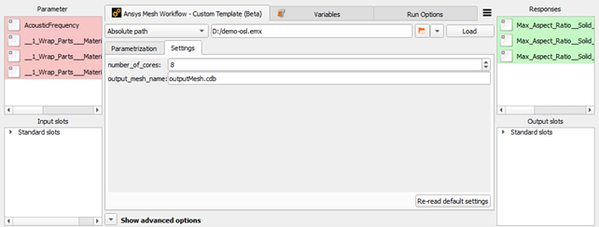
| number_of_cores | Sets the maximum number of cores to be used while executing the Mesh Workflow steps. Each step will respect this as a maximum value for parallelism. |
| output_mesh_name |
Sets the desired output mesh name and format. Allowed formats are *.cdb, *.msh, and *.pmdat. The output mesh will be stored in the node working directory. |
Preparing a Template
To create the *.emx file representing the desired Mesh Workflow template, the Ansys Mechanical UI can be used.
In Mechanical, a new Mesh Workflow can be added from either the Model or Mesh context menu, selecting from a set of predefined workflows or creating a custom workflow.
You can then setup and customize the Mesh Workflow definition, add or remove Steps, and select the set of published properties using the Mesh Workflows Worksheet and the Controls properties view.
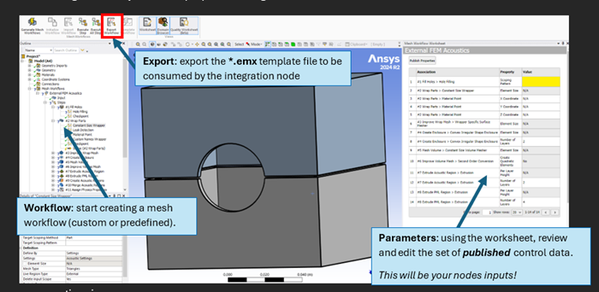
To customize the set of responses in the template, you can manage the available Mesh Quality Metrics using the Quality Worksheet.
For detailed information about how to create and customize a Mesh Workflow template, visit the Meshing Documentation.
Once the template is ready, you can export it to a *.emx file using the Export Workflow ribbon button.