


To load legacy files in the current version of the Motion Standalone Preprocessor from versions prior to 2024 R2 SP3 or files saved in 2024 R2 SP3, follow these steps.
STEP 1: Save legacy files in 2024 R2 SP3
Due to the kernel transition, ACIS geometry information stored in legacy files from versions prior to 2024 R2 SP3 must be converted to Parasolid geometry. However, the existing data alone may not be sufficient for this conversion, so 2024 R2 SP3 includes additional data to minimize compatibility issues when loading legacy files.
Important: All legacy files must therefore be opened and saved once in the Motion Preprocessor 2024 R2 SP3 before loading them in 2025 R1 or later.
When opening legacy files containing ACIS geometry saved in versions prior to 2024 R2 SP3, a compatibility warning appears, as shown in the figure below.
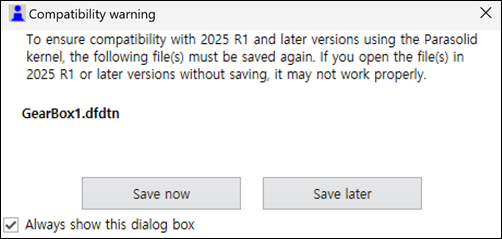
Selecting saves the file immediately, while choosing postpones the save operation. Saving through this dialog functions as a regular save, so if is selected, performing a regular save afterward will still include the required data to address compatibility issues.
Note:
If using a system that has imported other part files or subsystem files, those files must also be saved once in 2024 R2 SP3.
The file types requiring update include: dfsub, dfdtn, dfmesh, dfprt, dftsub, dfcarbt, dfcsust, dfcvtrt, dfcfptrt, dfcbt, dfcbst, dfcdlt, dfcptt, dfcvtrt, dfcwt, dfcsjtrt, dfcstt, dfctrt, dfcttrt, dfmeshcp, dfmeshcs, dfprtcp, dfprtcs, dfsubcp, and dfsubcs.
For batch conversion of multiple legacy files, refer to Batch Conversion of Legacy Files.
STEP 2: Enable legacy ACIS Kernel based file support labs feature
Run the Motion Preprocessor then navigate to > > Legacy ACIS Kernel-Based File Support and enable this option.
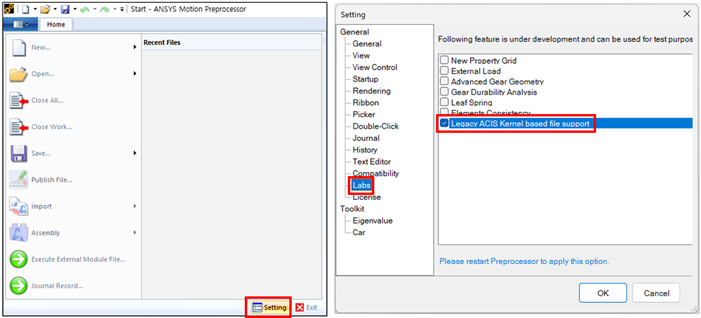
Once enabled, a menu appears in the tree view. This menu allows detailed configuration of legacy files containing ACIS geometry as they are converted to Parasolid.
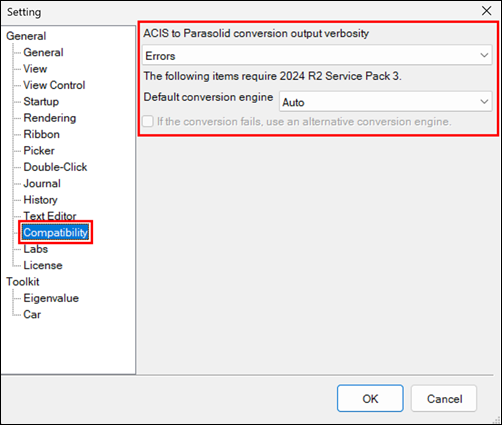
- ACIS to Parasolid conversion output verbosity
Controls the level of detail in error messages shown in the Conversion tab of the output window.
Options include:
: Provides comprehensive output with all informational messages, warnings, and errors.
: Outputs only warnings and errors.
(default): Outputs only errors.
: Limits output to critical error messages only.
- Default conversion engine
Specifies the engine for ACIS to Parasolid conversion.
Options include:
(default): Attempts conversion using first. If this fails and 2024 R2 SP3 is installed, it retries using as the conversion engine. Generally, this option is recommended.
: Uses as the conversion engine.
: Uses as the conversion engine. Available only if Motion 2024 R2 SP3 is installed. If conversion succeeds with but the converted model has issues, try using this option.
- If the conversion fails, use an alternative conversion engine
When selected, if the conversion fails and an alternative engine is available, the application retries the conversion using the alternative engine. This option is always active when is selected as the Default Conversion Engine.
STEP 3: Open legacy files in 2025 R1 or later
With the Legacy ACIS Kernel based file support option enabled, open models saved in 2024 R2 SP3 in the current version of the Motion Standalone Preprocessor. These models are automatically converted to Parasolid. Note that even when legacy files are loaded, some data may fail to convert to Parasolid and could be lost.
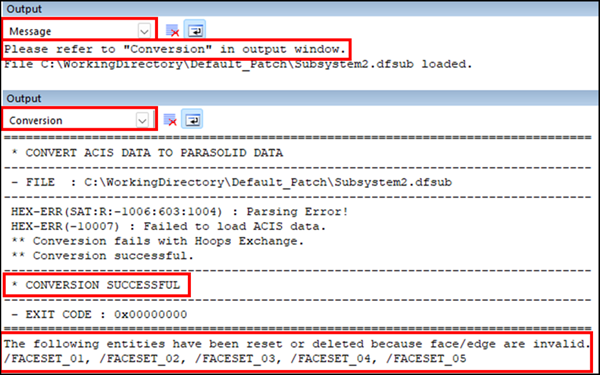
To verify a successful Parasolid conversion, check the following:
Ensure all bodies are displayed correctly, as some geometry may not render properly.
Verify that all entities are intact, as certain entities may be removed during conversion.
Open the Faceset properties to confirm that face, edge, and curve selections are correct, as some selections may have been deselected or misaligned.
Due to the kernel transition, the orientation of the CM Marker for rigid bodies may change. If the CM Marker is used in function expressions, forces, boundary conditions, or measurement functions, model adjustments may be necessary.
Note: Before saving the file converted to Parasolid in 2025 R1 or later, you should create a backup.
If loading legacy files fails or if conversion-related issues arise, refer to Troubleshooting Guide for Parasolid Kernel.