


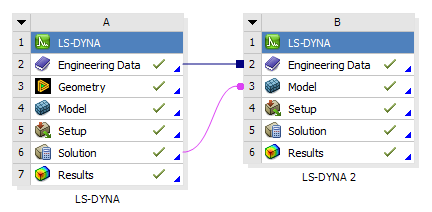
This section describes how to setup a two-system simulation using the results of the first solution to initialize the model of the second solution. In this case the Solution cell from the first system is linked to the Model cell for the second system.
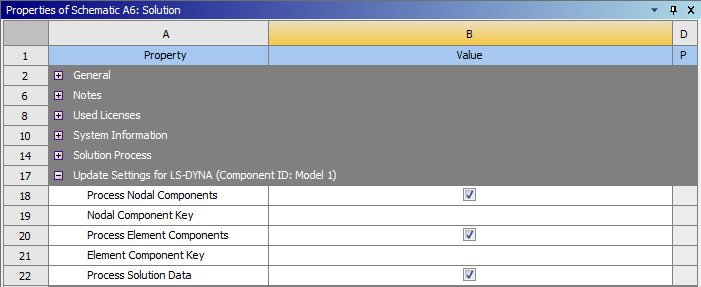
In order to properly transfer the deformed geometry and stresses, you need to select the Process Solution Data check box in the Properties of the first LS-DYNA system. The data can only be transferred at the end of the solution, not at an earlier point in the solution.
Note: The unit systems used by the downstream systems must be the same as the unit system of the upstream system. If the unit systems are different an error is generated.
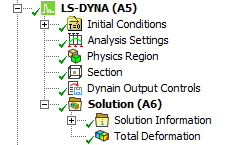
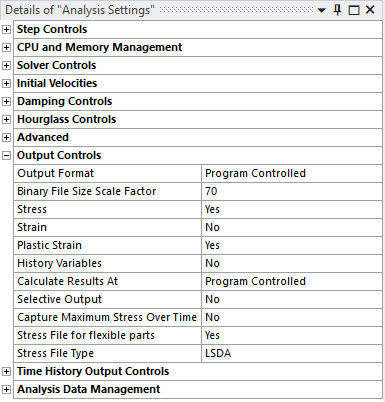
In order to enable the transfer of data a dynain.lsda file must be generated by the analysis of the first system. This is achieved by setting the property Stress File for flexible parts to Yes under the Output Controls section of Analysis Settings. By default, the dynain file is created in the LSDA format. There is an option to switch this to ASCII and Binary. Note that for the ASCII format, history variables are not imported and will not be written in the input file of the following system, while Initial Stresses are imported and are available within the Initial Stresses Object. The default settings are to transfer data for only flexible bodies. This behavior can be customized using the Dynain Output Controls object described below.
|
|
|
The dynain.lsda file is automatically copied from the first analysis system to the second analysis system and submitted to the solver via the *INCLUDE keyword in the system two input file.
This procedure can be extended to include additional systems as required.