


Restarting means performing an analysis which continues from a previous analysis. A restart can begin from either the conclusion of or the middle of a prior analysis.
Possible Reasons for Performing A Restart
The previous analysis was killed by the operating system or the user (sw1).
The previous analysis exceeded the user defined CPU limit.
There was an error in the previous analysis and a restart is used to diagnose and/or correct the error.
The previous analysis was not run to a long enough termination time.
There are three types of restarts: simple restarts, small restarts, and full restarts.
A simple restart is one for which the original model has not been altered in the new analysis. A simple restart is performed when the LS-DYNA solution was prematurely interrupted by the exceeding of a user defined CPU limit or by the issuing of the sense switch control sw1.
A small restart is used to run an analysis to a longer termination time than initially specified and/or to make minor modifications to the model. The following actions are permitted in a small restart.
Specifying rigid/deformable switch controls.
Switching parts from deformable to rigid & back.
A full restart supports most new analysis actions, including:
Portions of the model may be added or removed.
Additional materials and loading changes are permitted.
There are some restrictions for full restarts, including:
Contact specifications and initial velocities cannot be changed.
Adaptive meshing is not supported, even if present in the initial run.
Stress initialization is available for full restarts. Deformed nodal positions and stresses/strains from a previous analysis are carried forward into a full restart analysis.
Note: In order to switch the stiffness in either a small restart or full restart, you must add a Deformable To Rigid object under the original LS-DYNA system as shown here:
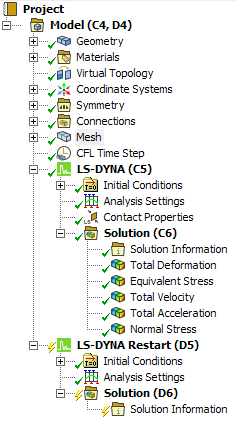
To add the object, right-click the LS-DYNA system, and select Insert and then > . After you add the object, select it and in the Details view, scope the object to the body whose stiffness you want to change. Be sure that the Stiffness Behavior attribute of the scoped body is set to Flexible.