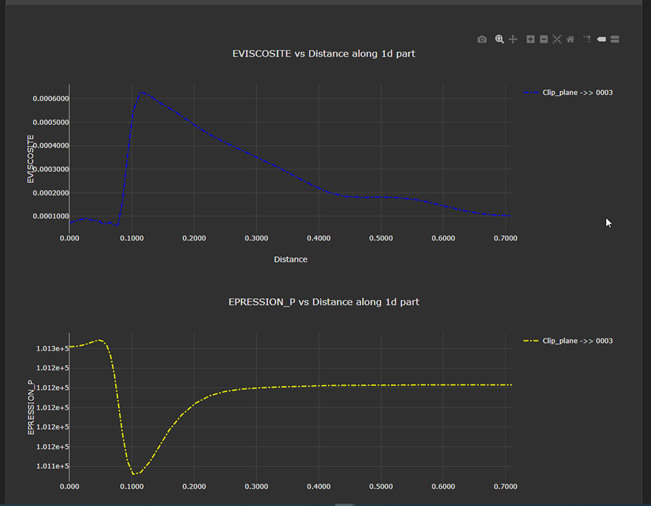
You can enable dark mode in two ways:
External Python API
Web user interface
External Python API
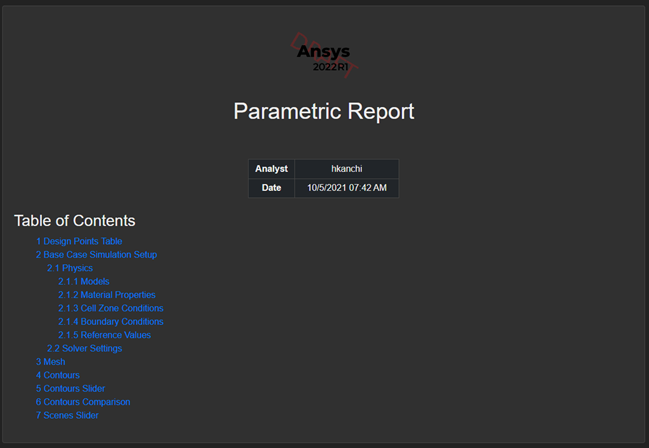
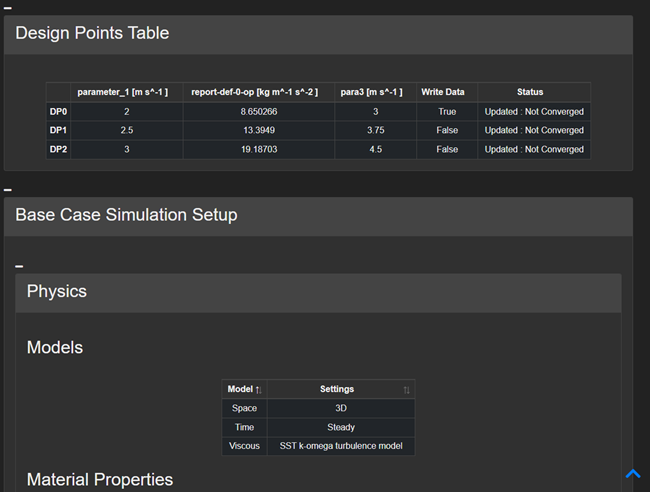
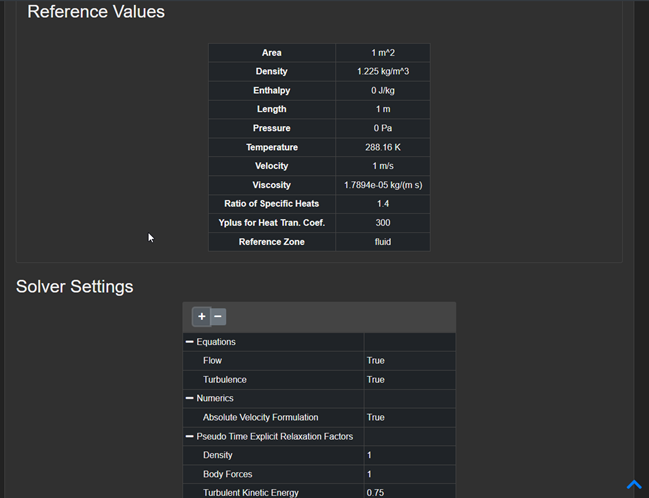
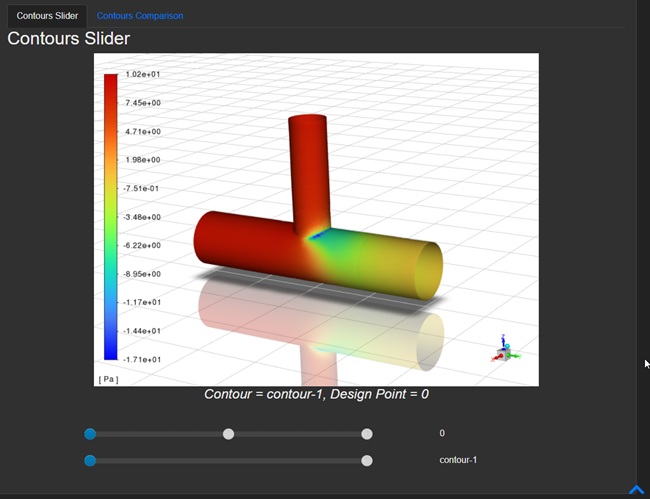
Dark Mode can be enabled/disabled temporarily per request using the external Python API available from the template editor. For example, to export a report as HTML in dark mode:
from ansys.dynamicreporting.core.utils import report_remote_server, report_objects

source = report_remote_server.Server(url="http://localhost:9000", username="nexus", password="cei")
source.validate()
source.export_report_as_html("e548be92-4052-11eb-aacb-2f34187eafe8",
"C:/Users/me/Documents/htmlexport", query={'colormode': 'dark'})
The exported HTML will now be in dark mode. This is achieved by
query={'colormode': 'dark'}. The default is light mode which can also be
set by query={'colormode': 'light'}.
Setting this query produces a report URL equivalent to:
http://localhost:9000/reports/report_display/
?view=e548be92-4052-11eb-aacb-2f34187eafe8&colormode=dark
The colormode=dark query parameter is what temporarily enables dark mode
only for that session. This is not saved for future requests and has to be added
manually for each request.
If you are developing an external client that uses Ansys Dynamic Reporting, you may also add this query parameter manually to any URL that you are requesting.
Web Interface
You can enable and disable dark mode from anywhere within the web interface using the menu bar. To enable dark mode:
In the top right corner of the menu bar, click and select .
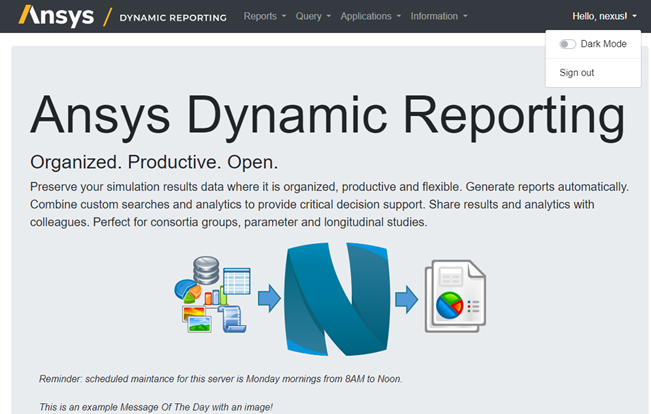
Almost every part of the web interface now appears dark, including report templates and items within templates.
For example: