


A sample demonstrating how to fit a NURBS surface to mesh.
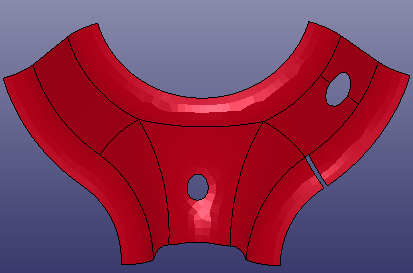
This tutorial uses the Keyword file meshtosurface.k. In the pulldown menu, go to File > Open > LS-DYNA Keyword File, choose meshtosurface.k. You will see the following mesh model displayed in LSPrePost mainpage.
Click the menu button > >. Both Fit surface from Points/Mesh dialog and Mesh Selection dialog are shown.
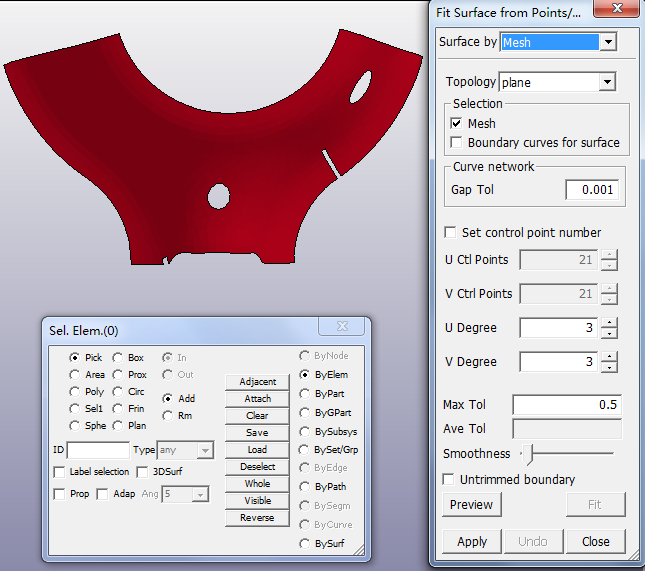
Select Mesh Option. Select the ByPart radio button in the Selection panel.
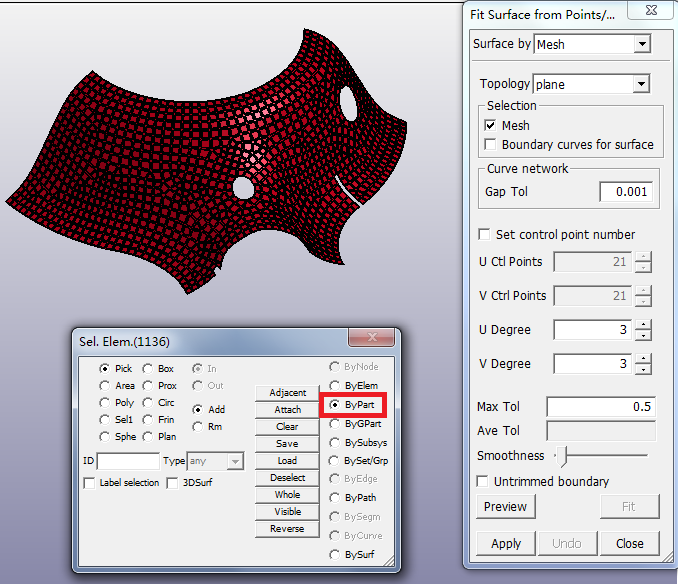
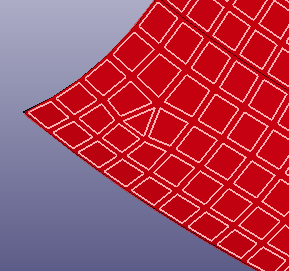
Click . An initial surface is generated. The right picture shows the initial surface, and the left picture shows the details at the corner position.

A message is printed in the bottom dialog: Control point #:u=21 v=31; max dev:0.439477,mean dev:0.104203. This message reports that the initial surface has 21 control points in U-direction and 31 control points in V-direction, the maximum deviation between surface and mesh nodes is 0.439477, the mean deviation is 0.104203. The maximum deviation is under the default threshold setting 0.5 .

Set the parameter Max Tol to 0.3. Click the
button. The surface is updated. The message reports
'Control point #:u=27 v=38; max dev:0.256196,mean dev:0.054895.
Set the parameter Max Tol to 0.1. Click the
button again. The surface is updated. The message
reports 'Control point #:u=33 v=43; max dev:0.093604,mean dev:0.016271'. You will
see the updated surface is very near to the corner point position from the following
picture.
Set the parameter Max Tol to
0.05. Click the button again.
The surface is updated. The message reports 'Control point #:u=40 v=48; max
dev:0.049742,mean dev:0.009516'.
When you decrease the max tolerence threshold, the surface control point number will increase in both of U-direction and V-direction in order to get more details for higher precision.