The Ansys App Portal uses theAnsys HPC Platform Services (HPS) technology components that are designed to help you manage the execution of simulations while making use of your full range of compute resources. The Ansys App Portal enables you to submit solutions and store solver files using multiple heterogeneous compute resources.
From within the Ansys App Portal, you can start the Fluent Web interface (see Remotely Accessing Your Simulations Using Ansys Fluent's Web Interface), set up and run your simulation(s) and retrieve the results.
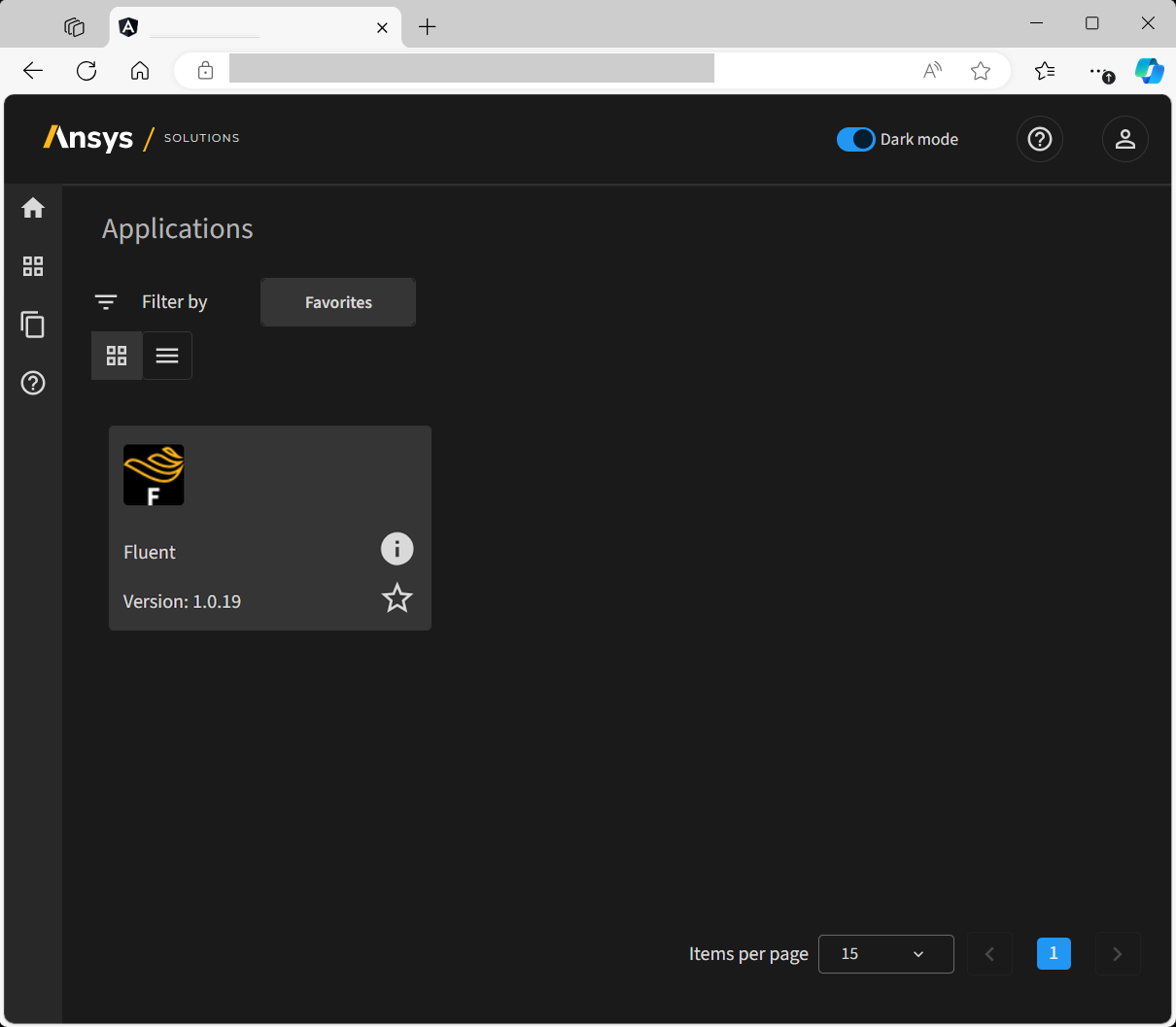
Select the Fluent icon to open the Session Page that lists any current Fluent session on the portal.
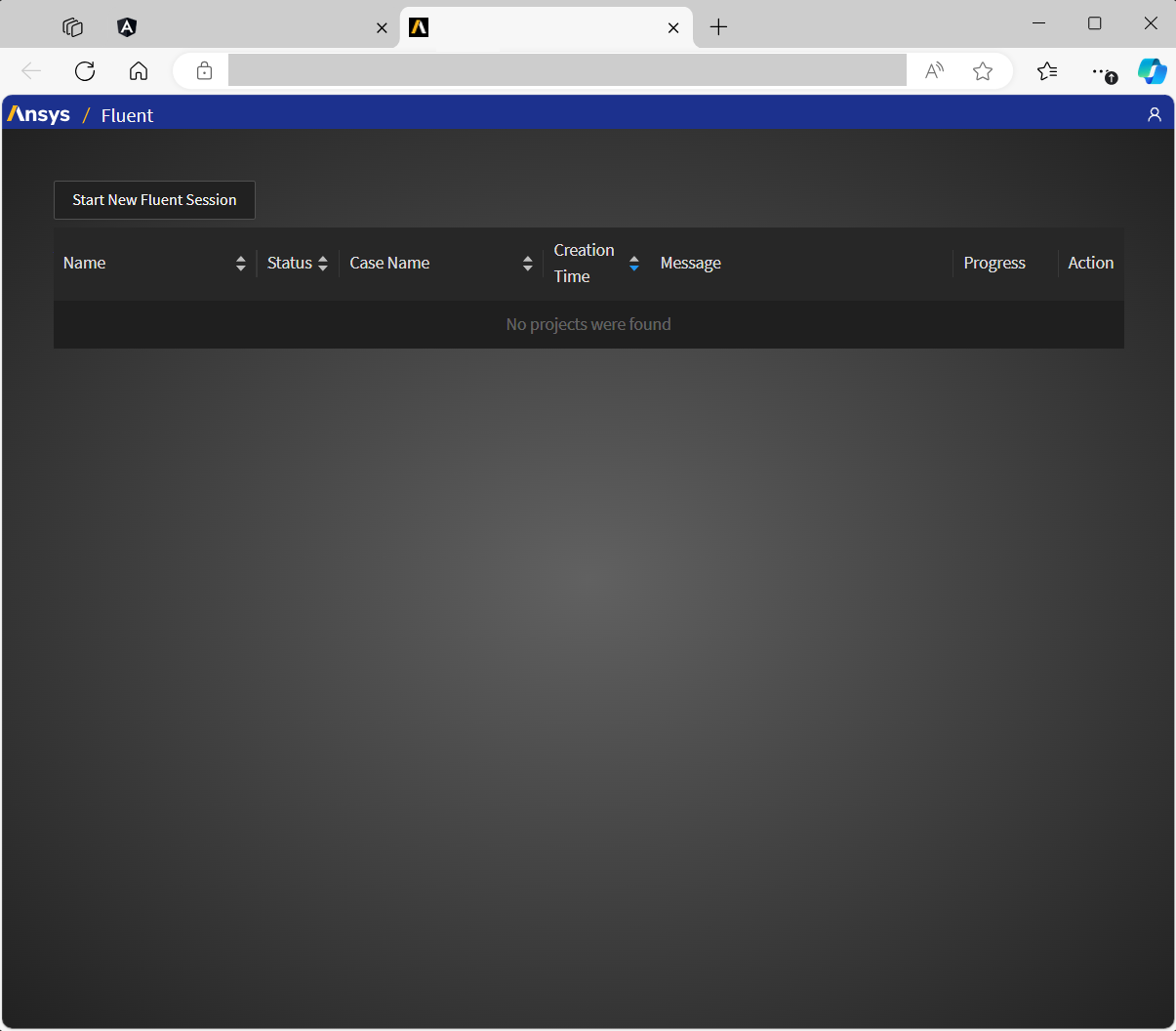
To start a new Fluent web interface session:
Click the Start New Fluent Session button.
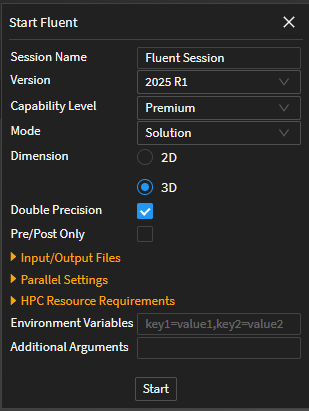
This displays the Start Fluent panel that contains various Fluent-related settings to start the application, similar to the Fluent Launcher. Review the settings as needed.
Under Input/Output Files:
Specify a Case File (
.cas).Specify a Data File (
.dat) file.Specify a Journal File (
.jou).
Click Start.
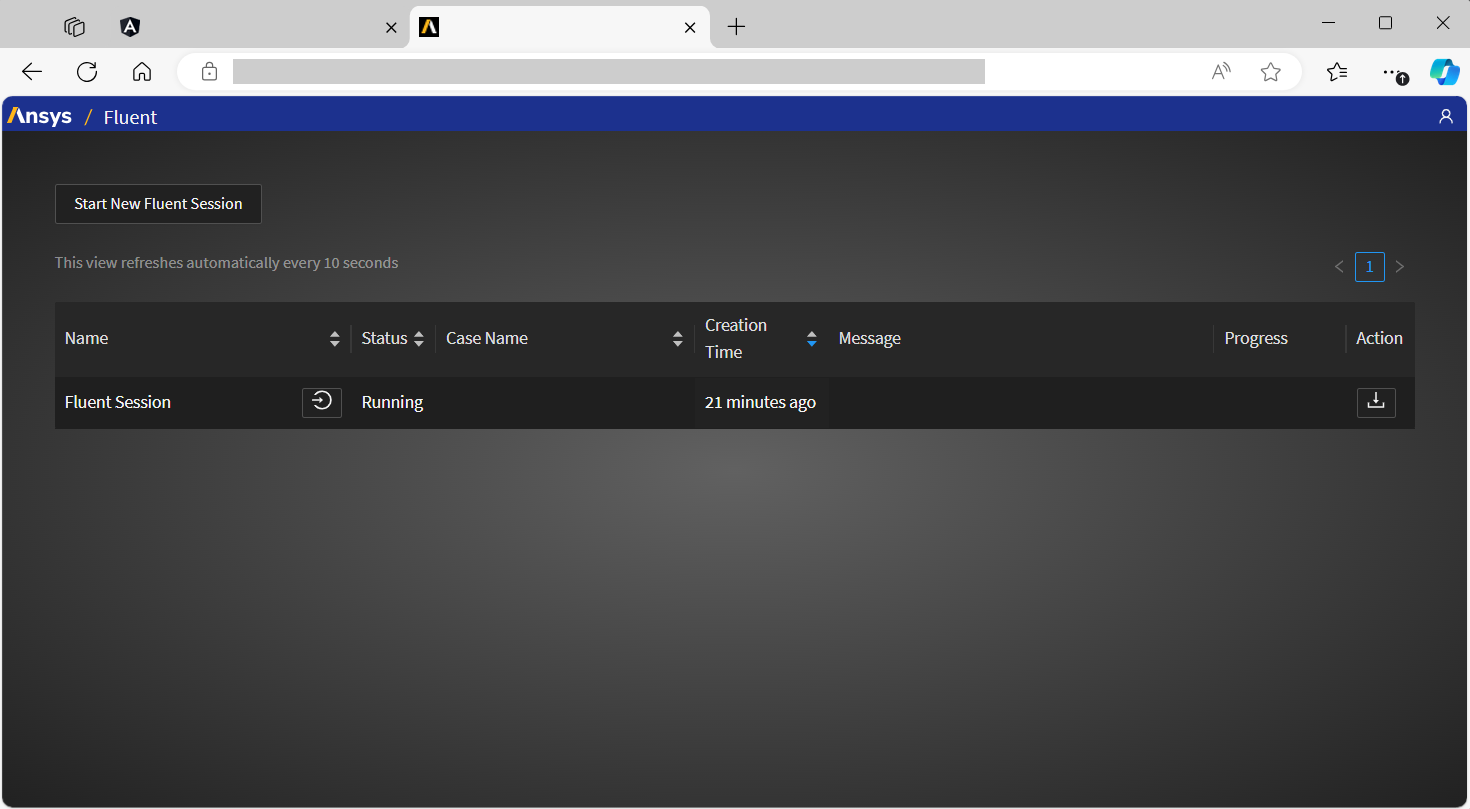
This will start the Fluent Web session and populate the Session Page accordingly.
View a specific web session by clicking the corresponding Connect icon (
 ) to open the
Fluent web interface with the selected session already opened. See Remotely Accessing Your Simulations Using Ansys Fluent's Web Interface for more information about using the
web interface.
) to open the
Fluent web interface with the selected session already opened. See Remotely Accessing Your Simulations Using Ansys Fluent's Web Interface for more information about using the
web interface.Once the job is complete, use the Download icon (
 ) under Action, to
download the output files for further analysis.
) under Action, to
download the output files for further analysis.