


Using the Share Topology Tool
-
Click
 to preview coincident topology to share based on the
Coincidence tolerance specified.
Each time you modify the options, click to preview the coincident topology based on the
changes.
to preview coincident topology to share based on the
Coincidence tolerance specified.
Each time you modify the options, click to preview the coincident topology based on the
changes.
| Click Preview to find sharing candidates and highlight
them in red. |
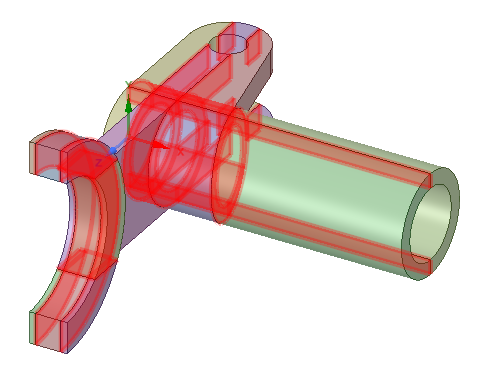 |
| Using the Exclude Problem tool guide, candidates in one area of the model are selected for exclusion. These candidates are now highlighted in green to indicate they are excluded. | 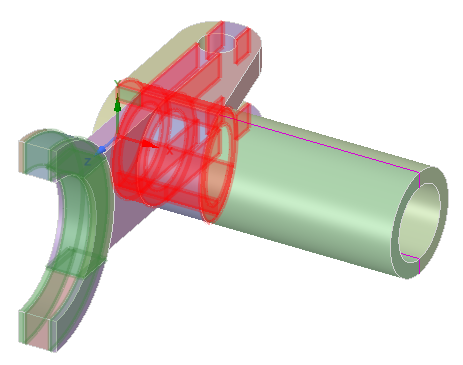 |
| Click the Complete tool guide to share all remaining candidates. | 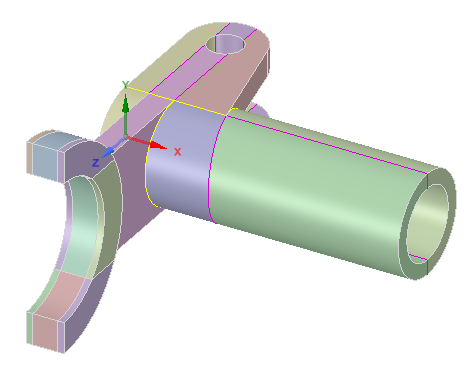 |