

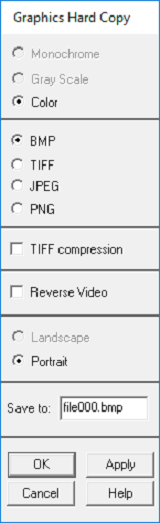
- Function
Saves graphics to a file or sends graphics directly to a printer.
- Plot Type
Specifies the graphics type for your printer. See your printer documentation for the specific black and white, gray scale and color capabilities.
- File Type
Bitmap: Creates bitmap file (should not be spooled to a printer)
TIFF: Creates TIFF file
JPEG: Creates a .jpg file
PNG: Creates a .png file
- TIFF Compression Toggle
Compresses TIFF files (default=ON).
- Reverse Video Toggle
Switches black to white and white to black to compensate for the default black background on the Mechanical APDL Graphics Window. By default, Reverse Video is on, allowing this option to generate white printouts with black (or shaded/colored) legend, plot and data items.
- Orientation
Specifies how your graphics are oriented on hard copies. The default orientation is Landscape.
- Save to:
Writes your graphics to a file. By default, your graphics are written to a file with the name shown in the text entry box. You can change the file name to something that more closely describes your project, but you should keep the default extension.
Note: Open GL (3D) devices require that the Graphics Window contents be brought to the top to generate plots of partially obstructed window contents. See the /UIS command for more information on this behavior and how it affects other graphics operations.