


Whenever you use graphical picking (that is, when you click on a menu topic ending with the + symbol), the GUI brings up a picking menu, sometimes known as the picker. The following figure shows the picking menus for locational and retrieval picking. In this example, creating keypoints by picking their locations on the working plane is a locational picking operation, and picking those keypoints to apply a load on them is a retrieval picking operation.
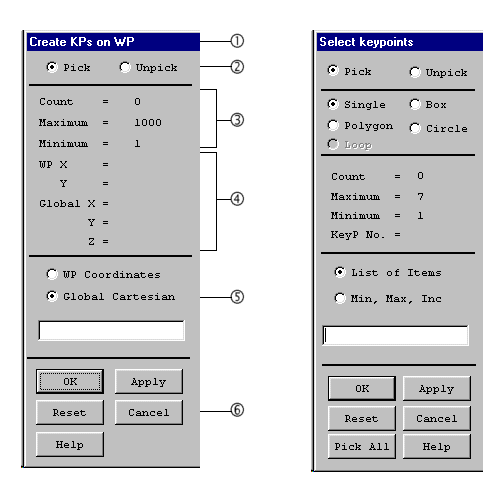
Function Title [1] - Identifies the function being performed.
Pick Mode [2] - Allows you to pick or unpick a location or entity. You can use either these toggle buttons or the right mouse button to switch between pick and unpick modes. The mouse pointer is shown as an up arrow for picking and a down arrow for unpicking.
For retrieval picking, you also can choose among single, box, polygon, circle, and loop mode. In single pick mode, each click on the mouse picks one entity. With box, polygon, and circle modes, you press and drag the mouse to enclose a set of entities in a box, polygon, or circle.
Loop mode is available for picking lines and areas only. With loop mode, when you pick on a line (or area), then the complete set of lines (or areas) defining a continuous loop including that line (or area) is also picked. This feature is useful when you want to identify continuous lines in order to make an area (or continuous areas to make a volume). For all modes of retrieval picking, Mechanical APDL shows the picked entities highlighted for visual clarity.
Pick Status [3] - Shows the number of items picked ("Count") and the minimum and maximum number of picks required for the function.
Picked Data [4] - Shows information about the item being picked. For locational picking, the working plane and global Cartesian coordinates of the point are shown. For retrieval picking, this area shows the entity number. You can see this data by pressing and dragging the mouse in the graphics area. This allows you to preview the information before releasing the mouse button and picking the item.
Keyboard Entry Options [5] - In some cases, you may need to enter the required data by keyboard in the picker. For example, to specify a known coordinate location during locational picking, it may be easier to enter the coordinates than to use the mouse. In that case, you can choose between working plane coordinates and global Cartesian coordinates. For retrieval picking, you can choose between entering a list of entity numbers (such as 1,21,343,...) and a range of numbers (such as 1,21,2).
Note: You must press enter to accept the selection in the text entry box before clicking .
Action Buttons [6] - This area of the menu contains buttons that take action on the picked entities, as follows:
- Applies the picked items to execute the function and closes the picking menu.
- Applies the picked items to execute the function but does not close the picking menu. You can use this button on the menu or stay in the graphics area and click the middle mouse button to apply.
- Unpicks all picked entities and restores the menu and the graphics area to their state at the last Apply.
- Cancels the function and closes the picking menu.
- Picks all entities, executes the selected function, and closes the picking menu. This feature is available for retrieval picking only.
- Brings up help information for the function being performed.