


The table item can be displayed as a physical table as text with optional
column sorting or as an interactive plot. The value of the plot
property controls the specific
type of display that is generated.
Table View
A table data item displayed as a table might look like this:
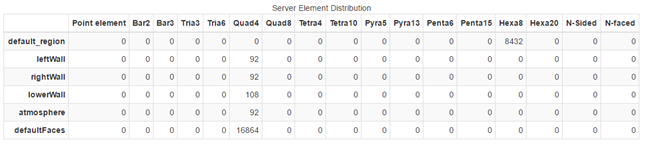
Tables have optional row and column headers that are presented as bold-face
labels along the top and left sides of the table. Each table has an optional
title that is displayed, centered, over the top of the table. Columns support
sorting. Clicking individual columns sorts the rows according to the order of
the values in that column. Values in the table can be strings or floating point
numbers. The format property sets the default formatting for the entire table or for
individual columns. A table value can be interpreted as a time value (the number
of seconds since 1970-01-01T00.00:00.00000). In conjunction with the
date_XY formatting option, these can be displayed in proper
date/time formats.
Line Plot View
The table can be displayed as a line plot.
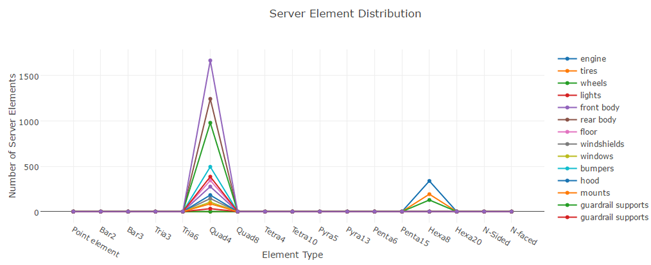
In line plot mode, rows in the table are mapped to lines in the line plot. A
specific row or the column labels can be used as the common X axis for the data
in each row. Not a Number (NaN) values in the row are not included in any plots
(they are simply skipped). Line colors, widths, styles, thicknesses and symbols
can all be controlled using properties. A line plot with symbols but with the
line_style property
of none results in a scatter plot.
Bar Graph View
The table can be displayed as a bar graph.
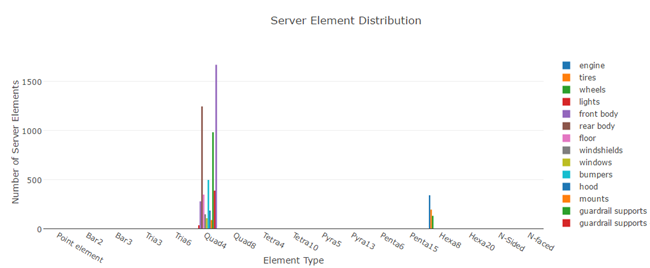
In bar plot mode, rows in the table are mapped to sets of bars in the bar
plot. A specific row or the column labels can be used as the common X axis for
the data in each row. Not a Number (NaN) values in the row are not included in
any plots (they are simply skipped). Bar plots map the line_color
property to the color of each bar
set.
Histogram View
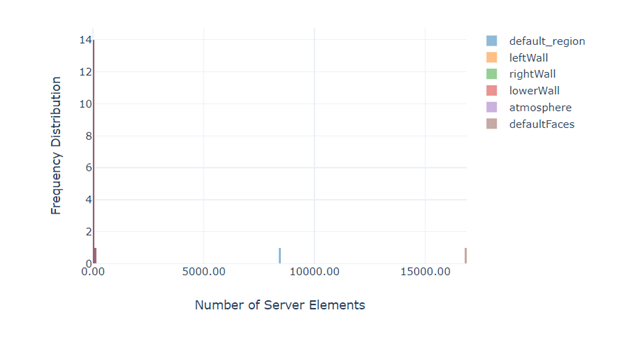
The table example can be displayed as a histogram plot categorized by its Y labels in two scenarios:
Render large table as histogram
By default, Ansys Dynamic Reporting displays any data table as histogram if the table columns count is greater than the rendering threshold. The initial threshold is 50 columns, but can be modified.
Specify the display option
You can also specify the plot property as a histogram.
Pie Chart View
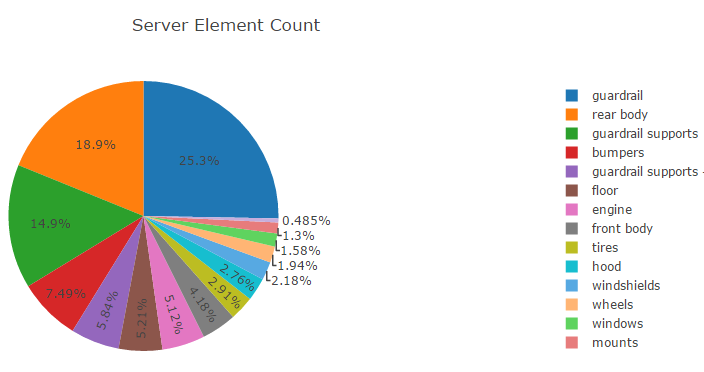
In pie chart mode, each row is displayed as a separate pie graph with a common
legend. The colors of the pie wedges can be set using the
line_color property.
The row label and the specific wedge value can be seen when you hover over an
individual wedge.
Heatmap View
A 2D array of values can be displayed graphically as blocks colored by a palette. The following is an example table of values.
| 0.00291 | 0.01306 | 0.02153 | 0.01306 | 0.00291 |
| 0.01306 | 0.05854 | 0.09653 | 0.05854 | 0.01306 |
| 0.02153 | 0.09653 | nan | 0.09653 | 0.02153 |
| 0.01306 | 0.05854 | 0.09653 | 0.05854 | 0.01306 |
| 0.00291 | 0.01306 | 0.02153 | 0.01306 | 0.00291 |
If the plot property is set to heatmap, the table is displayed
as:
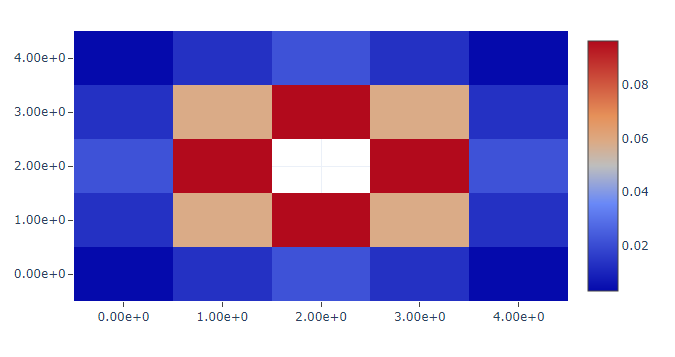
The Not a Number (NaN) value is interpreted as a missing value. Grid lines can
be added to the display using the show_border property. The
format, palette, palette_reverse,
palette_show and palette_range properties are all
supported.
Parallel Coordinates Plot View
In a parallel coordinates plot, each row in the table is considered an observation. Each column in the table is a different observation. The following is an example table of five observations. Each observation consists of three values (width, height and value).
| Width | Height | Value |
|---|---|---|
| 54.2 | 12.3 | 1.45e5 |
| 72.3 | 9.3 | 4.34e5 |
| 45.4 | 10.8 | 8.45e4 |
| 67.4 | 12.2 | 2.56e5 |
| 44.8 | 13.5 | 9.87e4 |
If the plot property is set to parallel, the table is displayed
as:
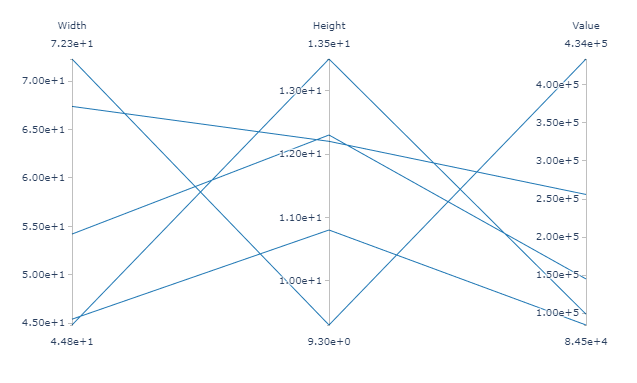
One axis for each of the columns in the table with one line for each row in
the table. The minimum and maximum values for each column can be set using the
column_minimum and column_maximum properties. The
format and line_color properties are also used in
parallel coordinates plots.
Sankey Diagram View
A sankey diagram is a nodal flow diagram. It draws a plot of linked nodes, where each link has a specific weight or value. Links are directional, in that the flow from node A to node B is displayed separately from the flow from node B to A, and they can have different weights. Weights must be non-zero, positive floating point numbers.
The nodal network is represented as a table. The rows and columns are the nodes. Rows are the sources and columns are the targets. The value in the table is the weight of the link from the source to the target. Weights that are less than or equal to 0.0 are non-existent links and are not included in the diagram.
Note: Labels for the nodes are assumed to be the same for the sources and targets. The column labels are used as the node labels, any supplied row labels are ignored.
The following is an example graph with six nodes: A, B, C, D, E, F. Nodes A and B feed C and D while nodes C and D feed E and F with the following weights:
| Source | Target | Weight |
|---|---|---|
| A | C | 8 |
| B | D | 4 |
| A | D | 2 |
| C | E | 8 |
| D | E | 5 |
| D | F | 1 |
That graph is represented using this table (which is passed to Ansys Dynamic Reporting):
| A | B | C | D | E | F | |
| A | 0 | 0 | 8 | 2 | 0 | 0 |
| B | 0 | 0 | 0 | 4 | 0 | 0 |
| C | 0 | 0 | 0 | 0 | 8 | 0 |
| D | 0 | 0 | 0 | 0 | 5 | 1 |
| E | 0 | 0 | 0 | 0 | 0 | 0 |
| F | 0 | 0 | 0 | 0 | 0 | 0 |
If the plot property is set to sankey, the table is displayed
as:
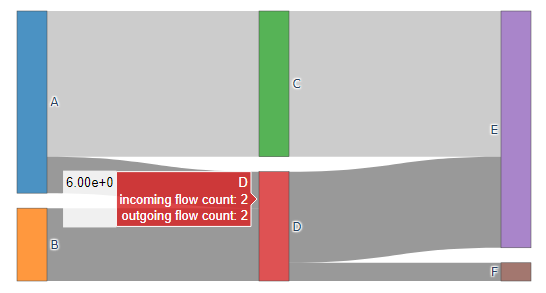
The format property is also used in sankey plots.