


The most common operation performed in the Template Editor is to create and edit report templates. When a connection is made with a database, a list of all of the (top-level) report templates and their associated tags appear in the report template editor left-hand pane.
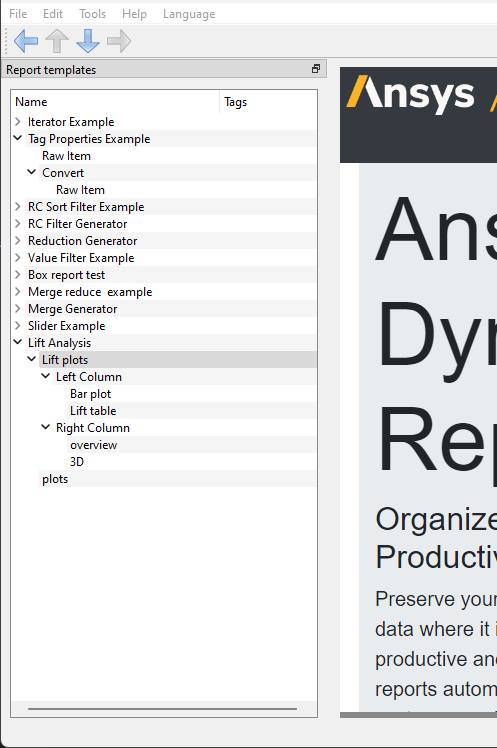
To create a new template:
Determine where in the Report templates list you want the new template to be placed. If you want a top-level template, do not select anything. Otherwise, expand the template list and select the template you want to create a child template for.
From the menu bar, select > .
Your new template is added to the list as New Template. It is located either at the top level and not indented (a parent template) or indented under the template you selected previously (a child template).
If required, use the navigation arrows, or click-and-drag, to move the template to another location in the list.

Double-click New Template and type the template name. Press Enter to save the change.
In the Template properties pane, select the template type and set the properties as required.
For more details on each template type and properties, see the layout and generator template descriptions.
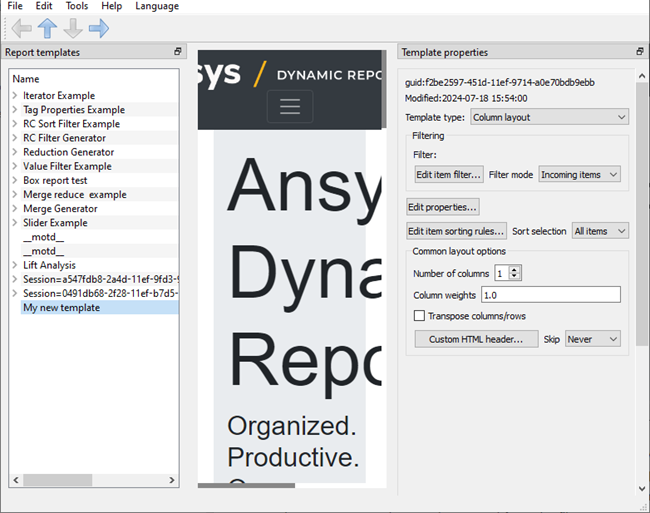
To save the changes, from the menu bar, select > .
For top-level templates, to view the report generated by this template, from the menu bar, select > .