


Specify settings and conditions related to the DED machine and the process. We will use many of the defaults, such as values for gas convection coefficients, advanced options, and so on. Use the links to the DED Simulation Guide provided at the end of this section for more information about these options.
Machine Settings:
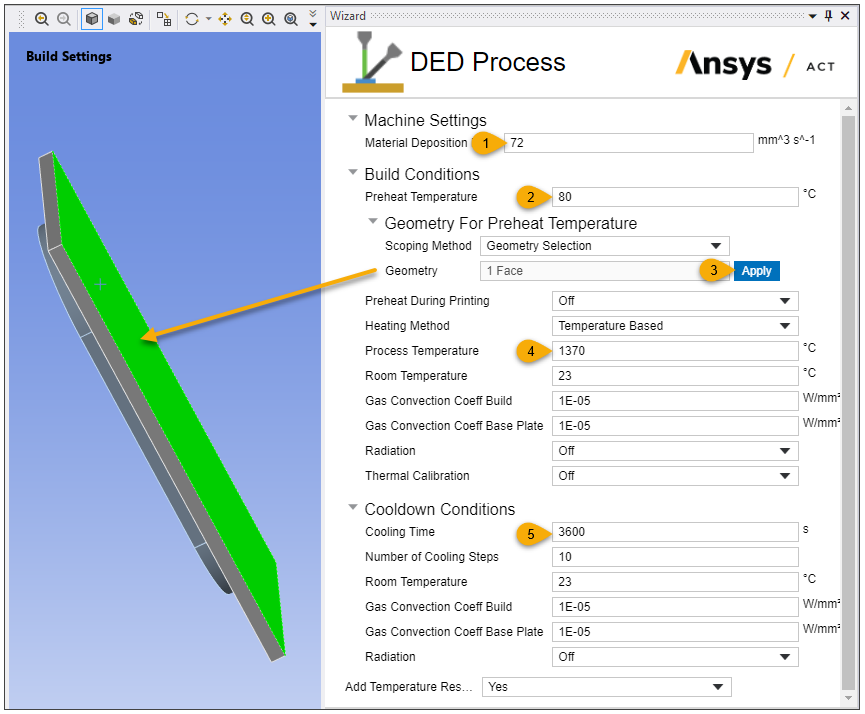
Enter 72 for Material Deposition Rate. The value should match the actual machine setting for the printing process.
Build Conditions:
Enter 80 for Preheat Temperature. This is determined by the actual preheating condition of the printing process.
We apply the preheat to the bottom surface of the base plate. Rotate the model in the graphics window, select the underside surface of the base, and click Apply in the Preheat Geometry field. We will keep the preheat off during printing.
Enter 1370 for Process Temperature. This is the temperature value assigned to newly activated elements at each load step, normally set as the melting temperature.
Cooldown Conditions:
Enter 3600 for Time. This allows an hour for cooldown.
Keep Yes (default) for Add Temperature Result. This is simply a convenience option related to the simulation and not related to anything in the printing process. A value of Yes adds a result item object into the project tree before solution so that the calculated temperatures will be populated upon solution completion and viewable with one click.
Click Next to move to the next step.
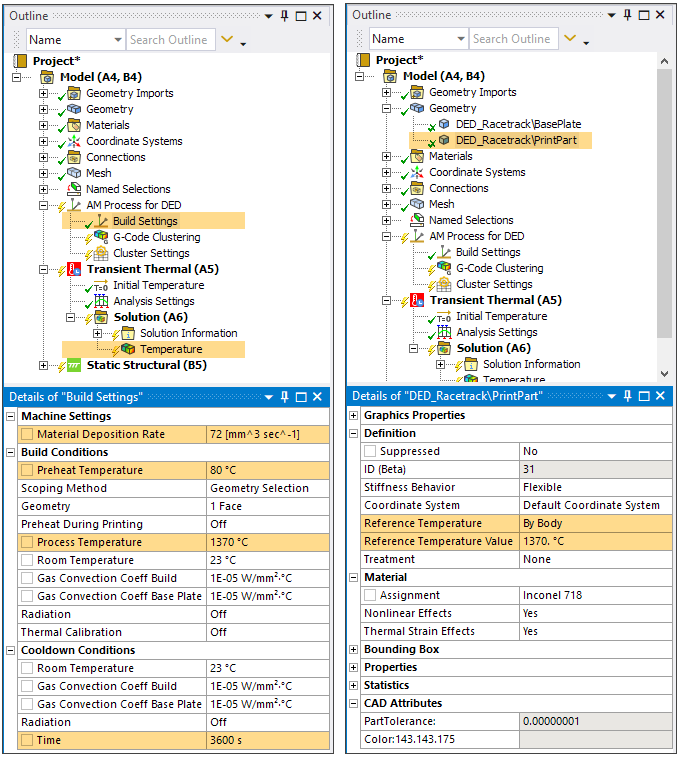
In this step, the Build Settings object is populated with chosen settings. The green checkmark next to the Build Settings object indicates it is now complete. Also, a Temperature result item is added under the Transient Thermal Solution object. Finally, the part body is assigned a Reference Temperature By Body and the Reference Temperature Value is set to the Process Temperature. This is an important update to the properties for the part.
See the following topics in the DED Simulation Guide for additional information: