


The RSM Cluster Load Monitoring application retrieves current status information from a cluster and displays the information in easy-to-read diagrams and tables. Use it to view a basic set of data and metrics, and monitor cluster usage and availability.
To monitor the status of a cluster:
In the RSM Cluster Load Monitoring application, select the HPC configuration with which the cluster is associated. For more information about HPC configurations, see RSM Configuration.
When you select a configuration, information about the associated cluster's Submit host and HPC type are displayed below the HPC configuration drop-down list.
To retrieve current information from the selected cluster, click
 on the toolbar, or click
  next to the HPC configuration drop-down
list
next to the HPC configuration drop-down
list
Here is an overview of the RSM Cluster Load Monitoring application window:
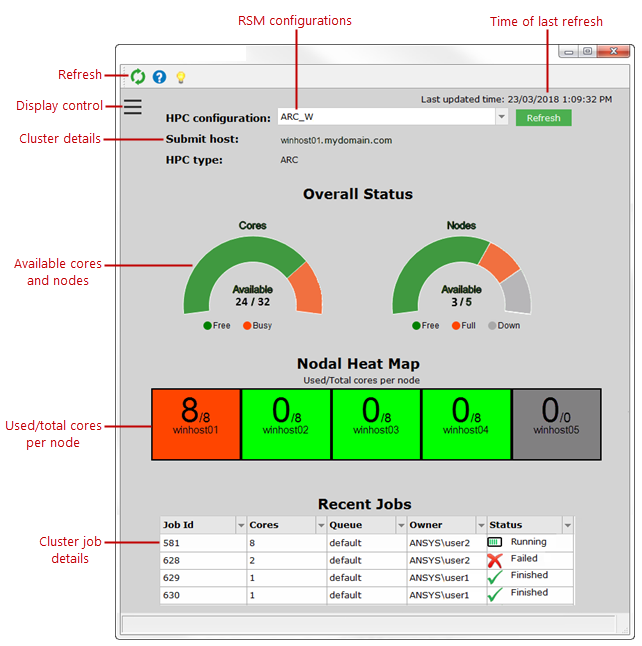
The Overall Status section lets you know at a glance how many cores and nodes are currently available for use in the cluster. Use the color legend to understand the meaning of colored sections in the diagrams.
The Nodal Heat Map helps you visualize the activity and availability on each node, by displaying the number of cores being used by jobs versus the total number of cores available.
The Recent Jobs section displays a list of jobs that users have recently submitted to the cluster, and details about each job. See Viewing Cluster Job Information.
Note that for an Ansys RSM Cluster (ARC), all jobs are displayed in the Recent Jobs list. For other cluster types, however, you may only see a partial listing of jobs if the cluster administrator has placed restrictions on the types of jobs that you can view (for example, you may only be able to view your own jobs). If only a partial job list is displayed, the information reported in the Overall Status and Nodal Heat Map sections represents the resources being consumed by all jobs, not just the ones you see in the job list.
Note: To minimize the querying of the HPC resource, the RSM Cluster Load Monitoring application does not perform a continuous, real-time status refresh. To get up-to-the-minute status information, you must use the application's Refresh function.