


Open Ansys Workbench and click File > Save As.
Save the project as QuickPump in a suitable directory.
From the Toolbox pane, under Component Systems, drag a Vista CPD system onto the Project Schematic pane.
A new Vista CPD system appears in the Project Schematic pane.
Double-click the Blade Design cell in the Vista CPD system.
Vista CPD appears.
In the Duty panel on the Operating Conditions tab, specify a Head Rise of
30 mand click Calculate.A meridional sketch of the pump is shown alongside the calculated 1D performance data.
Click to exit Vista CPD and return to the Project Schematic pane.
Right-click the Blade Design cell and select Create New > BladeGen.
After a short time a new BladeGen system is created in the Project Schematic pane.
Right-click the Blade Design cell in the BladeGen system and select Transfer Data to New > TurboGrid.
A new TurboGrid system is created in the Project Schematic pane, linked to the Blade Design cell of the BladeGen system.
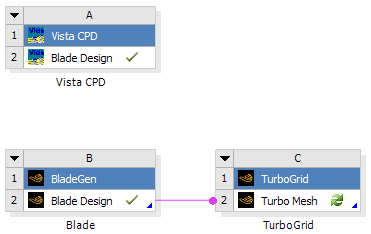
Double-click the Turbo Mesh cell in the TurboGrid system.
TurboGrid appears.
Edit
Topology Set.In the details view, select Split Mesh Regions > Split Mesh Regions at Trailing Edge.
This makes it possible to split the hub at the trailing edge of the impeller so that the downstream part of the hub can be stationary.
Click .
Edit Mesh Data.
In the details view, set Size Factor to
0.8and Cutoff Edge Split Factor > Trailing to0.3.This will generate a coarser mesh, which in turn will produce a faster CFD solution.
Click .
Select File > Close TurboGrid to return to the Project Schematic pane.
Right-click the Turbo Mesh cell and select Update to generate the mesh.
After the mesh has been generated, a green check mark appears on the Turbo Mesh cell.
Right-click the Turbo Mesh cell and select Transfer Data to New > CFX.
A new CFX system is created in the Project Schematic pane.