


A storage configuration contains information about a file storage location. Storage locations are associated with queues. You can create a storage configuration if you belong to a user group with the 'Create storage configuration' permission.
To create a storage configuration:
In the navigation panel, under Configurations, select .
Click and select from the drop-down list:
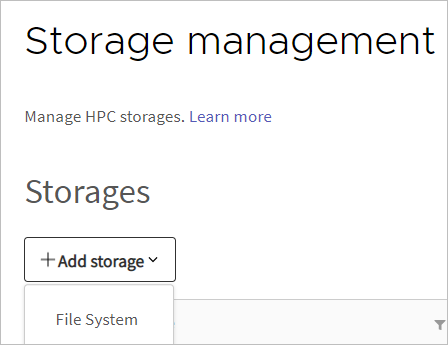
In the Add storage dialog box, specify the following settings:
Setting Description Storage name The name that appears in the Storages table. Do not use the name of an existing configuration. Description The description that appears in the Storages table. Base path The path to the file storage location.
Node Direct Access If enabled, direct access to the storage node is permitted. Encryption If enabled, files in the storage location are encrypted to protect the data that they contain. Compression If enabled, files above a certain size are compressed when transferred to the storage location.
The Threshold (bytes) setting is the size above which a file must be in order to be compressed.
The Level (None, Fast, Optimal, or Archive) determines the file compression ratio and speed.
Alternate paths When integrating with a Windows to Linux workflow, there may be many shared drives used by the Windows clients that you want to configure. Alternate paths are a list of the Linux paths that equate to Windows share drives that Windows clients have.
To add alternate paths, click and enter the path in the field. You can add one or more paths. To delete an alternate path, click
 [Delete].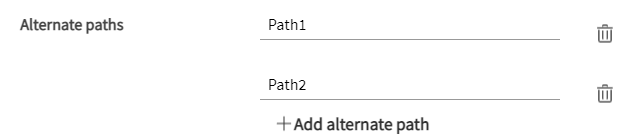
Click . The storage location is added to the Storages list.
Next, you may want to set permissions on the storage configuration.