


You can edit the properties of a cluster configuration if you have 'Modify' permission on the configuration.
In the navigation panel, under Configurations, select .
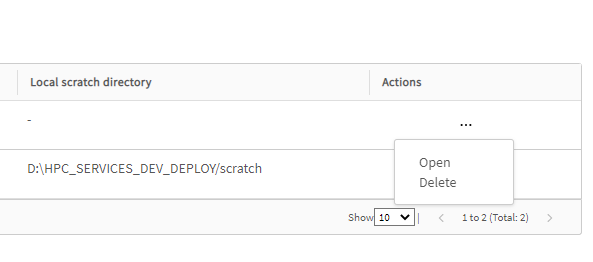
In the Clusters table, click the cluster name, or in the Actions cell of the cluster configuration you want to edit, click and select .
Edit the configuration as desired:
To edit the cluster name, click
 next to the name and then type the
new name.
next to the name and then type the
new name.To edit the cluster properties, click , then make the desired changes in the cluster details dialog box. For a description of available properties, see Creating a Cluster Configuration.
To add or import a queue, use the functions in the Queues section of the Details page. For more information see Defining Queues.
To add products to a queue, open the queue and use the functions in the Products section of the queue's Details page. See Defining Products.
To edit the permissions that users and groups have on the cluster, select the Permissions tab. Note that permission changes require approval if you do not have 'Full control cluster configuration' permission. See Setting Permissions on a Cluster.
Click .