


Introduction
This tutorial walks you through installing the Ansys, Inc. License Manager on a Windows machine and configuring it to run the two components, the Ansys Licensing Interconnect and FlexNet, independently. This tutorial assumes that no Ansys, Inc. products or licensing have previously been installed on this machine or, if products have been installed, all components, including licensing, have been completely removed.
Use this configuration if you want to manage your FlexNet licenses on a server machine independently of the Ansys, Inc. tools (for example, using Flexera Software's FlexNetManager). This configuration should be used only by experienced users with well-established licensing procedures. To use the License Wizard to set up a license server that will run the Licensing Interconnect independently of FlexNet, follow the steps below.
Important: Both the FlexNet and Licensing Interconnect components must be run on the same license server machine.
Because FlexNet is being run independently, you will need to use your license management tools (such as FlexNet Manager) to start/restart FlexNet or to reread the license file if you make changes to the license file.
Even though the Licensing Interconnect will be running independently of FlexNet, the Licensing Interconnect will still need to "cache" the contents of the FlexNet license file so that it has the necessary licensing information, such as the licenses contained in the file. Therefore, each time you make changes to the license file, in addition to rereading it in FlexNet, you must also recache the license file in the Licensing Interconnect by restarting the Licensing Interconnect or by rereading the license manager settings. To do this, see Rereading the License Manager Settings in the Ansys License Management Guide.
We strongly recommend that you review Advanced Licensing Configuration Options in the Ansys License Management Guide before using this option.
If this scenario does not suit your needs, see the other tutorials available from the Ansys customer site Download Center at www.ansys.com/customercommunity.
You can follow this tutorial while actually setting up the license server. To do so, simply make the selections that are pertinent to you or insert your specific information where noted.
Before You Begin
We recommend that you have the following information available before you begin this tutorial:
An account on the Ansys customer site. If you do not have an account, you may register at www.ansys.com/customercommunity to receive your own account.
The license file that was created for this machine from Ansys, Inc., saved to a directory. FlexNet should already be running with this license file.
Open port numbers for both the FlexNet and Ansys Licensing Interconnect. Defaults are 1055 and 2325, respectively. To verify that these port numbers are available, open a command line and enter the following command:
netstat -a -p tcp
You will see a list of active ports. If 1055 and 2325 are listed, they are already in use and cannot be used for Ansys, Inc. licensing. This tutorial assumes you are using the default ports.
Your local machine's name, to specify as the license server.
You must also already have FlexNet running in your organization and have well-established licensing procedures.
You should also verify that you are running on a supported platform. Ansys, Inc. supports 64-bit systems running Windows 10. For detailed information on which products are supported on which platforms, see the Ansys, Inc. Windows Installation Guide, which is available for download when you download Ansys, Inc. products or on the installation media.
Verify that you have sufficient disk space to download, uncompress, and install the products you will be installing.
If you have any problems with or questions about the installation process log a Service Request on the Ansys customer site. A Systems Support Specialist will respond to assist you.
This tutorial is divided into three sets of instructions:
Product Download Instructions: This set of instructions describes the download and extraction process.
License Manager Installation: This set of instructions describes the license manager installation and configuration to run the Licensing Interconnect independently of FlexNet.
Verification
Product Download Instructions
From the Ansys customer site, www.ansys.com/customercommunity click .
Step 1 of the Ansys customer site Download Center Select Full Products page is displayed.
Select your installation operating system (Windows x64 or Linux x64).
Select the type of files you wish to download:
Primary Packages: Individual full packages for the primary Ansys products.
ISO Images: ISO images for the DVD installation.
Click the appropriate download option.
Select your desired download directory and click Save.
Repeat this process for each download file.
After all downloads have been completed, uncompress each package using standard uncompression utilities for your specific platform. We strongly recommend that you extract the files into new, temporary directories.
Begin the license manager installation as described in the next section.
License Manager Installation
As of release 2024 R2, the license manager installation has been removed from the Ansys Product Installation package. To get the license manager installation, log on to the Ansys Customer Portal and download the Ansys License Manager Installation package from Downloads>Current Release>Tools>Ansys License Manager.
The License Manager controls access to the Ansys, Inc. products you have purchased. You must complete the License Manager installation to run Ansys, Inc. products.
Launch the Ansys, Inc. Installation Manager by double-clicking setup.exe from the directory where you downloaded and/or uncompressed the installation files from the previous section.
On the Ansys, Inc. Installation Manager screen, click .
You will see a warning stating that if the license manager is currently running, it will be shut down. This tutorial assumes that you have not previously installed the products or the licensing on this machine, and you are not pointing to a network license server machine. You may safely ignore this message and click .
The license agreement appears. Read the agreement, and if you agree to the terms and conditions, click . Click .
The directory where the license manager will be installed is shown in the Install Directory field. You cannot specify an installation directory; the license manager must be installed into <
os
          directory
>:\Program Files\ANSYS Inc. Click .The Ansys, Inc. License Manager is selected as the only product available to install. As with the product installation, the required and available disk space numbers are shown. Click .
The licensing file dates are compared to ensure that the most recent version of the licensing files are being used. This tutorial assumes that this is the first time you are installing Ansys, Inc. products on this machine; therefore, no licensing files will already exist and the files included with the installation package will be used. Click .
A summary screen appears that lists the products to be installed. Because this is a license manager installation, the Ansys, Inc. License Manager is the only product listed.
Click . The license manager installation begins.
Once the product installation has occurred, the installation program performs a "silent" licensing configuration. Click to continue the installation.
The Launch License Management Center upon exiting option is included on the screen. The Ansys License Management Center is a browser-based application that centralizes many of the Ansys licensing administrative functions.
Note: If the installation did not complete or completed with errors, review the progress log by clicking the button.
When the license manager installation is complete, click . The appears in your default browser.
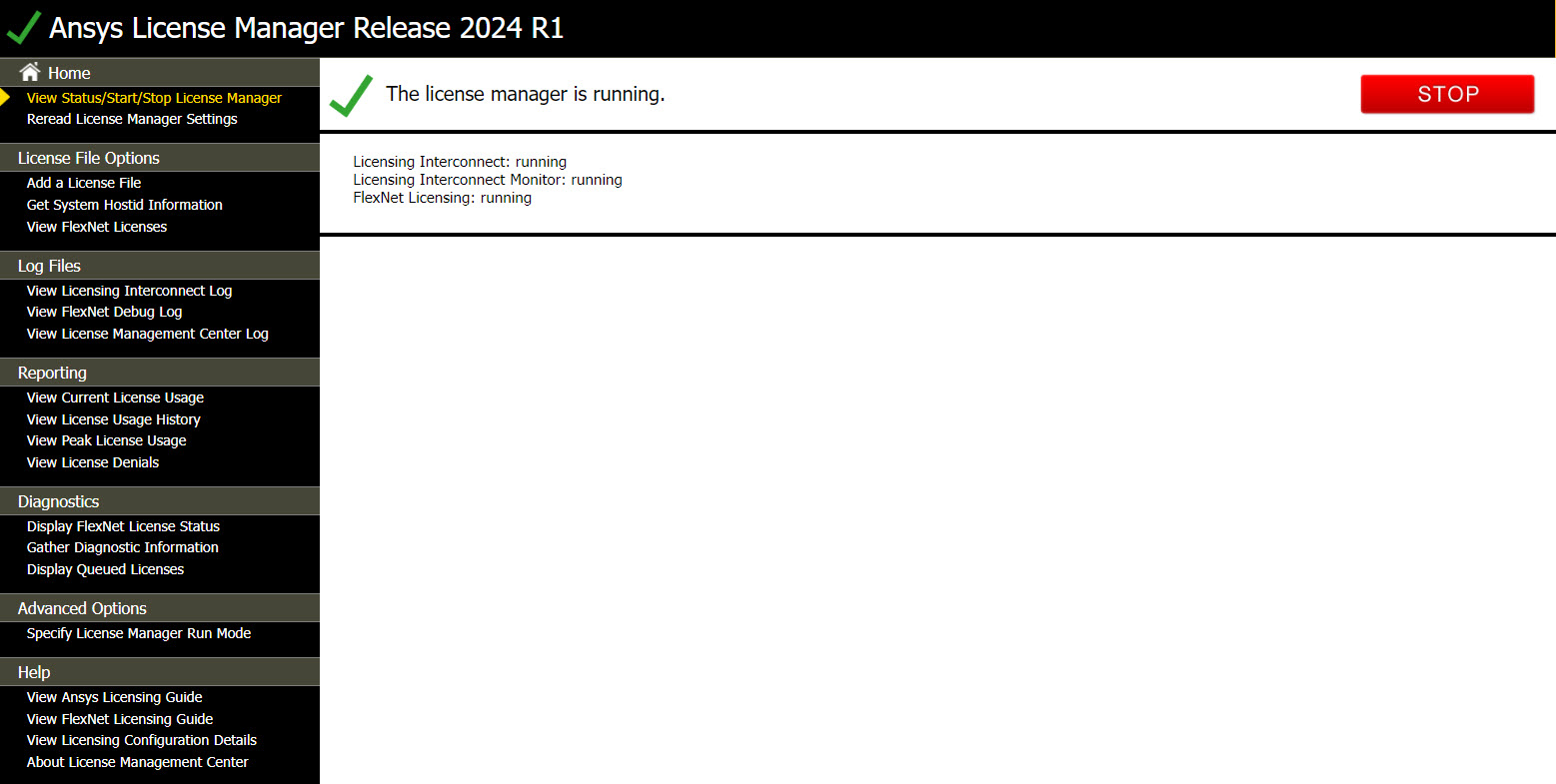
Click .
From the License Manager Run Mode Specification screen, click the option.
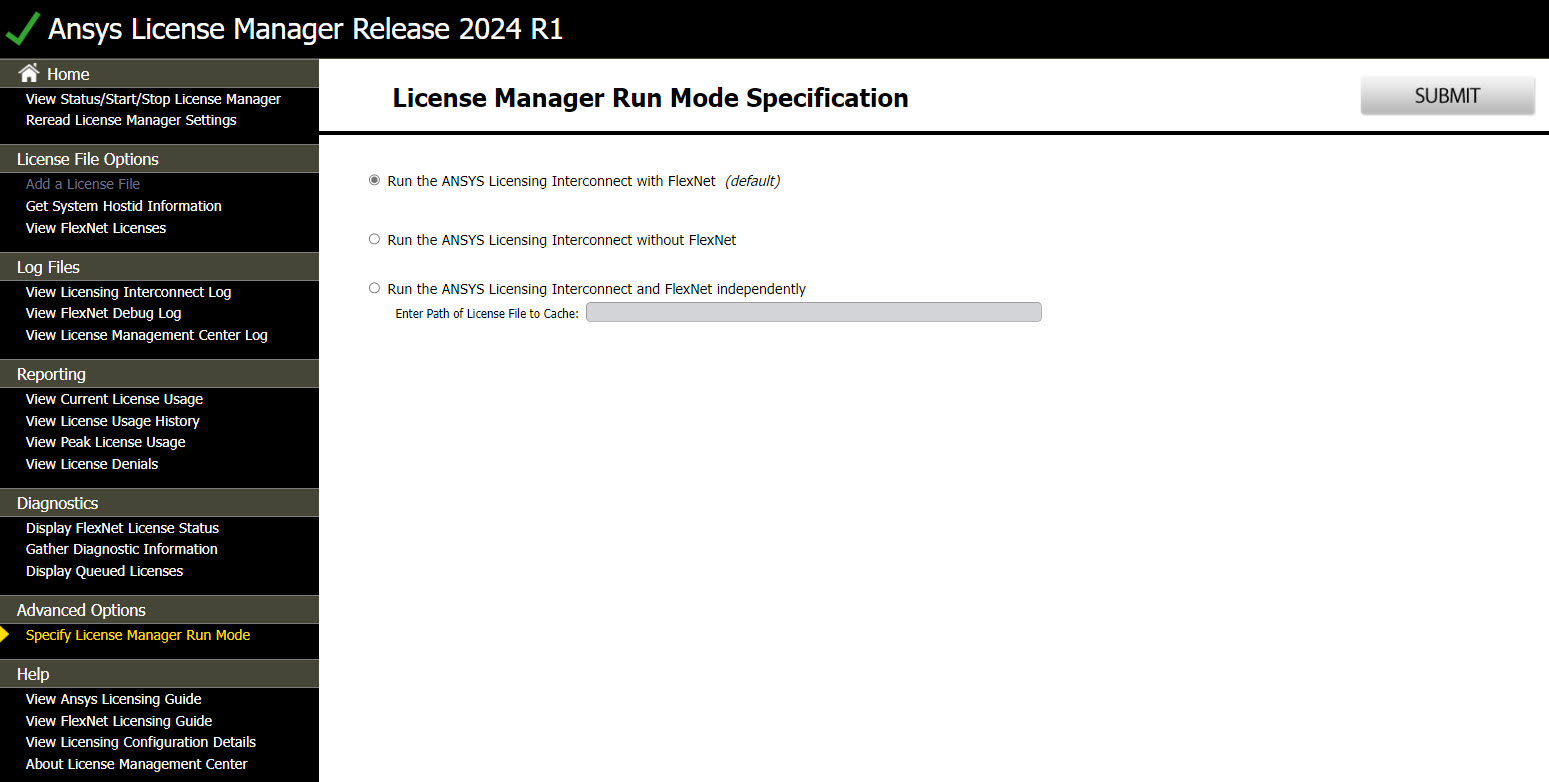
In the Enter Path of License File to Cache field, specify the path to an existing license file that was created for this server machine and that contains FlexNet licenses for Ansys, Inc. products. Note that the license file will not be installed, (that is, moved into the default Ansys license file location), but will be cached so that the Ansys Licensing Interconnect has the necessary licensing information, such as the licenses contained in that file.
Click the button to change the run mode..