


Toolbar
The Toolbar settings are available in the OpticStudio Preferences window, which can be displayed via a button in the Setup drop-down.
This allows the user to customize the icons after the separator in the Quick Access Toolbar.
By default the following buttons will be displayed in the Quick Access Toolbar: New, Open, Save As, Print, Undo, Redo, Update, Update All, and Bring to Front. Selecting "Bring To Front" shows a drop down menu list of all the open windows. Any window on the list may be selected, and brought to the front of the workspace.
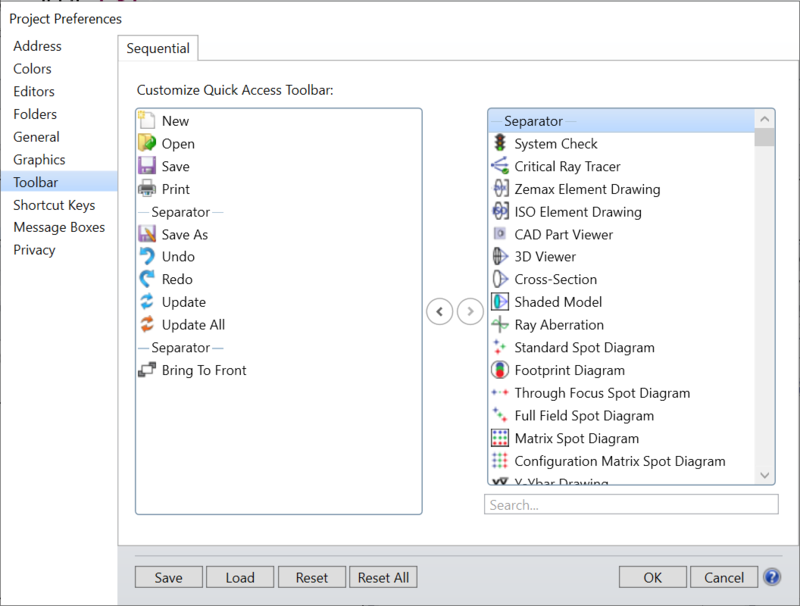
Move icons to and from the Quick Access Toolbar using the left and right arrows in the center.
To add a new tool to the Quick Access Toolbar, click on one of the features listed on the right, and then use the left arrow to move the feature to the toolbar.
For example, type "dock" to search for the "Dock All Windows" tool.
Click on the tool to select it, and then use the left arrow to move it to the toolbar:
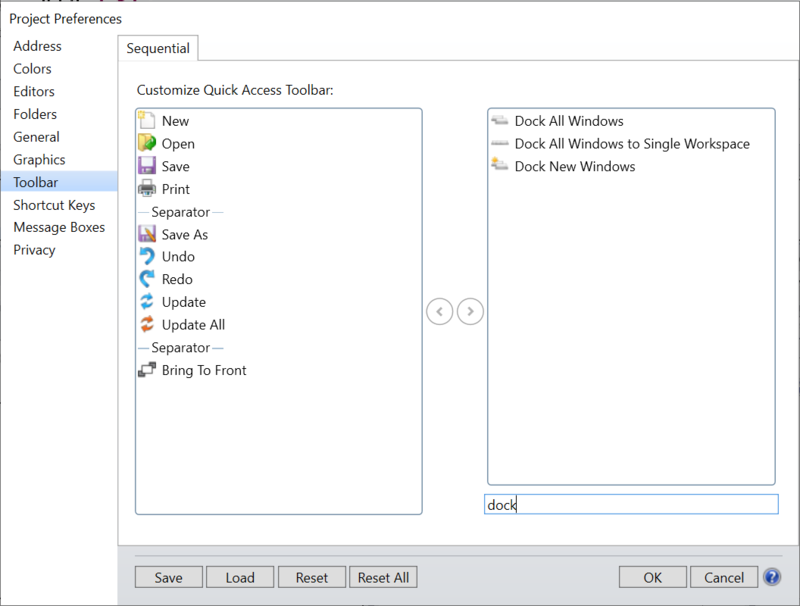
Similarly, the right arrow can be used to remove features from the toolbar.
Button Functions
Save Saves the current settings to the OpticsViewer configuration file.
Load Allows the user to load a previously saved configuration.
Reset/Reset All Resets one or all sections of the OpticStudio Preferences.
OK Closes the window and implements the changes without saving.
Cancel Closes the window without implementing any changes.
Next: