


Folders
The Folders settings are available in the OpticStudio Preferences window, which can be displayed via a button in the System section of the Setup Tab. These settings determine where OpticsViewer will place or search for certain types of files.
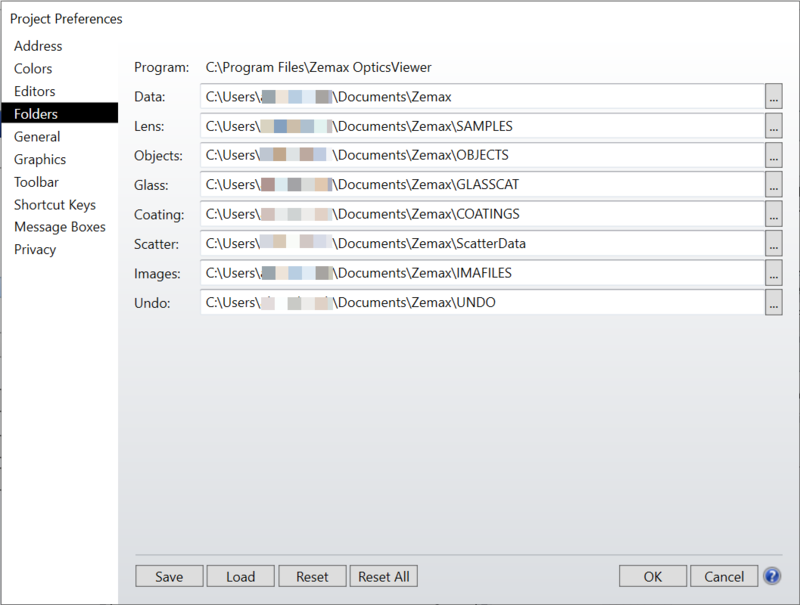
Folder Structure
OpticsViewer uses two main folders for storing programs and data. The OpticsViewer Application itself is stored under the Program Files folder, typically in C:\Program Files\Zemax OpticsViewer. This folder is determined upon installation and should generally not need to be changed by the user. This folder is called the "Program" folder and is referred to as <program>.
Other user data files, Dynamic Link Library (DLL) files, executable files for OpticsViewer extensions, license and configuration information, and the default OpticsViewer sample files are stored in a "root" folder that is selected the first time you launch OpticsViewer. OpticsViewer will display this root folder as the "Data" folder, and is referred to as <data>.
Choosing a folder to store your OpticsViewer data files
The first time you launch OpticsViewer, it will create a folder called "Zemax" inside your user account's "Documents" folder. A typical path would be C:\users\username\Documents\Zemax. Using this folder makes it easily accessible, and is a folder that is typically selected by most backup software and company IT departments. For OpticsViewer Online, the <data> folder will be set to the Cloud drive "P:\Zemax\" by default. For speed reasons, the default "Undo" folder for OpticsViewer Online is set to the local virtual machine drive "C:\Users\Mainframe2\Documents\Zemax\UNDO".
Modifying the <data> folder location
The "..." button may be used to browse for and to select the desired folder.
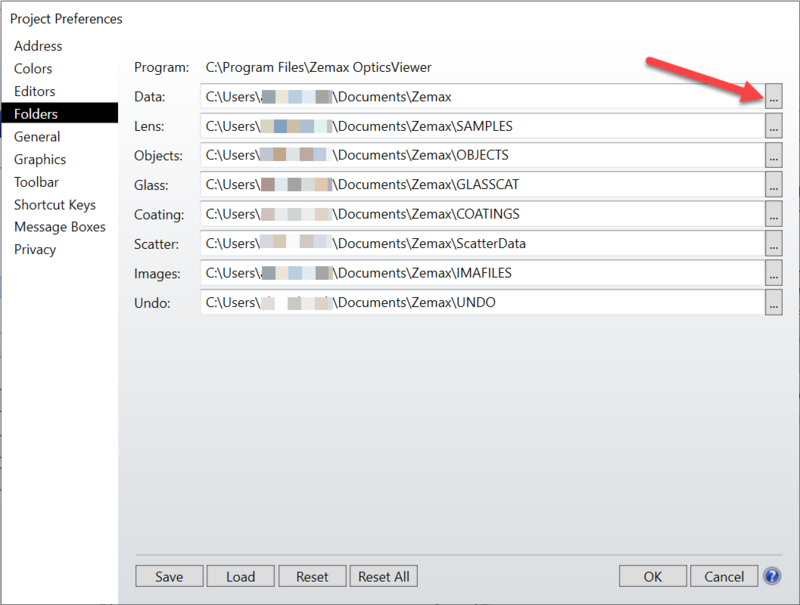
After choosing a new folder, you will get the following prompt:
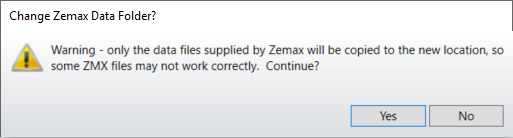
As indicated by the above message, when you change the <data> folder, it will copy the default data files supplied by Zemax into the new folder. It also resets all the following individual folder selections to be subfolders of your new <data>folder. Therefore, if you have previously changed the other folder locations on this list, you will need to change them again.
Modifying individual folder locations
The folders for lens, glass catalog, coating, image, scatter, and Undo files may be individually modified from the default in these preference pages. The "..." button may be used to browse for and to select the desired folder.
Note that if the default folder names are changed, then any updated files distributed with a new version of OpticsViewer will NOT automatically be placed in the new folders. For this reason, it is recommended that if the folder names are modified, that none of the files included with the OpticsViewer distribution (such as SCHOTT.AGF) are used in the modified folders.
Folders in the <data> folder that can be relocated
Lens The folder for lens files.
Glass The folder for glass catalog files.
Coating The folder for coating definition files.
Scatter The folder for scatter data files.
Images The folder for Image Simulation IMA, BMP, JPG, and PNG files.
Undo The folder for the UNDO lens files.
Creo Path The folder where the PTC Creo Parametric executable is installed.
Folders in the <data> folder that cannot be relocated
If you have changed the <data> folder, the below folders will be contain only the default files Zemax ships with. If you have added any of your own files, you will need to move them manually to the correct subfolder within your new <data> folder.
Autosave This folder is where files that are periodically automatically saved in case OpticsViewer shuts down unexpectedly.
Configs contains the OpticStudio Preferences configuration file, and the SNTLCONFIG.XML file to configure access to a Black USB network license.
DLL Dynamic Link Library files both supplied with OpticsViewer and added for user-defined capabilities, and executable files for OpticsViewer extensions, are stored in the DLL folder inside the <data> folder. The DLL folder location cannot be modified.
License License data files (which include support date information)
Extend DDE extension sample files
UDO User Defined Operands for use with DDE Extensions
Button Functions
Save Saves the current settings to the OpticsViewer configuration file.
Load Allows the user to load a previously saved configuration.
Reset/Reset All Resets one or all sections of the OpticStudio Preferences.
OK Closes the window and implements the changes without saving.
Cancel Closes the window without implementing any changes.
Next: