


NEST
Context:
Tolerancing optical assemblies is a complex task, often making TDE (Tolerance Data Editor) and LDE (Lens Data Editor) hard to read due to coordinate breaks and element tilts. Choosing the right tolerances depends on the setup and alignment method.
Introduction:
The new NEST tool is designed to improve and simplify the definition of tolerances for complex setups. It allows users to comprehensively define nested tolerances with corresponding accuracies automatically populated in the TDE.
NEST helps to visualize the system's tolerance groups. Users can create nested tolerances with specific pivot points without manually defining coordinate breaks and TUTX operands. The corresponding tolerance presets are automatically populated in the TDE.
NEST can be used for systems of Multiple Lens assembly (Drop-in assembly without alignment).
The tool will accurately capture the position tolerances of these optical elements.
It will consider the manufacturing tolerances of the optical surfaces, the housing, and the
position tolerances introduced during assembly. 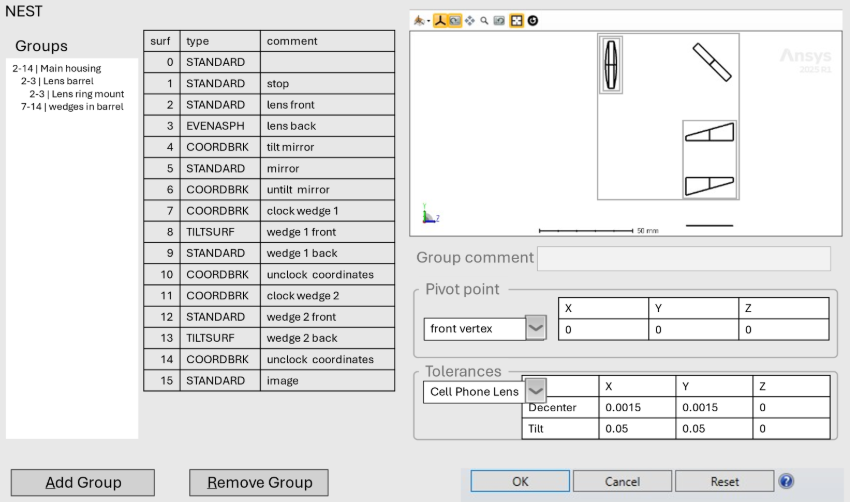
The dialog box has a "Groups" section (Far left section of the window) that allows the user to define the nested components in a way that makes it visually clear which surfaces are included.
The Groups section is the backbone of the tool. Initially it is empty, but as the groups are defined, it gets filled with clickable entries, that indicate each group and the nesting behavior
At the top right of the dialog box, there’s a window that plots the current system where the individual components are surrounded by a bounding box that marks the extent of that component.
Additionally, the "Group comment" section (Middle right corner) is a section where the user can define the pivot point type, position and tolerances for each element.
Add Group Clicking this button will add the highlighted line(s) into a new group. If no lines have been highlighted, then this button is without function.
Remove Group Clicking this button will remove the highlighted group from the tool. The defined pivot point and tolerance settings are still visible, and the lines still highlighted, so clicking the Add Group button would undo the removal. If no group is selected, then this button is without function.
Reset Any defined nested elements as well as tolerance settings are reset to the default (no nested elements).
Cancel Closes the dialog box but any changes made are maintained and will reappear if the tool is opened again.
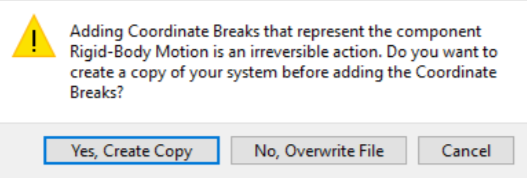
OKA popup appears where the user is asked if he wants to create a copy or overwrite, since this action cannot be undone.
Pivot Point Dropdown: Select one of the following options as a Pivot Point:
- Front vertex
- Rear vertex
- Front mechanical edge
- Rear mechanical edge
- Geometric center
Tolerances: The dropdown allows for the selection of some tolerance presets.
Next: