In 2026R1, the ModelCenter application was updated with new icons and new
styling:
The screenshots in this guide are not yet updated with the new look.
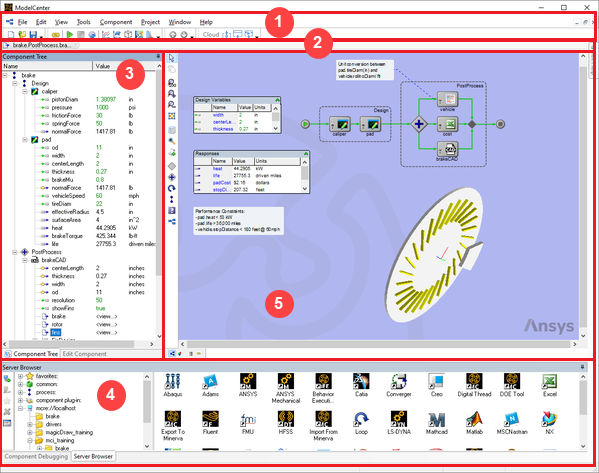
The interface organizes tools and data so you can build, run, and analyze workflows
efficiently:
Toolbars and menus: Quick access to common commands (open/save, run/stop, add
components, study tools) across the top of the window.
Smart Edit Bar: Context‑sensitive controls for creating and editing items
without opening additional dialogs.
Component Tree: A hierarchical view of the current model showing components,
sub‑workflows, and variables. Use it to navigate, rename, and organize your
workflow.
Server Browser: A catalog of available components and plug‑ins. Drag items
from here into your workflow to integrate external tools.
Analysis View: Configure data flow, set execution order, and inspect values
during runs.